

In the fast modern world of the workplace, it may be very difficult to remain attentive to every essential point discussed in meetings. Read AI Meeting Notes is a smart, intelligent note-taking assistant that automatically records, transcribes, and summarizes your meetings on platforms like Microsoft Teams and Zoom.
With the use of advanced AI, it is possible to make the discussion more structured with specific insights and action points that can assist teams in operating smarter without manual labor. This guide will discuss the nature of Read AI Meeting Notes, how it can be used, and discuss the most appropriate alternatives in case organizations need a reliable and privacy-conscious meeting AI too.
In this article
Part 1. What Is Read AI Meeting Notes?
Read AI Meeting Notes is a sophisticated meeting assistant that automatically takes notes, transcribes, and summarizes online meetings on various platforms. However, in case you are interested in how Read AI does its magic during meetings, take a look at its most impressive features:

- Real-Time Transcription: Read AI provides real-time, high-quality transcription with separation of speakers to ensure that the dialogues of each participant are easily identified.
- Summaries: Read AI generates summaries, briefly compiled by AI, of discussion highlights, key decisions, and action items after each meeting.
- Engagement/Talk-Time: The platform utilizes real-time analytics to monitor the talking time of each of its participants, average engagement, and the sentiment of the audience during meetings.
- Search Across Content: This feature allows users to search all meeting notes, transcripts, summaries, and cloud files using natural language queries.
- Smart Scheduling and Calendar Insights: Read AI includes smart scheduling, which is linked with Google Calendar, which displays available time slots and supports shareable scheduling links.
The typical workflow of a Read AI meeting revolves around connecting your apps to the calendar and letting your AI assistant automatically join the meeting. Once the user connects their app with the calendar, it will showcase all upcoming meetings. Users can enable or disable their assistant for desired meetings within its View option. When enabled, the bot automatically joins the meetings to transcribe data in real-time.
Who Can Use Read AI Meeting Notes?
Now that you know what Read AI can do, let's explore who can use this feature to get the most benefit out of it:
- Remote/Hybrid Teams: Read AI function provides real-time transcription to keep everyone aligned, even across time zones, by automatically generating summaries and sharing them via email.
- Sales/CS: This feature is beneficial in sales and customer service to record and summarize client calls, ensuring key points, objections, and their follow-up actions.
- OPS: Operating and internal teams use this feature to automate post-meeting workflows, turning discussions into structured action plans and reminders.
- Marketing Team: For marketers, this feature is a gem as they can easily record brainstorming sessions, campaign reviews, and client pitches automatically across meetings and channels.
- Education and Training Professionals: They utilize this feature to capture classes or onboarding sessions, generating searchable transcripts that trainees can reference later.
Teams Listing Highlights
The Microsoft Teams AppSource listing for Read AI meeting notes shows its key highlights, which are discussed below:

- AI Meeting Notes and Transcripts: Read AI automatically generates full transcripts and detailed summaries within Teams, highlighting key topics from every meeting.
- Search Copilot for Teams: A built-in AI assistant lets users ask queries across meeting content, messages, and documents directly in Teams apps.
- Live Dashboard: During meetings, users can view real-time transcription and engagement scores without leaving the Teams interface.
- Auto-Join and Reporting: Once calendar integration is enabled, the bot can automatically join meetings, record participation, and deliver post-meeting reports.
- Coaching Features: This feature specifically provides user-specific recommendations for pacing, tone, and engagement, helping improve communication.


 G2 Rating: 4.5/5 |
 100% Secure
Part 2. How to Use Read AI in Microsoft Teams (Step-by-Step)
Opting for Microsoft Teams is a great option if you are seeking the read AI notes feature to capture your lecture's main key points. Users can access this feature within the tool's App menu, located in the left tab. While meetings are in progress, users can view live engagement, talk-time breakdowns, pacing analysis, and more. It also offers a Pre-read feature to generate summaries, so let's explore its detailed stepwise guide:
Step 1Install The Teams App on Your Device
Go to the official Microsoft Teams website and download its latest version to your device by clicking on the "Download Teams" button.

Step 2Add the Read AI feature to the Teams App
Upon entering the tool, click on the three dots available on its left tab and search for the "Read AI" feature. Following this, click on the "Add" button adjacent to the "Read AI" feature.

Afterward, it will show you the sign-in interface, from which you can click on the "Continue with Microsoft" button to add the Read AI feature in the Teams interface.

Step 3Start Capturing Notes from Your Meeting
When you enter the meeting, toggle on the "AI Generated Notes" option to let the AI start the transcribing procedure.

Here, it will automatically start transcribing your meeting data in real-time, so you can copy and use it later.

Tips For Using Read AI in the Teams App
- Diarization: Speaker Diarization automatically distinguishes "who said what" throughout your Teams meetings, tagging each portion of the transcript.
- Menage Action Items: Read AI automatically detects and lists action items, responsibilities, and unresolved questions within summaries and transcripts.
- Share Recaps and Summaries: It simplifies post-meeting communication by giving users control over automatic or manual sharing settings inside Teams.
- Automate Workflows: You can automate various Read AI tasks directly within Teams or through integration tools like Teams or Zoom.
- Use Channel Summaries: This feature provides a concise overview of daily chat and message activity across collaborative channels.
G2 Rating: 4.5/5 |100% Secure
Part 3. How to Use Read AI in Zoom (Step-by-Step)
Read AI notes taker automatically joins scheduled Zoom meetings as a passive participant to record, transcribe, and analyze real-time discussions. After each meeting, it produces structured summaries that include chapter-based topics, decisions, action items, and questions. These summaries are further used for quick scanning so participants can instantly review key takeaways. So here, let's dive into its detailed stepwise guide to use this method:
Step 1Add/Authorize the Bot
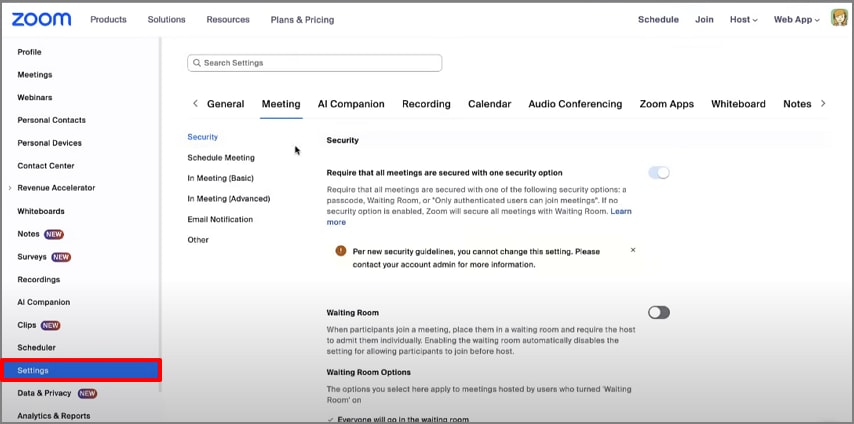
Access the Zoom app and click on the "Settings" menu within the left tab of this interface.
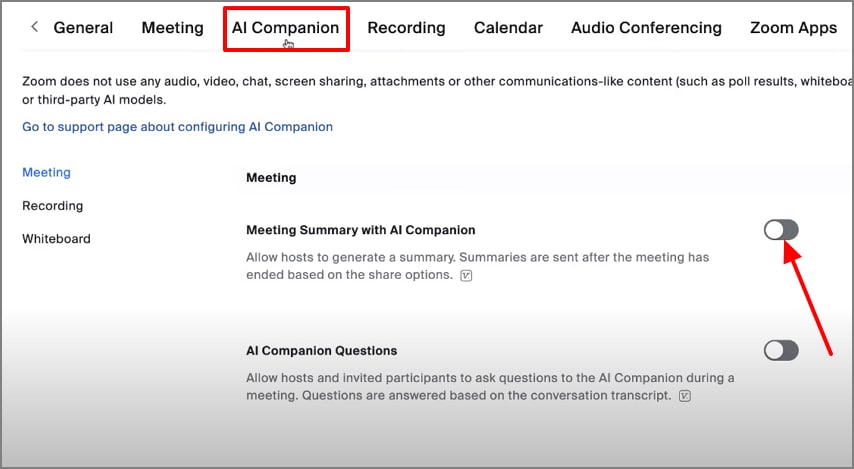
Following this, choose the "AI Companion" to enable the "Meeting Summary with AI Companion" to add the bot to Zoom.
Step 2Find Transcripts/Summaries (Post-Meeting)
Join the meeting and hit the "Summary" option in the tab below to let the AI bot start transcribing the meeting.

After the meeting ends, click on the "Team Chat' option in the above tab and select the "Creative" menu in the left tab. Here, you will find a detailed summary of the required meeting, which you can share with the team members.

Host Controls & Etiquette
Host controls play a crucial role in maintaining transparency and privacy when using Read AI in Zoom, so follow these points:
- Consent and Notification: Whenever the Read Assistant joins, Zoom shows a pop-up ensuring attendees are informed that AI transcription has started.
- Waiting Room Controls: If the calls are sensitive, enable Zoom's Waiting Room feature to examine participants before admitting them.
- Managing Permissions: If your organization uses the "Only authenticated users can join" setting, you must toggle it off temporarily for Read to function properly.
- Pre-meeting Contents: For external client sessions, ensure you get the pre-meeting consent for the AI tool via Gmail or notes.
- Announce Purpose: While using this tool, ensure you announce its valid purpose before making it clear to every team member.
G2 Rating: 4.5/5 |100% Secure
Part 4. How to Turn Off or Remove Read AI (Teams & Zoom)
Now, if you are exploring the procedure to read AI meeting notes turn off, then go through the following section:
Stop Auto-Joining (Account Settings & Calendars)
Access the AI read app, click on the "Calendar" menu from the left tab, and toggle off the desired app.

Remove From a Single Meeting
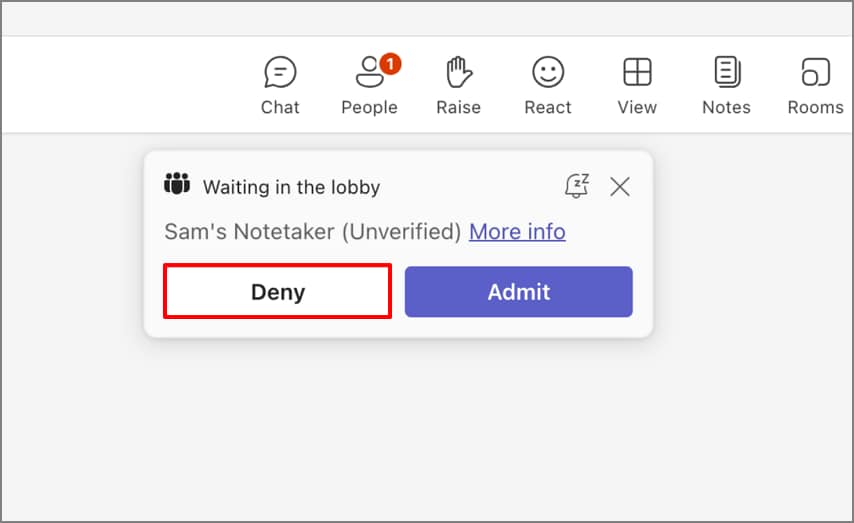
When you start your meeting, you will get notified with the Read AI to enter the meeting. Hit the "Deny" button to remove Read AI from the specific meeting.
Zoom-Specific Levers
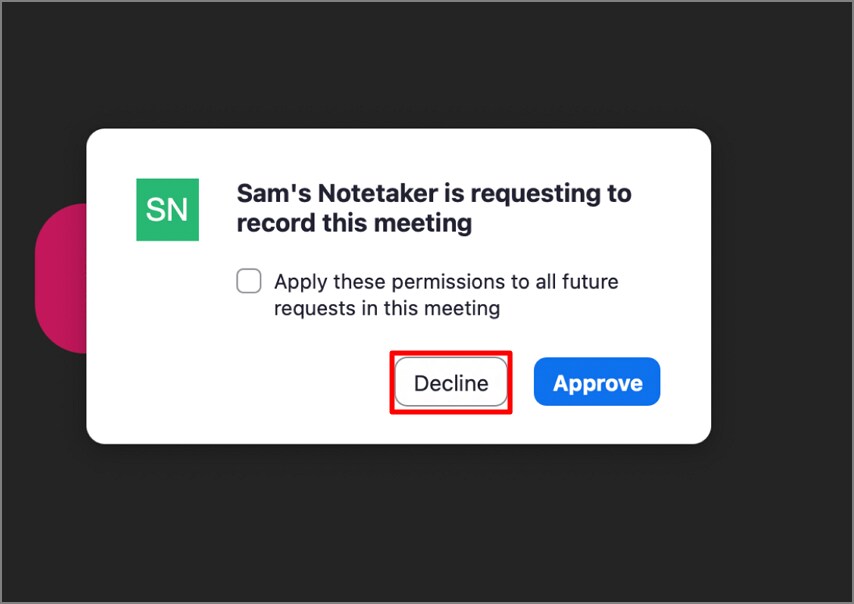
The Zoom app will also ask for your permission first, so click on the "Decline" button to remove Read AI from this meeting.
Note: If the above method doesn't disable this feature, try uninstalling and reinstalling the app to reboot it.
Part 5. Pros & Cons
Upon hearing about read meeting notetakers, let's explore their strengths and weaknesses for a better understanding:
Part 6. Read AI vs Alternatives (Who Should Pick What)
To help you make an informed decision, let's compare Read AI with some of its leading alternatives and identify which tool suits each user best:
When You Need Bot-Join + Enterprise Search
- Bot-Join for Hands-Free Capture: It automatically joins scheduled meetings on Zoom, Microsoft Teams, and Google Meet to record.
- Enterprise Search: Read AI's Search Copilot, a full-scale enterprise search engine through which users can ask questions to get contextual results linked to transcript moments.
- Integration and Intelligence: This feature integrates with enterprise tools, including MS Word, to allow users to easily streamline their procedures.
- Security, Compliance, and Scalability: This tool is SOC 2 Type II certified and guarantees no LLM training on customer data, making it an ideal solution.
- Who Should Choose: This specific tool is mainly used by organizations and sales companies to search and audit their data from a large pile of meetings.
When You Need In-Person, On-Device, Zero-Upload Minutes
Imagine you are a university student and your professor just gave you a 90-minute-long lecture. You dont have enough time to manually transcribe it for exam preparations. In this situation, we recommend using the PDFelement App, which provides a specific "AI Record" feature. Within this feature, you simply upload your audio notes, and it will provide you with a detailed summary.
Unlike Read meeting notetaker, which has a security risk, it works on your file locally, making your file completely secure. This tool lets users transcribe their audio into numerous languages, including English, Japanese, and French. Besides this feature, it provides various conversion tools to convert into any file format. Users can even compress their files to make them easy to handle
Detailed Guide to Use the PDFelement App
Step 1Select the AI Record Button and the Convert Button
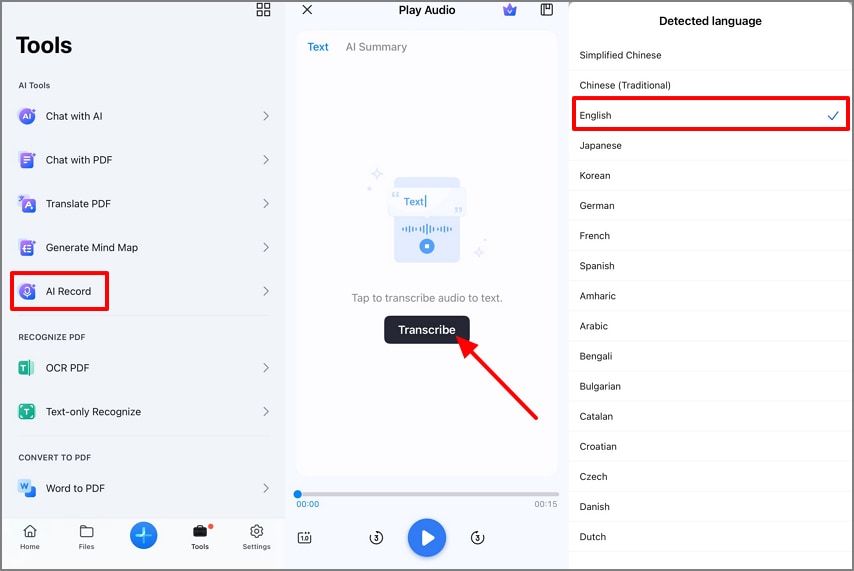
As you enter the app, click on the "Tools" section and then hit the "AI Record" option available. Now, click the "Transcribe" button and select the target language to begin the procedure.
Step 2Summarize the Audio File
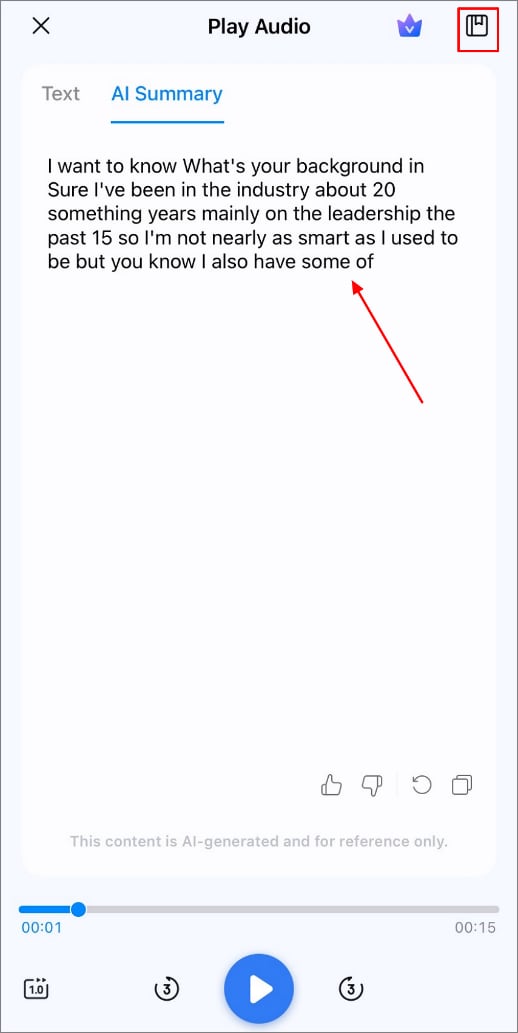
Here, you can view the entire text of your target audio. To get the summarized data, click on the "AI Summary" option and then select the Summarize button.

G2 Rating: 4.5/5 |100% Secure
Step 3Export the Summarized File to Device
Finally, your audio file is sized, click on the "Export" button at the top-right to save it to the device folder.
Positioning
PDFelement app is carefully positioned as a privacy-first AI workspace that provides advanced features, as follows:
- Private/Offline-Friendly: PDFelement App offers on-device transcription and summarization, unlike most cloud-dependent AI note apps.
- Perfect For Classrooms: For students and educators, the app allows secure lecture recording and fast summarization without online distractions.
- Interviews: Journalists and HR professionals can record field interviews directly from the app with speaker anime and timestamped transcripts.
- Client Sites: Employees who work on sites can use the PDFelement mobile app to record project notes, design explanations, or client conversations.
Other Branded Options
Besides this efficient tool, if you are exploring other reading AI meeting notes tools, then we have provided a quick breakdown below:
| Tools | Positioning | Who's it For |
| Otter.ai | A leading cloud-based transcription assistant offering real-time meeting summaries. | Best for students, journalists, and hybrid teams that need fast, collaborative transcripts. |
| Fireflies.ai | Focused on sales and operations, Fireflies records conversations and integrates directly into CRMs. | Ideal for sales, CS, and project teams who want automatic note capture. |
| Krisp AI | A noise-cancellation hybrid that removes background sound and provides clear summaries | Designed for remote professionals and call centers. |
| Meet Geek | Positions itself as an all-in-one meeting intelligence platform that auto-joins video calls. | Best for enterprise teams and managers seeking consistent meeting analytics |
Part 7. Pricing Snapshot
Curious about how much Read AI notes might cost? Here's a quick breakdown of its available plans and key pricing details:
Read AI Plan Tiers
Read AI offers different tiered plans for different usage levels, including Free, Pro, Enterprise, and Enterprise+. Its basic plans provide a limited summarizing feature, while its Enterprise plans offer unlimited summaries and premium support for multi-divisional support. For the most up-to-date pricing details for these plans, you can explore their official page.
Alternative Pricing Caveats
- Free vs. Paid Limits: Most AI note takers like Otter.ai, MeetGeek, and Krisp provide limited free usage minutes per month, while you need to buy pro versions to access their advanced features.
- Bot vs. On-Device Models: Fireflies and Read AI rely on meeting bots that auto-join video calls, offering automated summaries but raising privacy considerations. However, tools like the PDFelement mobile app generate summaries locally, which is ideal for those prioritizing data safety.
Conclusion
Summing up, people have been using the Read AI feature within apps like Teams and Zoom to efficiently transcribe their meetings. In this article, we have provided all the necessary information you need to know while using it. Furthermore, if you want a secure and quick option, we recommend using the PDFelement mobile app, which provides a specific "AI Record" feature.
Part 8. Frequently Asked Questions
People Also Ask
-
What is Read AI Meeting Notes (in Zoom/Teams)?
Read AI Meeting Notes is an AI-powered assistant that automatically joins, transcribes, and summarizes Zoom and Microsoft Teams meetings. It acts as a bot in virtual meetings, generating summaries and highlighting action items. -
How do I turn off Read AI or stop it from joining?
To turn off Read AI, users must go to Account settings, select the "Join Preferences" and disable the "Auto-Join" option. You can also toggle off the "Add Read?" for individual events directly from your Read dashboard or calendar. -
Is it safe/legal to record?
In most regions, recording a meeting is legal as long as all participants are notified and give their consent. You should also follow your company's privacy, data retention, and consent policies for a smooth process. -
Does Read AI work with both Zoom and Teams?
Absolutely, the advanced Read AI feature works natively with both the apps Zoom and Teams. They join as a bot to capture live discussions, generate transcripts, and auto-distribute summaries for later usage. -
What is the Best-Read AI alternative for in-person/zero-install?
If you're concerned about security with Read AI, PDFelement is a great alternative. It provides a Mobile app, an online tool, and a desktop version to cater to every audience.




