
In this article
- Quick Overview: Smart Transcription vs. Privacy-Focused Alternative
- Understanding What is Otter AI
- Stepwise Guide on How to Use Otter AI
- Benefits and Drawbacks of Using Otter AI
- Choose Between Fireflies and Otter AI: Find the Perfect Fit
- Choose Between Fathom and Otter AI: Find the Perfect Fit
- The Best Otter AI Alternatives in 2026
- Different Scenarios When the Otter AI Tool Is Not a Good Fit
- Extend Your Workflow: PDFelement Online and Desktop Tool
- Pricing Plans of Otter
Think of the possibility of participating in a Zoom meeting with all words, ideas, and action items being automatically recorded and summarized. Otter AI provides intelligent, AI-based meeting transcription that converts a conversation to shareable and accurate notes. Business meetings and online classes, and more are all instances where Otter assists users to remain concentrated.
The following article will describe what Otter AI is, how it operates, and who will find it to be the most useful. You will also find some alternatives, such as the offline and privacy-first apps, like PDFelement App, available to users who love to do on-device recording and transcription.


 G2 Rating: 4.5/5 |
 100% Secure
Part 1. Quick Overview: Smart Transcription vs. Privacy-Focused Alternative
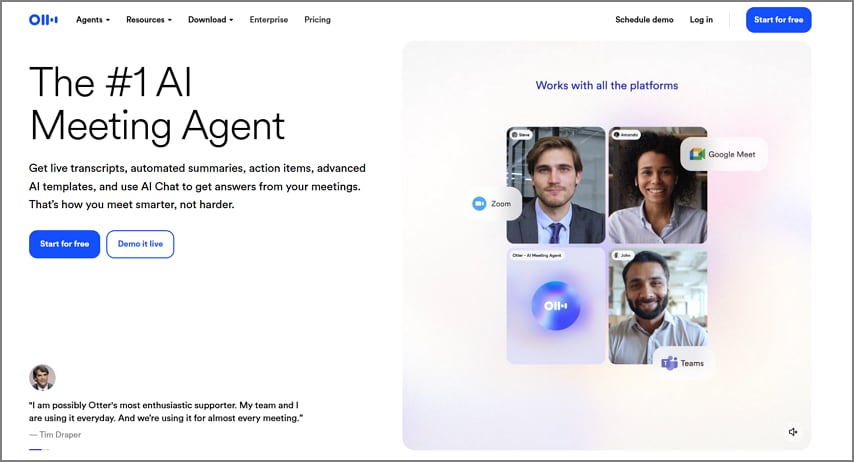
Otter AI note taker transforms conversations carried out in meetings into meeting notes with the help of AI for transcription and summarization. This tool is best for users who attend online meetings through Zoom, Teams, or Google Meet, in lectures and interviews, to ensure accuracy and collaboration. On the other hand, if you need an on-device recording and transcription solution, you need to pick PDFelement App, which is perfect for in-person discussions.
Note: While recording meetings or conversations for AI meeting notes, you need to make sure you have the consent of the involved parties before you start recording.
Part 2. Understanding What is Otter AI
Let us start understanding what the Otter AI note-taking tool is, how it typically works, and which individuals are best suited for such tools:
Core Features
- Otter AI provides live transcriptions that capture the spoken words recorded in real time, so that you can refer back to them immediately.
- This tool generates AI summaries of the recorded meetings so that you get a reference to the action items and then the discussion points.
- With the speaker labels and diarization, it distinguishes between the different voices for clarity.
- Using the searchable notes function, you can look for keywords or locate specific topics.
- Otter note taker allows you to share the notes with other team members to collaborate with them to edit and review the transcripts together.
Workflow of Otter AI
This meeting note taker is usually connected to the calendar where the expected meeting details are entered. The integrated AI bot will join the scheduled meeting automatically. Once the conversation starts, the AI tool will begin transcription and generate summaries, which users can later review and share.
Who It Is For:
- With the help of this tool, remote and hybrid workers can get immediate auto-generated meeting documents.
- The sales and customer success professionals can keep track of the discussion with the clients.
- Otter notes will help the students to record a lecture and get the notes without having to manually write down notes.
- Researchers who conduct interviews can refer back to the notes generated by Otter to gain qualitative data analysis.
Part 3. Stepwise Guide on How to Use Otter AI
After the in-depth discussion of the Otter AI meeting note-taking tool, let us dive into the steps you need to carry out to record a meeting or a lecture:
Step 1Start Recording a Scheduled Meeting on Otter AI
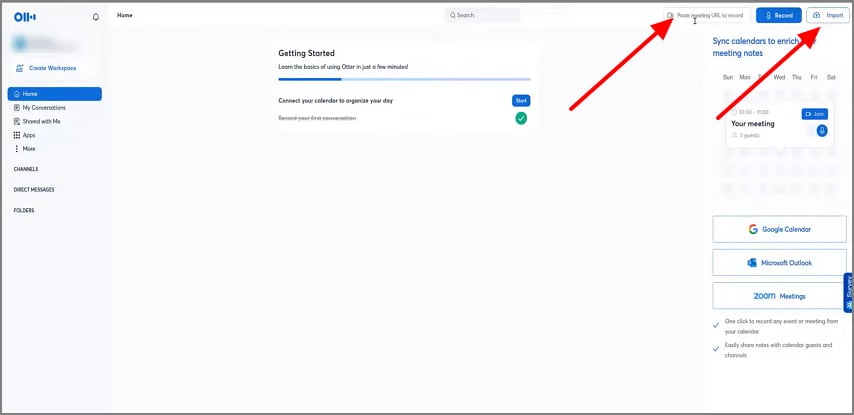
Access the Otter AI tool and make sure you are connected to the platforms where you hold your meetings. If it is not a scheduled meeting and you need to start a new meeting, click on the top-right search bar to add the link to the meeting. You can also use the "Import" button to add a recorded file.
Step 2Review and Edit the Notes From the Notes Section
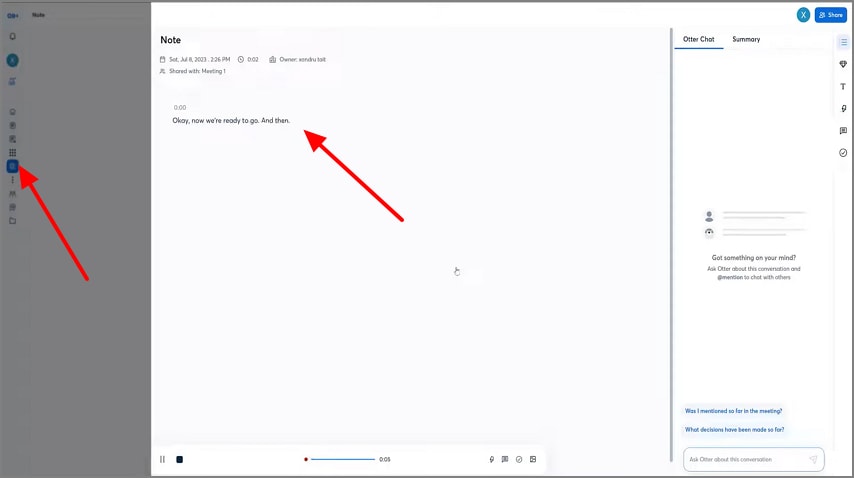
Moving on, click on the" Notes" option at the far-left corner of the interface and start speaking so that the tool starts to take down notes.
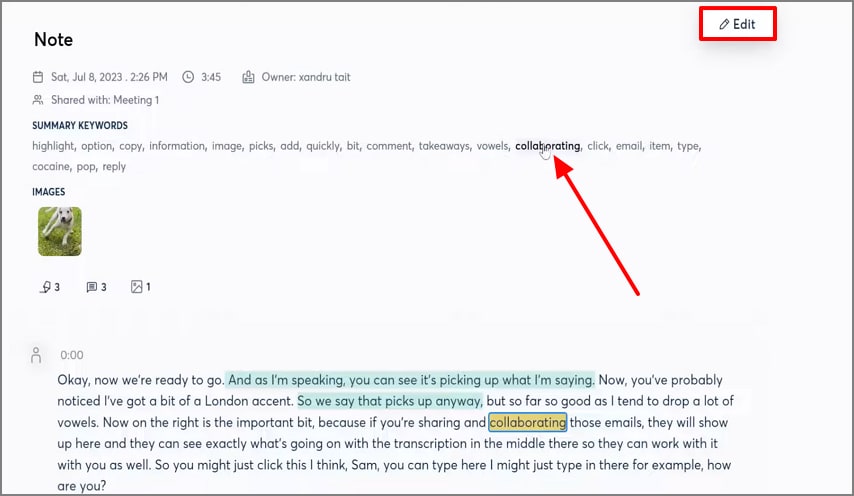
Once that is done, you can review the notes and hit the "Edit" button to make changes to the text. You can also annotate the document or highlight keywords or action items.
Step 3Export the Meeting Notes Generated Using Otter AI
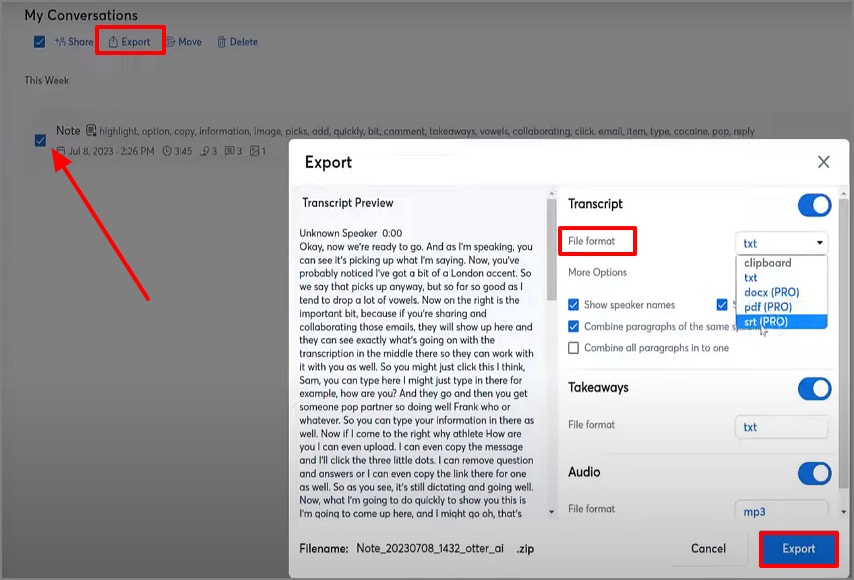
Coming towards the end, access the "My Conversations" section in Otter AI and hit the "Checkbox" of the notes you want to download. Finally, hit the "Export" button and choose the "File Format" as per your preferences to hit the "Export" button and download the results.
Tips to Keep in Mind While Using Otter AI
- Check your microphone and ensure it has a good audio input before starting to record or having any meetings.
- You can invite all the involved speakers to your Otter workspace to ensure their voices are correctly recognized and outlined in the transcript.
- Use an environment with low noise so as to reduce the background noise and enhance the overall accuracy of transcription.
- Use a steady and slow voice to ensure that the words and context are better captured by the Otter AI notetaker.
- Filler words that should be reviewed and cleaned out, such as um, uh, you know, etc., to achieve more professional and readable transcripts.
- Always save and categorize your transcripts immediately to prevent confusion and to ensure that you have essential notes that can be referred to later.
Part 4. Benefits and Drawbacks of Using Otter AI
While using the Otter AI Note Taker tool, there were different benefits and drawbacks that were reported by users. Here is a quick overview through a table to help you understand the benefits gained and the drawbacks experienced while using this tool:
G2 Rating: 4.5/5 |100% Secure
Part 5. Choose Between Fireflies and Otter AI: Find the Perfect Fit
While Fireflies and Otter AI are both AI-based meeting transcription providers, they serve different sorts of workflows, have other priorities, and collaboration styles. Below, we have looked into the various factors that differentiate Fireflies vs. Otter to help you pick the most suitable option:
| Aspects | Otter AI | Fireflies |
| Team Workflow and User Experience | Easy-to-use interface with manual recording and organized notes, which is great for teams that value clarity and control. | Automatically records and transcribes meetings with bots, saving time and simplifying team workflows. |
| Integration vs. Note Quality | Focuses on accurate transcripts and clean AI summaries for easy sharing and review. | Connects deeply with CRMs and project tools to sync notes, tasks, and summaries automatically. |
| Pricing and Tier Flexibility | Budget-friendly and ideal for individuals or small teams needing reliable transcription. | Designed for larger teams with advanced automation and integrations, available in business and enterprise tiers. |
| Verdict By Use Case | Sales and customer success teams benefit most from Fireflies due to its CRM integration and automatic follow-up workflow. Otter AI is favored by students, journalists, and interviewers due to its credible quality of transcription, labeling of speakers, and recording of meetings with no distractions. Both tools, Fireflies (wholesale automation) and Otter (controlled and highly readable), can be used by remote and hybrid teams. | |
Part 6. Choose Between Fathom and Otter AI: Find the Perfect Fit
Fathom and Otter AI are both user-friendly when it comes to meeting capture. Yet, each has a unique recap style, permission, and level of automation that suits the requirements of different professionals. The comparison of Fathom vs. Otter AI shown below discusses how it excels in automatic CRM integration, while Otter AI offers flexible control and transparency during meetings:
| Aspects | Otter AI | Fathom |
| Meeting Recap and CRM Push Difference | Provides detailed transcripts, AI summaries, and searchable notes for in-depth review. | Automatically generates meeting summaries and pushes them to CRMs or task tools to track actions instantly. |
| Participation Optics and Permissions | Uses manual recording for better transparency and control, ideal for confidential meetings. | Employs a recording bot to auto-join calls for faster automation, though it may feel intrusive to participants. |
Verdict by Use Case
Otter AI notes will be valued in internal teams that handle confidential projects due to its privacy control, transparency, and flexibility in on-demand transcription. With Fathom's ability to automate the updating process of the CRM, minimizing manual entry, and enhancing follow-up reporting, the customer-facing teams are advantaged following the calls. Coaches and trainers can use both Fathom and Otter for either a concise recap or a detailed conversation analysis and context retention.
Part 7. The Best Otter AI Alternatives in 2026
Going through the Otter note-taking AI tool, users experience a few drawbacks and a lack of features. To replace this tool, here is a list of the best Otter AI free alternatives you can choose:
PDFelement [iOS/Android]
Recording on PDFelement App is highly efficient, as the speech is transcribed with remarkable precision and immediately creates an artificial intelligence summary. This saves users the hassle of manually organizing notes or important information. In addition to transcription, it provides a complete documentation package, which lets users edit, annotate, highlight, and manage meeting notes directly in PDFs. It is a one-stop productivity solution to smooth meeting documentation and review.
Best For: Face-to-face meetings, classes, interviews; sensitive to privacy place; low-speed Wi-Fi or intermittent.
G2 Rating: 4.5/5 |100% Secure
Step-by-Step Guide on Recording Notes
Dive into the steps below and figure out how you can use the Otter AI competitor, PDFelement, on your App phone to use its AI Record function:
Step 1Download PDFelement App and Navigate the AI Record Function
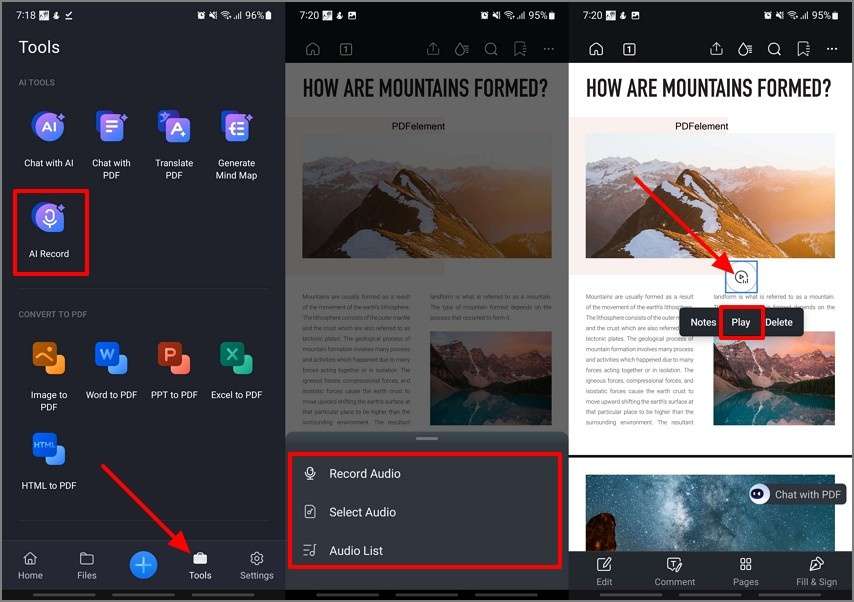
Initiate the process by accessing the PDFelement App’s latest version on your device and jump to the “Tools” section in the main interface. Here, choose the “AI Record” button. Import a PDF file you need to work on simultaneously. Then, pick the option of either “Record Audio,” “Select Audio,” or choose from the “Audio List” options and hit the “Play” button once the audio is added to the PDF.
Step 2Transcribe the Audio in Your Preferred Language and Review it
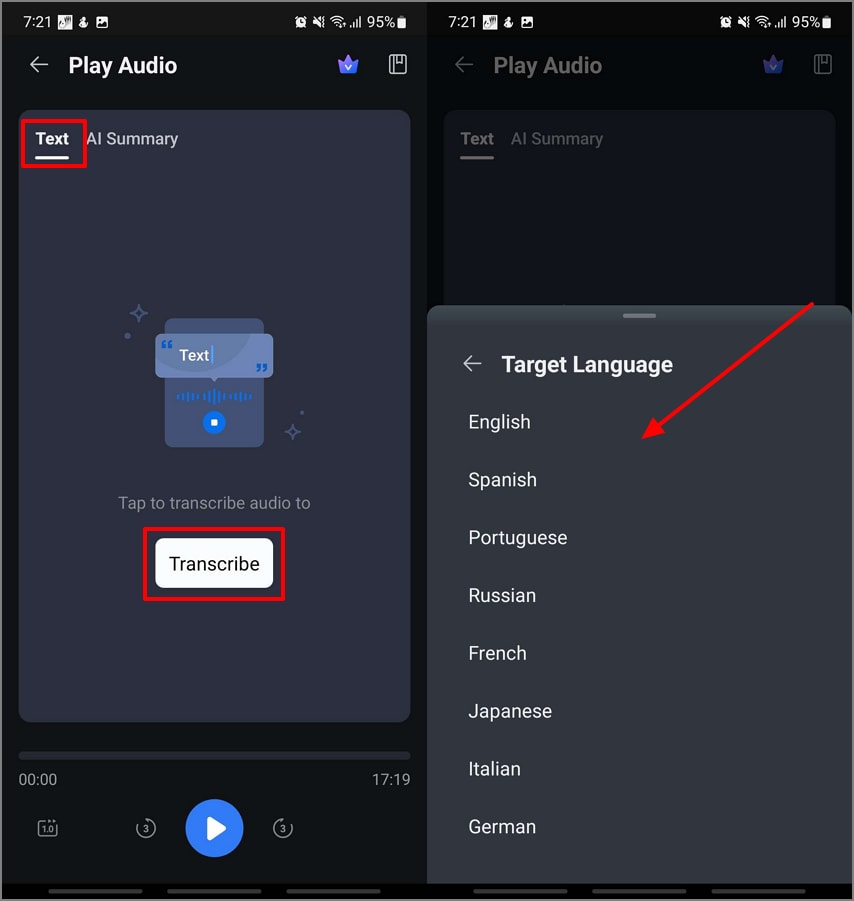
At the new interface, choose the “Text” section to hit the “Transcribe” button and choose the “Language” preferences. Once the results appear, review them and move to the next step.
Step 3Shift to AI Summary and Copy the Results of the Meeting Notes Summary
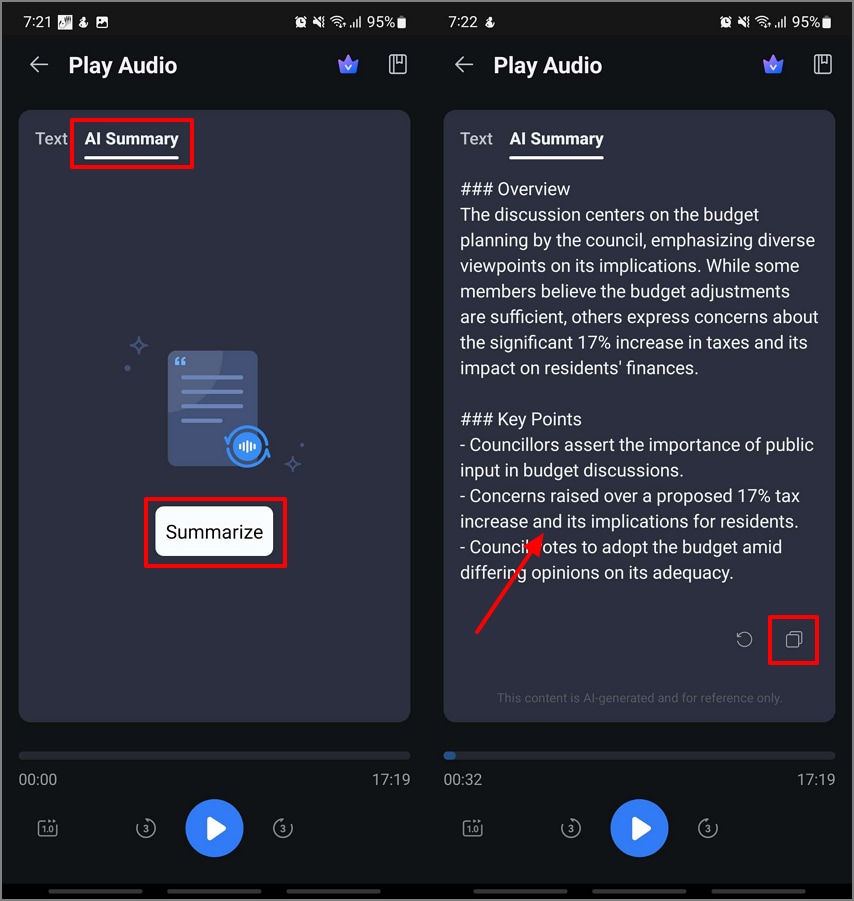
After the transcription is generated, shift to the “AI Summary” section and tap on the “Summarize” button to “Copy” the results.
Step 4Further Edit the PDF Document and Annotate it For a Final Download
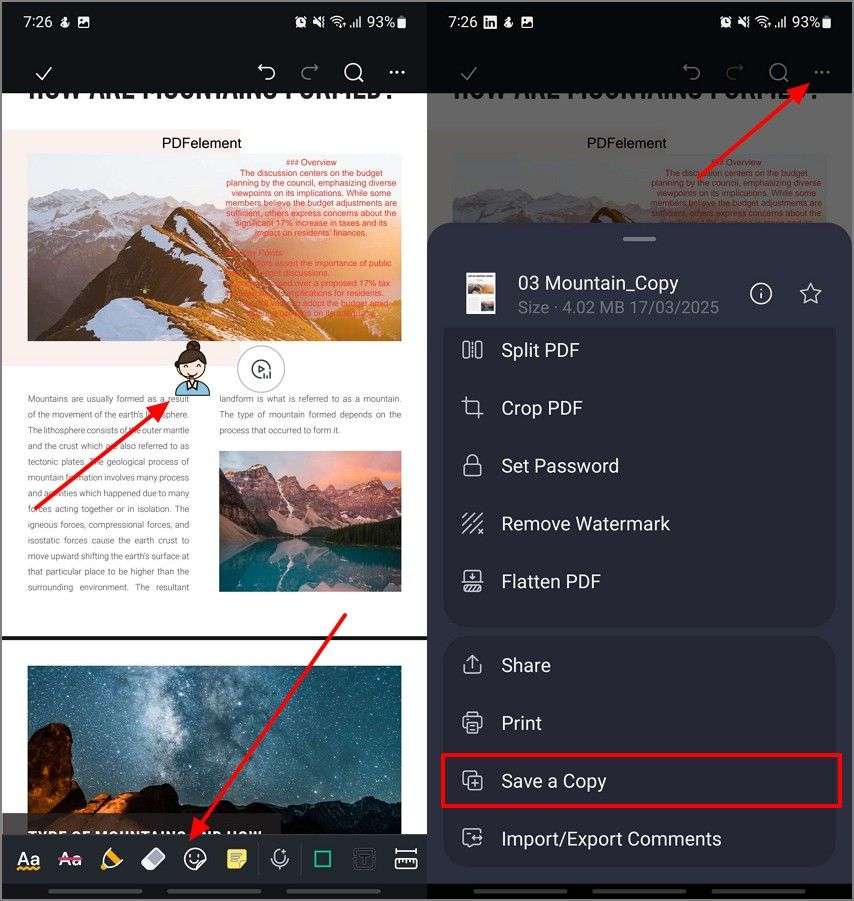
Upon reaching back to the editing interface of the tool, to edit the text or add new text like the summary copied above. Use the “Comment” option to add “Stickers” to the PDF. Once you are satisfied with the results, hit the “Horizontal Three Dots” to pick the “Save Copy” option to download the edited PDF to your device.
Key Features
- AI-Generated Mind Map: This feature will automatically use your meeting notes or transcripts and turn them into structured and visual mind maps. It assists users to more quickly learn relationships between ideas and is able to enhance comprehension with clear and interconnected images.
- AI Translate: Both translation modes are Fast (when quick draft translation is necessary) and Professional (when the accuracy and tone consistency are required). This allows users to translate a summary or notes of a meeting in more than one language easily.
- Switch AI Models: Provides users with options like the top AI models (DeepSeek-V3 / GPT-4o / GPT-4o-mini / Gemini 1.5 Pro) depending on their requirements- speed, accuracy, and cost. It guarantees that all the duties, including summarization and transcription, are performance-optimized.
- HTML to PDF Conversion: Transforms the web-based meeting agendas or documents to professional PDFs within seconds. This is one of the characteristics that allow the user to keep online content in a standardized, universal, and edible format.
Fireflies
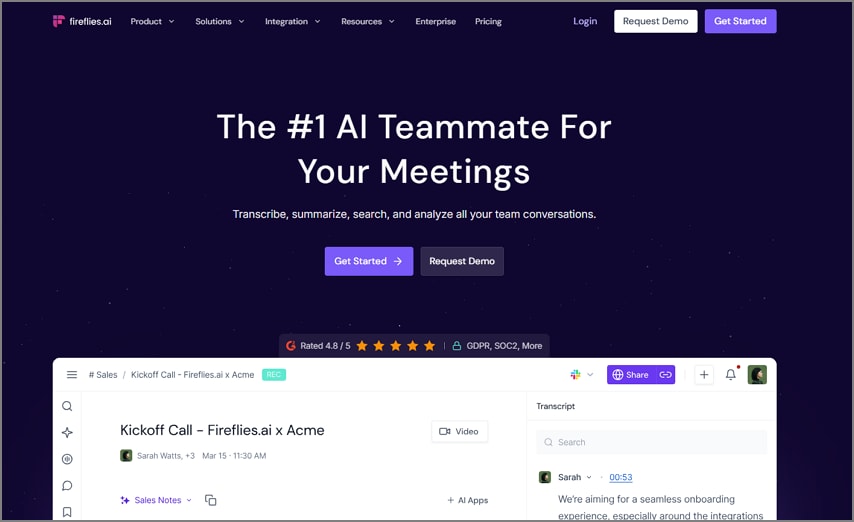
Best For: When teams require correct transcriptions and multilingual meeting summaries.
Key Features
- This Otter alternative transcribes the meetings in over 100 languages, along with speaker identification to support diverse users.
- It automatically generates searchable notes and summaries of the meetings or lecture recordings.
- Fireflies integrates with the CRM systems and productivity platforms to help the team members and leaders smooth out the workflow.
Who Should Pick It: Teams in the search for multilingual transcribers and enterprise-grade determinations and analysis
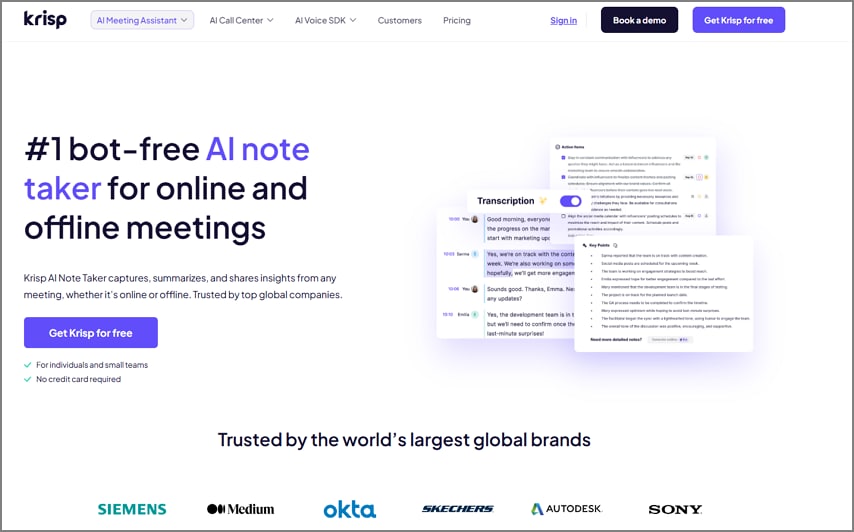
Krisp Notes
Best For: Online and offline teams that need to be able to take notes safely.
Key Features
- You can easily record, transcribe, and summarize both in-person and online meetings.
- It supports automation through an integration platform like Zapier and more.
- This tool integrates with the CRMs and the productivity tools like Notion, Asana, and Salesforce.
Who Should Pick It: Teams looking for an AI-boosted privacy-oriented note-taker that takes care of both virtualized and offline meetings.
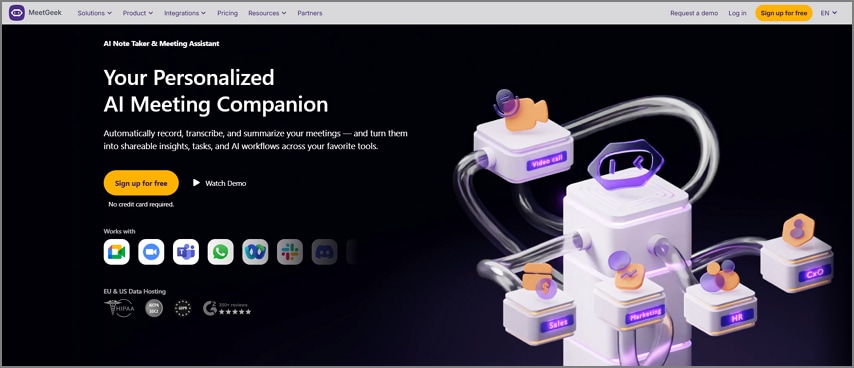
MeetGeek
Best For: Teams that require workflow automation and more customizable summaries.
Key Features
- It is integrated with over 10,000 apps through Zapier and other connector tools.
- Users get the ability to perform customization on the summary templates based on the type of meeting.
- MeetGeek also has a Chrome extension, which lets users perform live meeting recording instantly.
Who Should Pick It: Companies looking for a versatile, secure, and highly customizable AI meeting assistant.
Different Scenarios When the Otter AI Tool Is Not a Good Fit
From the above section of the article, it can be understood that Otter AI Meeting notes might not be the most effective method. Here, we will be discussing the different scenarios when Otter is not the best option and which tool will help you in such situations:
- No-Wi-Fi/Recording Bots Not Allowed: The cloud-dependent workflow of Otter AI is somehow inapplicable when Wi-Fi is unavailable or when recording bots are limited. In these situations, PDFelement App provides a trusted on-sensory record and transcribing view that is entirely disconnected.
- Classroom/Interview Consent Concerns: Academic or interviewing sources might not be comfortable with cloud-based records or automatic uploads. The PDFelement App enables recording to be made on-site, and the sensitive information is saved safely in the device.
- Need Bilingual Notes: In a multilingual meeting, the use of the limited translation features of Otter AI can reduce collaboration. With the aid of AI Translate in PDFelement App, users can immediately translate transcripts and access information in a different language.
- Exec Brief Needed In Minutes: Long transcripts provided by Otter AI may be too overwhelming when executives require a summary immediately after a meeting. The AI-generated mind map of PDFelement App is a tool that provides users with a structured visual summary of detailed notes.
Extend Your Workflow: PDFelement Online and Desktop Tool
Apart from the PDFelement App App, you can opt for the PDFelement Online or Desktop versions as well to get a different view of your PDFs.
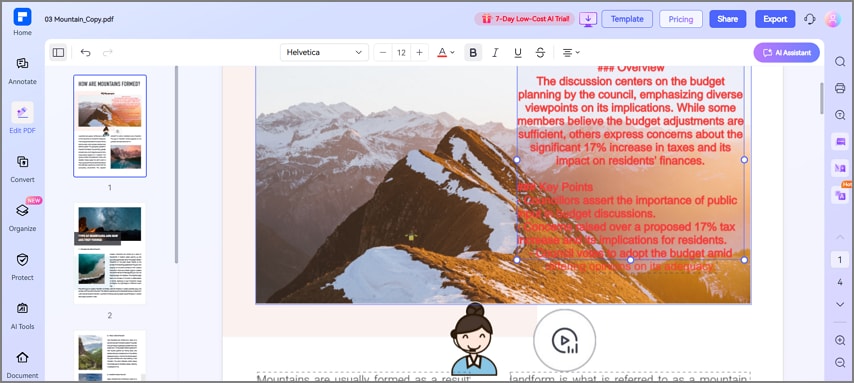
No-Install Review: PDFelement Online
PDFelement Online allows users to open and review meeting minutes directly in the browser, eliminating the need for software installation. It's ideal for quick edits, annotations, or sharing PDF notes with teammates, maintaining workflow speed and accessibility.
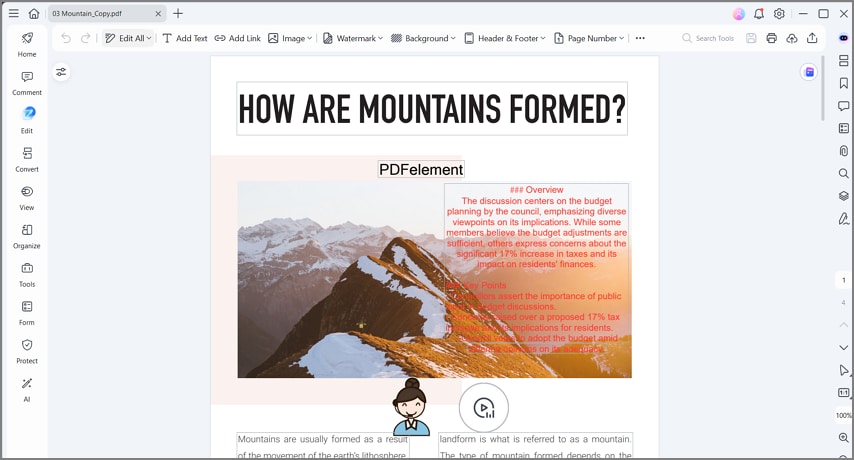
Compliance Finalization: PDFelement Desktop
PDFelement Desktop offers advanced editing and compliance tools, including redaction, stamps, batch file merging, and header or footer insertion. It's perfect for preparing finalized, print-ready meeting records while keeping sensitive details securely managed and professionally formatted.
G2 Rating: 4.5/5 |100% Secure
Pricing Plans of Otter
- Basic: Free - Limited Functions
- Pro: $16.99/ Month
- Business: $30/ Month
- Enterprise: Custom-built - Schedule a Demo
On-device App transcription reduces per-minute costs by eliminating the need for continuous cloud processing or server-based AI usage. With the Switch AI Models option, users can choose lighter or faster models to balance accuracy and cost efficiency.
Frequently Asked Questions
People Also Ask
-
What is Otter AI used for?
Otter AI is used to automatically transcribe meetings, lectures, and interviews in real time. It helps users generate searchable, shareable notes for better collaboration and reference. -
Does Otter AI join Zoom/Teams call automatically?
Yes, Otter's meeting bot can automatically join Zoom, Microsoft Teams, and Google Meet sessions. It records and transcribes discussions live for all participants to access later. -
Can I transcribe imported voice notes?
Yes, Otter AI allows you to upload pre-recorded audio files or voice notes for transcription. This is useful for interviews, research, or quick voice memos. -
How accurate is Otter vs alternatives?
Accuracy depends on factors like audio clarity, speaker differentiation, and background noise. Otter performs well for clear recordings but may vary compared to premium AI tools. -
Best free Otter AI alternatives?
PDFelement App, Notta, and Fireflies offer reliable free or low-cost transcription options. Each provides unique benefits like offline mode, integrations, or extended recording time. -
How do I capture in-person meetings without a bot?
You can record in-person conversations directly with PDFelement App for full privacy and offline convenience. It saves your audio and transcripts securely on your device. -
Is it legal to record meetings?
Recording laws vary by country or region, so always check local regulations before recording. Make sure to obtain consent from all participants to stay compliant.
Conclusion
To sum up, Otter AI is a dependable cloud-based transcription and bot-generated meeting note taker. It is ideal with remote teams, with students, and professionals who depend on Zoom, Teams, or Meet to record, transcribe, and organize discussions with ease. Its post-meeting productivity is simple due to its real-time summaries and collaboration tools.
Nevertheless, when you need privacy and control without having to rely on the cloud, PDFelement App will be your choice. It enables you to record face-to-face meetings safely, transcribe offline, and create fast AI summaries directly on your computer. Get PDFelement App and start enjoying the efficient, personal, and on-the-go note-taking.