

In today’s fast-paced world, it is hard to retain the information received in meetings or lectures. AI note takers help with their quick transcription capabilities to transform the meeting or lecture into readable notes. Among the many tools used for transcription and management of notes, Evernote stands as a prominent option. For countering all shortcomings, this article highlights the Evernote transcript tool and similar alternatives.
In this article
- Part 1. Practical Ways to Transcribe and Store Notes in Evernote
- Part 2. Breaking Down Evernote’s Transcription Capabilities
- Part 3. Exploring the PDFelement App As an Assisting Tool for Evernote
- Part 4. Using Built-In Speech Dictation with Evernote on Desktop and Mobile
- Part 5. Exploring Online Tools for Transcribing Media and Integrating it into Evernote
- Part 6. Evernote Transcription: Converting Multimedia to Text
- Part 7. Organizing Evernote with PDFelement for Efficient Project Management
- Part 8. Free vs Paid Transcription: Choosing the Right Approach
- Part 9. Ensuring Accurate and Secure Transcriptions
- Part 10. Fixing Accuracy, File, and Preview Problems in Evernote Workflows
- Part 11. Notting Down the Top Alternatives to Evernote Transcription
- Frequently Asked Questions
- Conclusion
Part 1. Practical Ways to Transcribe and Store Notes in Evernote
Users looking for a single platform that lets them transcribe and organize notes can consider Evernote. It serves as a powerful tool for capturing, organizing, and syncing notes across devices in various text, audio, and image formats. However, its transcription features differ depending on the user’s plan, app version, and region availability. The following steps explain how to record audio and take notes of your audio meeting using Evernote:
Step 1
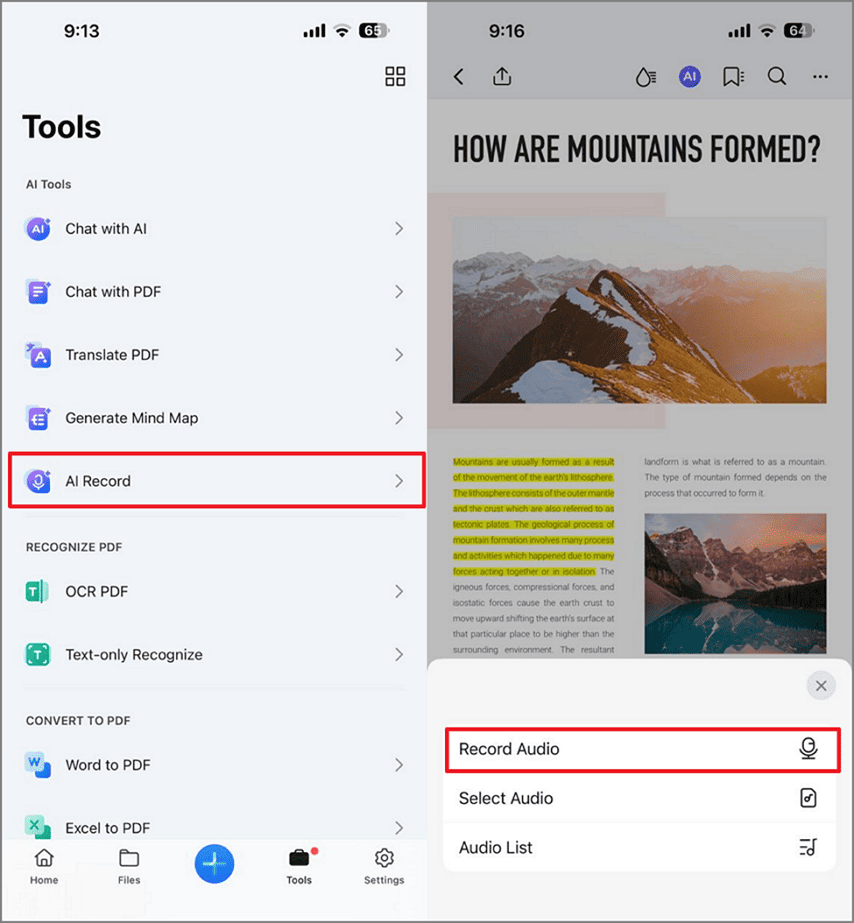
To begin with, download the PDFelement app on your phone and load the main interface. Select the “AI Record” button from the toolbox and import the desired PDF from your device for integration. Once the document is fetched, select the “Record Audio” option to start recording your voice. Once the audio is captured, tap anywhere on the screen to add the audio’s play button.
Step 2
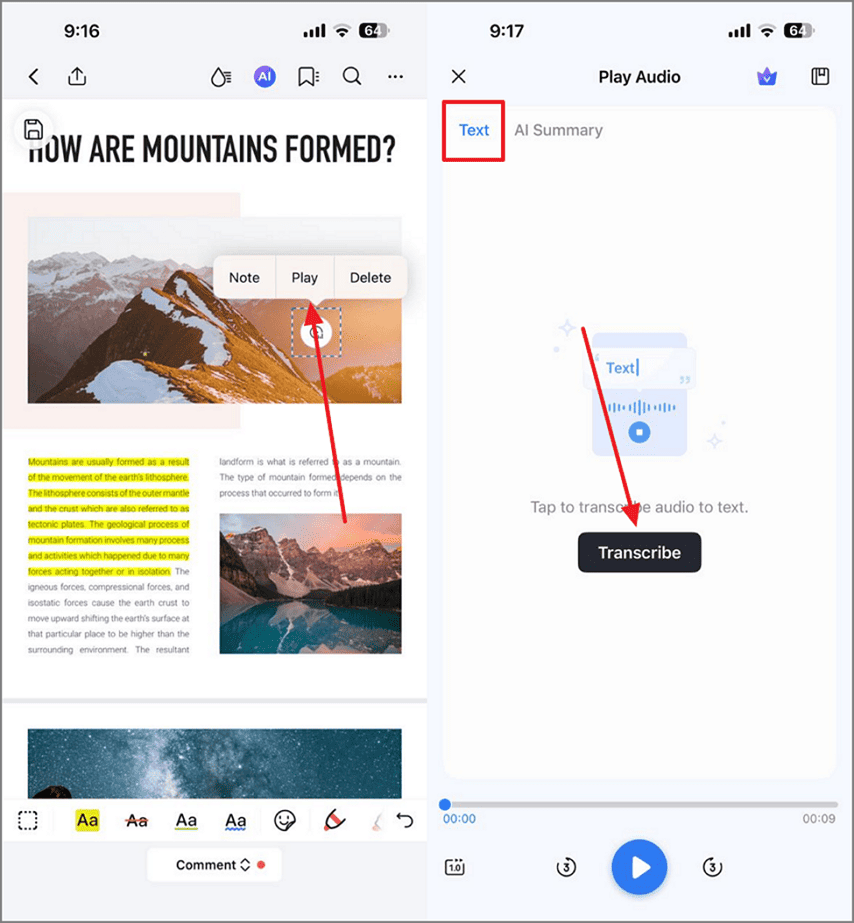
After the audio play button is made available, select the “Play” option from the pop-up menu that appears automatically. Here, enter the “Text” panel to “Transcribe” the audio.
Step 3
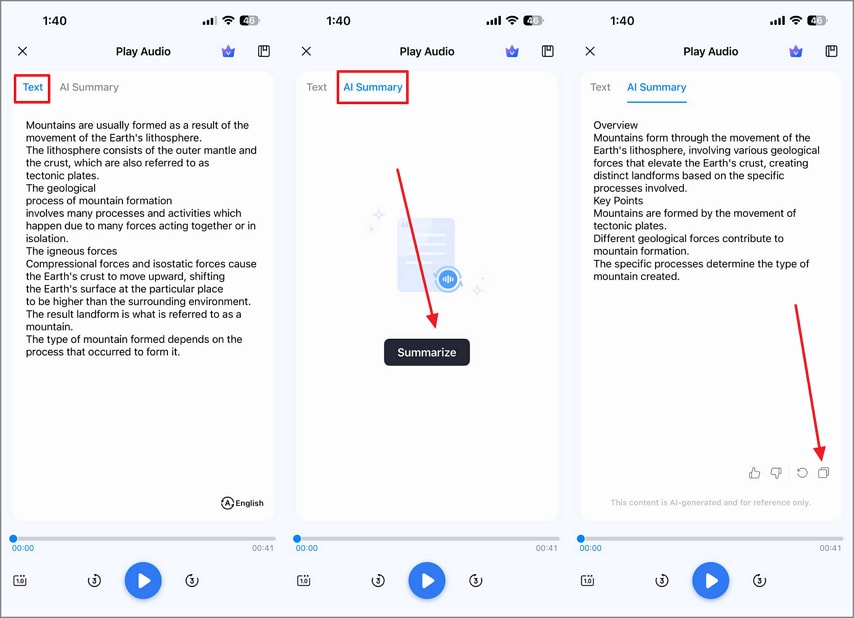
Switch to the “AI Summary” panel and tap the “Summarize” button to find the results on the following interface. Once generated, select the “Copy” button from the bottom right of the interface.
Step 4
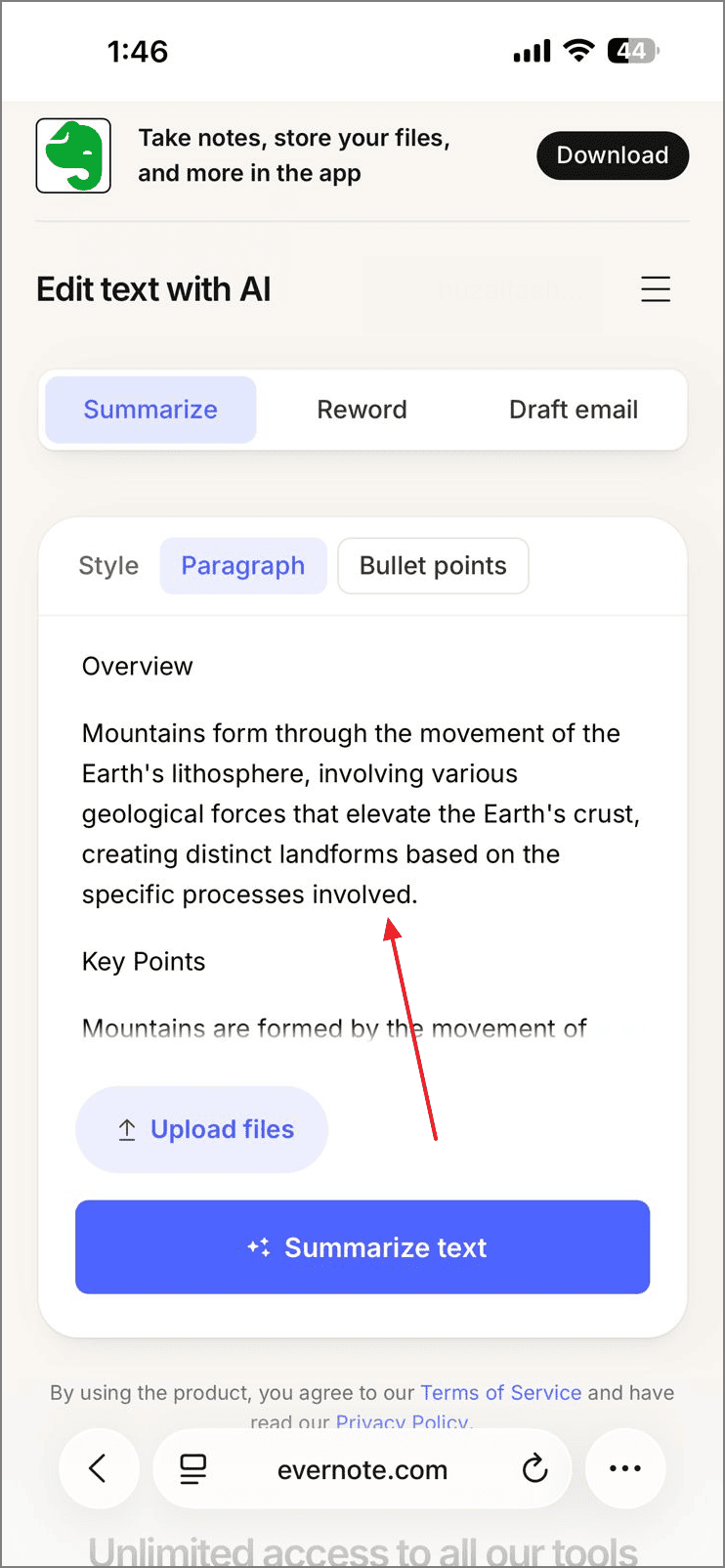
Access Evernote on the web and paste the recently copied AI summary into the notepad.


 G2 Rating: 4.5/5 |
 100% Secure
Part 2. Breaking Down Evernote’s Transcription Capabilities
With so many features to select from, users may get confused while using the Evernote audio transcription tool. The following section expands on the concept of this tool and its limitations:
Meaning of Evernote Transcription
When users mention Evernote transcription, they usually refer to the process of converting spoken content into editable text in Evernote. This can involve AI tools or integrated features that process audio and return text-based notes.
Voice Dictation vs File Transcription
Voice dictation uses your device’s built-in speech input to turn live speech into text directly in the Evernote Audio Recording to text app. File transcription, on the other hand, converts saved audio or video recordings into written text after uploading or linking them.
Common User Constraints
Users often face limitations such as poor accuracy in noisy environments and time limits on long recordings. They also show privacy concerns during sensitive meetings. When converting video to text, the tool requires extracting the audio first or using a tool that supports video input.
Part 3. Exploring the PDFelement App As an Assisting Tool for Evernote
The PDF integration features of Evernote call for a pre-prepared PDF. To make a ready-to-integrate document, you will need PDFelement Mobile. This platform allows for audio recording to make the text in the file more accessible. Besides the recording ability, it also enables users to transcribe the audio notes into text.
Once this interpretation is generated, users can summarize it and copy the results as TXT. Check out the following steps to learn how to create a PDF with audio with PDFelement Mobile and integrate it into the Evernote voice to text platform:
Step 1Record the Audio in Your Desired PDF Document
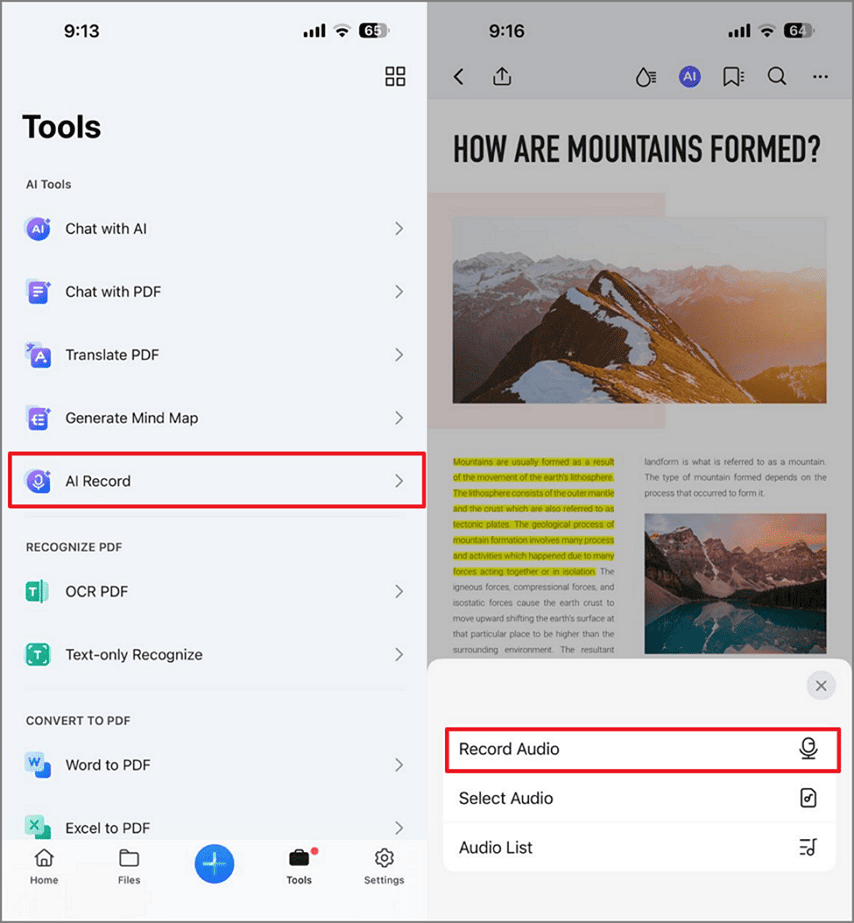
To begin with, select the “AI Record” tab from the toolbox and select the PDF in which you need to integrate the audio. When the document is imported, select the “Record Audio” tab from the pop-up menu and start recording.
Step 2Transcribe the Recorded Meeting
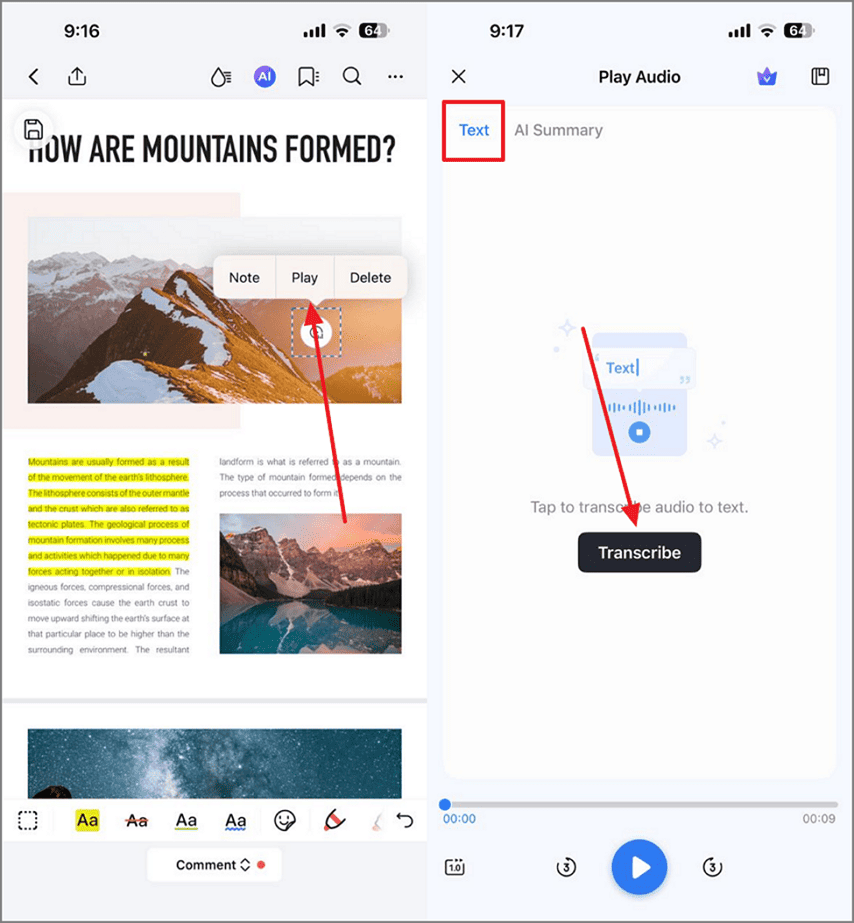
When you have aborted the audio, tap anywhere on the screen to add an audio play button. Using the pop-up menu that automatically appears, select “Play” and enter the following interface. Here, select the “Text” section from the top and hit the “Transcribe” button to find the speech-to-text results.
Step 3Summarize the Meeting with AI
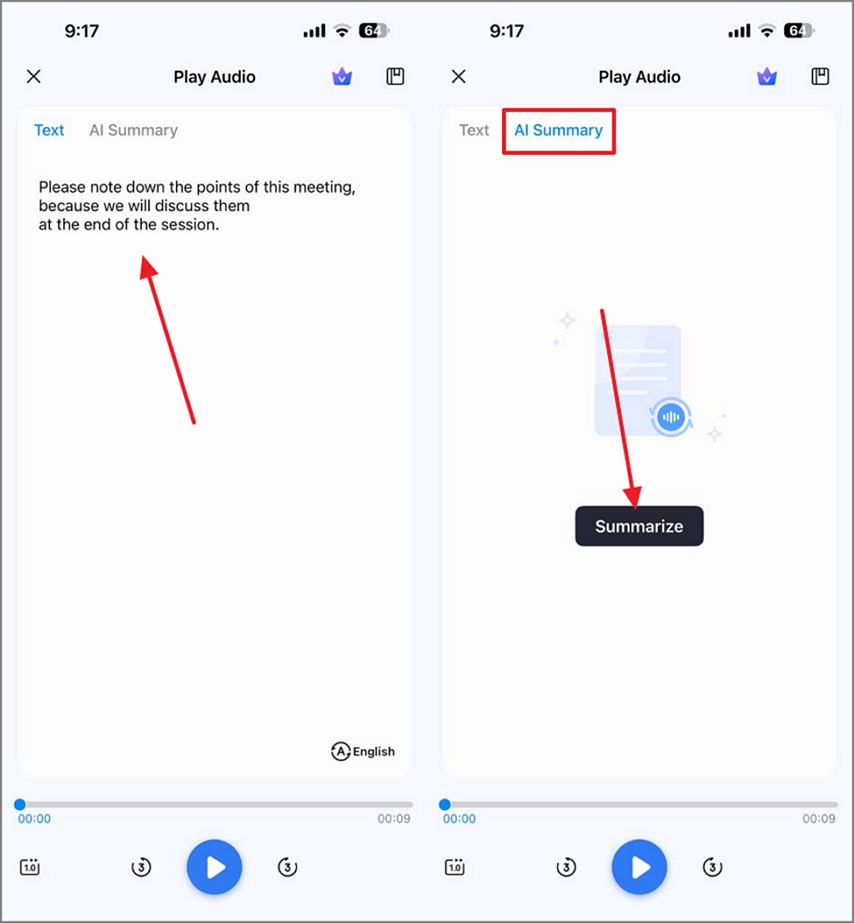
To get the summary of the meeting, enter the “AI Summary” tab from the top and select the “Summarize” button to get a meeting precis.
Step 4Add the Copied Summary in the PDF Template
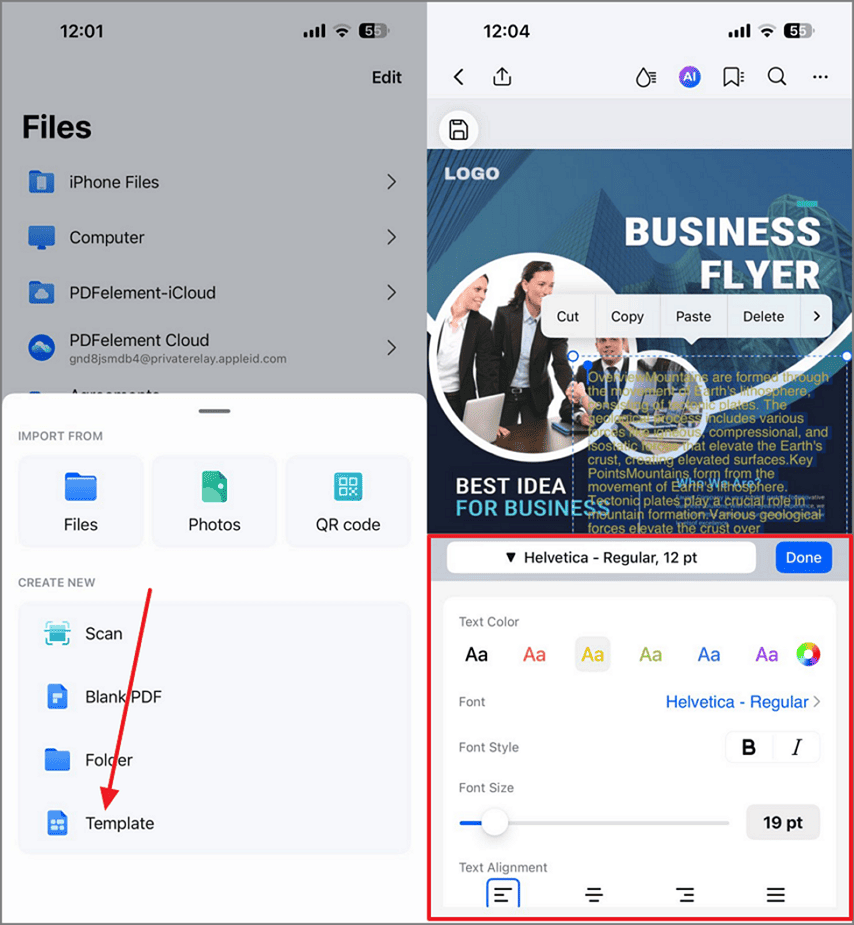
Once you have copied the AI-generated summary, head to the main interface of the PDFelement Mobile and select the “+” button at the bottom. Tap the “Template” option and pick the template that suits you. Next, paste the textual summary copied earlier and edit it using the editing section at the bottom.
Step 5Add a Sticker for Engagement
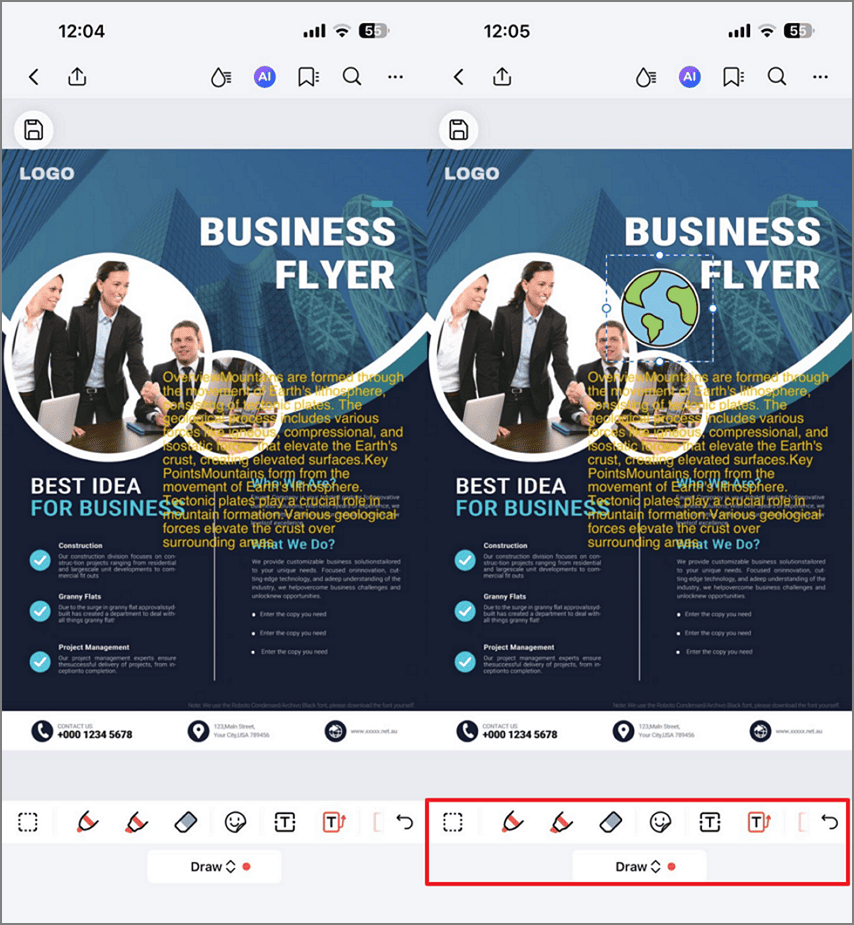
To incorporate a sticker into the PDF, enter the “Draw” mode from the menu at the bottom. Now, select the “Sticker” tab and apply the desired resource where needed in the document.
Step 6Share the PDF on the Files App
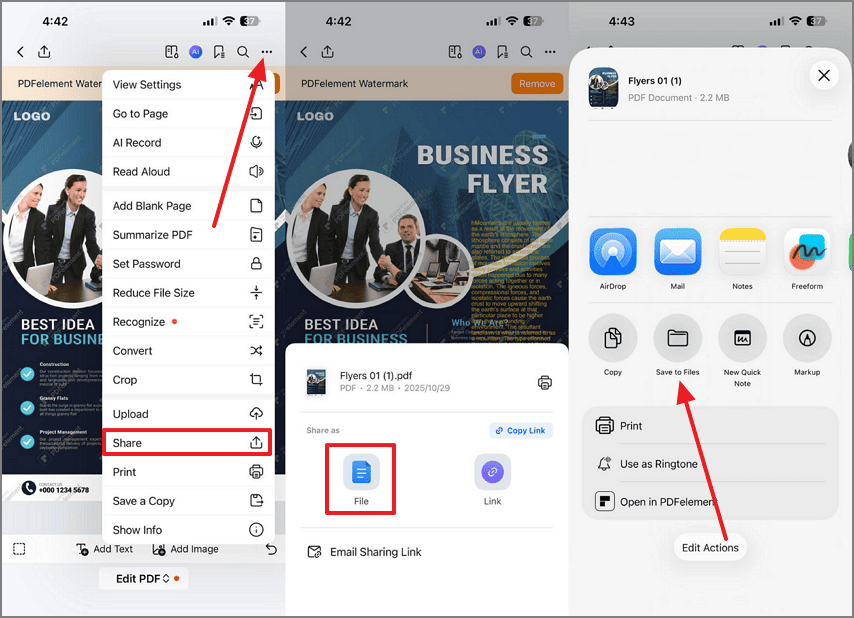
When the file is ready, access the “Menu” from the top right corner to “Share” it. Using the next menu at the bottom, tap “Files” and choose the “Save to Files” option from the following interface.
Step 7Share the PDF File Across Evernote
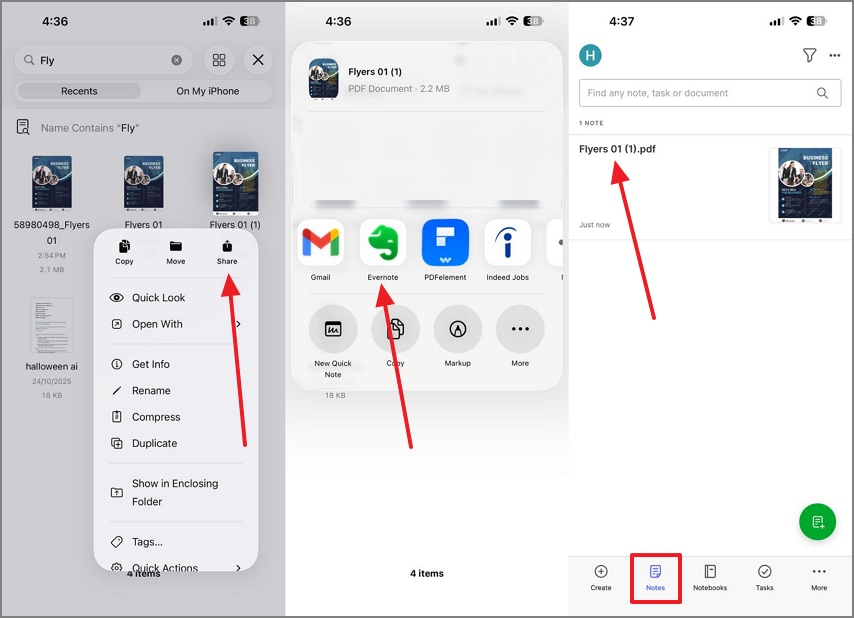
Once the file is saved in the Files app, access it and press and hold to open a pop-up menu. Using this menu, select the “Share” option and choose “Evernote” from the list of apps. Lastly, open the “Evernote” app on your phone and access the newly synced file in the “Notes” panel.
G2 Rating: 4.5/5 |100% Secure
Booster Features of the PDFelement Mobile
AI Generate Mind map: The voice-to-text Evernote alternative app generates mind maps from the summaries of your recordings to provide a better understanding of the content.
AI Translate: Benefit from the AI translation facilities by converting your PDF files into more than 100+ languages.
Switch AI Models: You can switch between the DeepSeek and GPT models according to the nature of your work, for expected results.
HTML to PDF: This platform converts a PDF file to and from HTML for easy integration into other tools.
Part 4. Using Built-In Speech Dictation with Evernote on Desktop and Mobile
Evernote is equipped with a built-in speech dictation feature on desktop and mobile. Its efficient speech-to-text utility enables you to record and transcribe within a single interface. The following section guides on using the dictation feature and explains the scenarios that are best and worst for using this voice-to-text Evernote functionality:
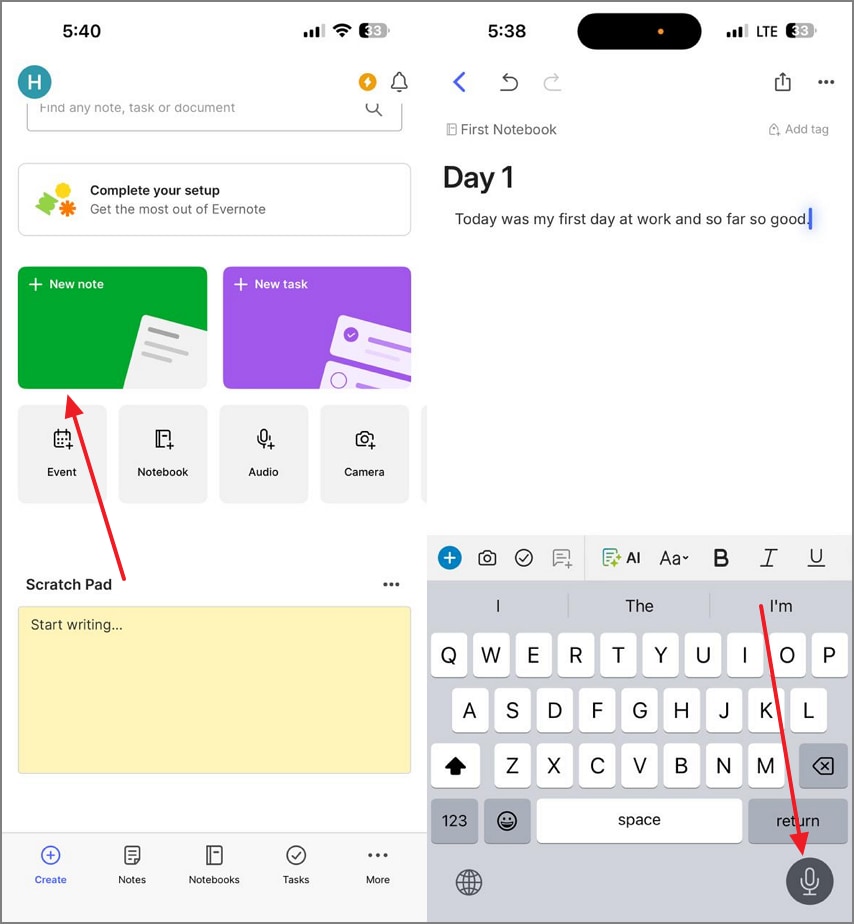
Instructions. To start, open the Evernote app and select the “New Note” tab to enter the note-taking interface. Here, open your keypad and select the “Mic” icon at the bottom right to start recording. You will now see real-time transcriptions on Evernote.
When to Use Built-In Speech Dictation
- Short Notes: Ideal for jotting quick thoughts, ideas, or reminders without typing.
- Quiet Environments: Works best when there’s minimal background noise for higher accuracy.
- Single Speaker: Perfect for personal notes where only your voice is captured.
- On the Go: Convenient for hands-free note-taking during commutes or multitasking.
When to Avoid Built-In Speech Dictation
- Long Recordings: Not suitable for extended sessions since dictation tools often have time limits.
- Group Discussions: Struggles to separate multiple voices, causing confusing transcripts.
- Noisy Settings: Background sounds can distort words and reduce text accuracy.
- Detailed Documentation: Manual typing or transcription apps provide better control for structured writing.
Part 5. Exploring Online Tools for Transcribing Media and Integrating it into Evernote
Users who need quick or one-time multimedia transcriptions can look into browser-based speech-to-text generators. Otter.ai is a notable name in the world of AI meeting note takers. This online tool offers a chatbot that can answer any query from the past meetings as well. Moreover, it can also simplify concepts inside your notes. The following steps feature a guide on using this Evernote video to text for transcribing audio:
Step 1
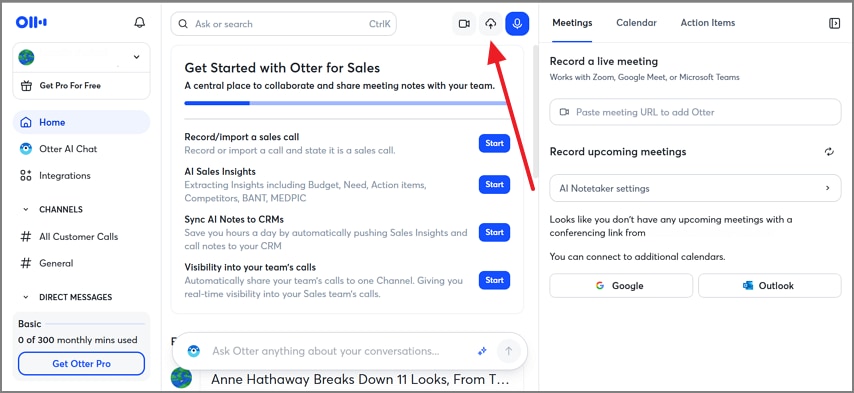
First, select the “Import” button from the top right of Otter.ai’s homepage and browse a multimedia file for transcription.
Step 2
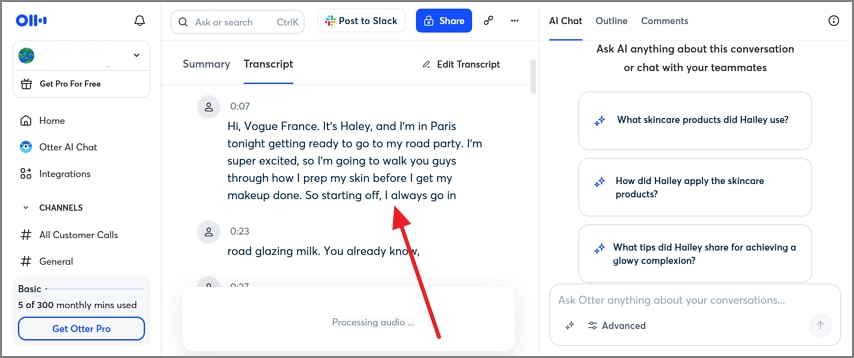
Once the file has been fetched, access the generated transcript under the designated section. You can also view the AI summary of the file using the relevant panel.
Pros
- Most tools deliver transcripts within minutes, saving you from manual typing.
- Works directly in a web browser; no need to install additional software.
Cons
- Free or trial versions often restrict file size or total transcription length.
- Uploading sensitive recordings may expose private data if the platform isn’t secure.
- Some tools delete files after processing, while others may store them longer than desired.
Part 6. Evernote Transcription: Converting Multimedia to Text
As stated before, the voice-to-text Evernote app is a robust mobile application that offers smart note-taking. This feature transcribes real-time audio for better accessibility. However, users needing to transcribe videos can use an indirect method. TurboScribe is an easy-to-use browser-based video and audio transcriber. Follow the guide below to learn how to use this tool to transcribe an audio file and integrate the text into Evernote:
Step 1
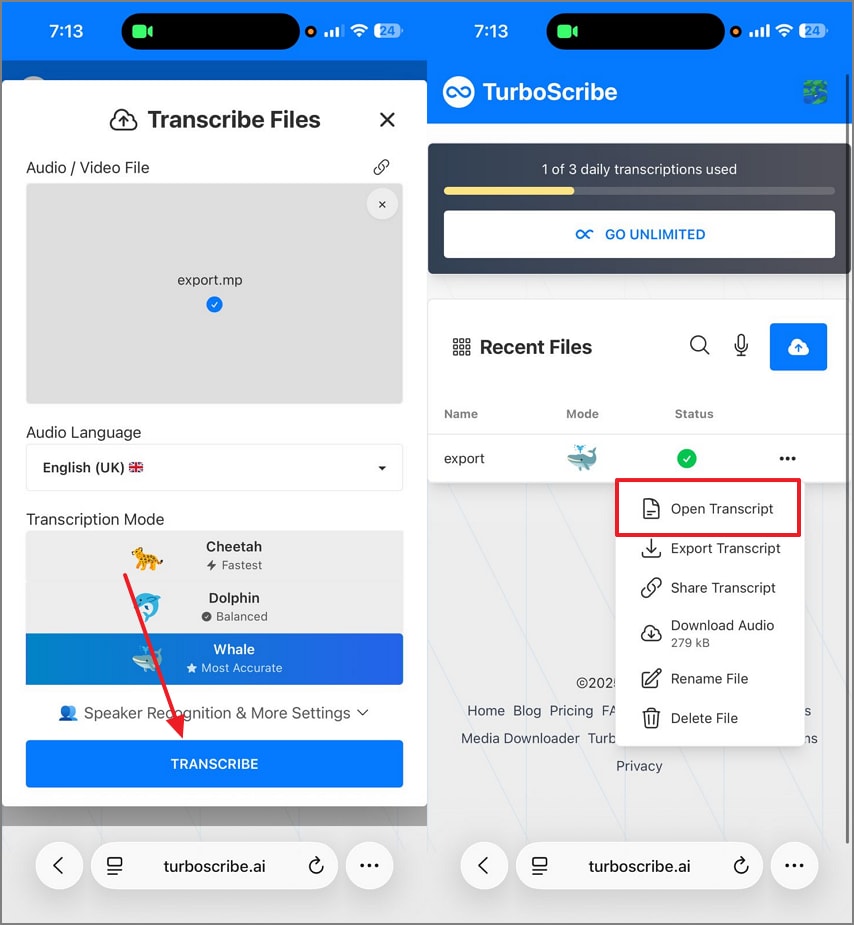
To start, upload an audio file to an online video-to-audio converter and save the audio file. Now, open TurboScribe and upload the audio file. Once the audio is uploaded, select the “Transcribe” button. Now expand the three-dot menu and tap on the “Open Transcript” option to find the interpretation of the file on the next page.
Step 2
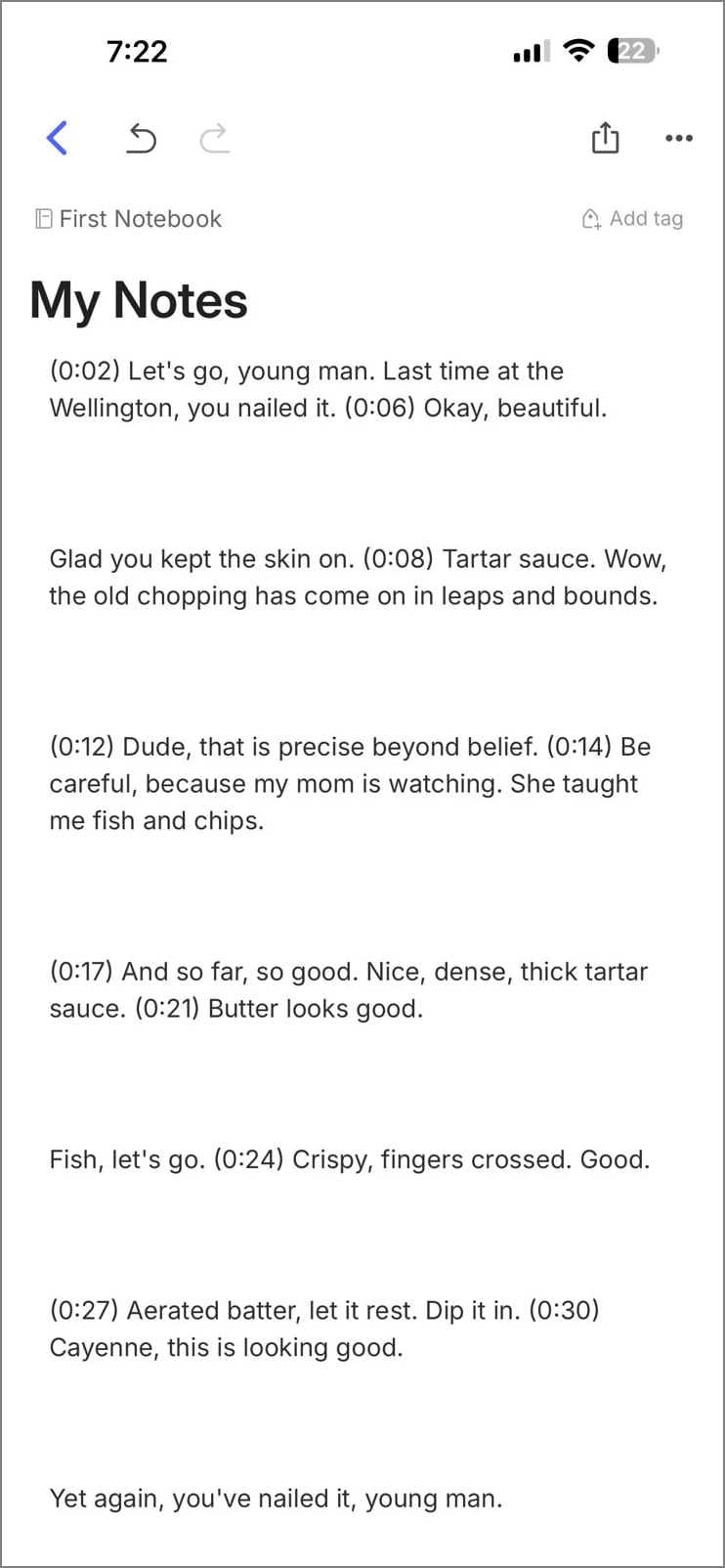
Once the audio transcript appears on the following page, copy it to the phone’s clipboard. Lastly, open the Evernote app on the phone and select the “New Note” tab to open the note-taking interface. Here, paste the transcript you have copied along with the timestamps.
Part 7. Organizing Evernote with PDFelement for Efficient Project Management
The note-taking and organizing features of PDFelement and the Evernote AI transcribe tool go hand in hand. The following section discusses how both can be used together for a comprehensive notes experience:
Project Notebook Structure:
Create one notebook for each project to keep all relevant materials organized and easy to locate. This separation prevents clutter and allows focused access to specific subjects or tasks.
PDF Summary Storage:
Each note should contain the PDF summary, which serves as the primary deliverable and reference document for your work. Keeping it inside the note ensures quick review without searching multiple files.
Full Transcript Inclusion:
Add the complete transcript as a TXT or PDF file in the same note for detailed review and record-keeping purposes. This preserves all spoken or written content related to your project efficiently.
Source Links and References:
Include links to the original audio, video, or webpages, saved as HTML or PDF to maintain permanent access. This ensures you can verify sources and access supplemental materials anytime.
Part 8. Free vs Paid Transcription: Choosing the Right Approach
When on the quest to find the best AI transcription app, you must think of certain prerequisites. The following discussion features a comparison of the paid and free transcription voice to text Evernote-like tools:
When to Use Free Transcription Tools
- Quick Notes: Use built-in OS dictation for short, spontaneous ideas or reminders that don’t require perfect accuracy.
- Light Uploads: Try small online transcription tools for short audio clips or single-speaker recordings with minimal background noise.
- Basic Convenience: Choose free options when you need fast results without installing additional software or managing subscriptions.
When to Use Paid Transcription Tools
- Long Sessions: Opt for paid tools to handle extended lectures, interviews, or meetings without time or file size limits.
- Multi-Speaker Accuracy: Use premium AI transcription when you need speaker separation and clear labeling in group discussions.
- Advanced Features: Select paid services for integrated AI summaries, mind maps, or translations that enhance productivity.
- Privacy and Security: Choose on-device or enterprise-grade paid tools for sensitive material that must remain private and offline.
If you want all the unique features mentioned in the paid tools, you can use PDFelement Mobile. This application offers all the utilities a perfect paid transcription tool should have.
Part 9. Ensuring Accurate and Secure Transcriptions
The process of transcription is crucial, as your entire understanding of a subject or a meeting depends on it. By following the tips below, ensure that your AI transcriptions are accurate and secure on Evernote AI transcribe:
Audio Recording Tip: Using a lapel mic or sitting in the front row ensures your voice is captured clearly, minimizing background noise for precise transcription. Recording in a quiet room at 16–48 kHz mono prevents distortion, while avoiding speaker overlap keeps each voice distinct and readable.
Privacy: Always obtain consent from participants before recording, respecting ethical and legal boundaries. Avoid uploading sensitive audio to online tools; using on-device transcription is safer for interviews, meetings, or classes with strict privacy requirements.
Post-Editing: After transcription, correct the spelling of names, acronyms, and domain-specific terms to ensure clarity and professional accuracy. Review the text for formatting or context errors to make it fully usable for notes, reports, or archives.
Part 10. Fixing Accuracy, File, and Preview Problems in Evernote Workflows
Like every transcription and note-taking app, Evernote's audio recording to text also comes with its downsides. Before you invest in this app, go through the following text to know its shortcomings:
Low Accuracy
If the transcription results are inaccurate, it may be due to selecting the wrong language or AI model or recording noisy audio. Switching to a more suitable AI model or improving audio clarity usually resolves the issue quickly.
Large File Won’t Upload Online
Online tools often have file size limits, preventing large recordings from being processed. You can split the file into smaller segments or use an on-device transcription tool to bypass upload restrictions.
Need Bilingual Notes
For multilingual content, first transcribe in the original source language to preserve context and nuances. Then, generate an AI-translated summary, allowing you to create accurate bilingual notes efficiently.
Evernote Can’t Preview
Sometimes Evernote doesn’t render TXT or PDF previews for certain files. To maintain usability, attach the file and add a short abstract or summary at the top, giving you quick insight without opening the full document.
Part 11. Notting Down the Top Alternatives to Evernote Transcription
Although Evernote is a comprehensive note-taking and transcribing app, there are many more platforms offering similar functionality. The following section breaks down each of the top alternatives to this transcription app:
PDFelement Mobile [iOS/Android]
The PDFelement Mobile app has the ability to transcribe your audio files without needing an internet connection. Moreover, it is downloadable on your iOS and Android devices and can be utilized for frequent transcriptions and summarizations.
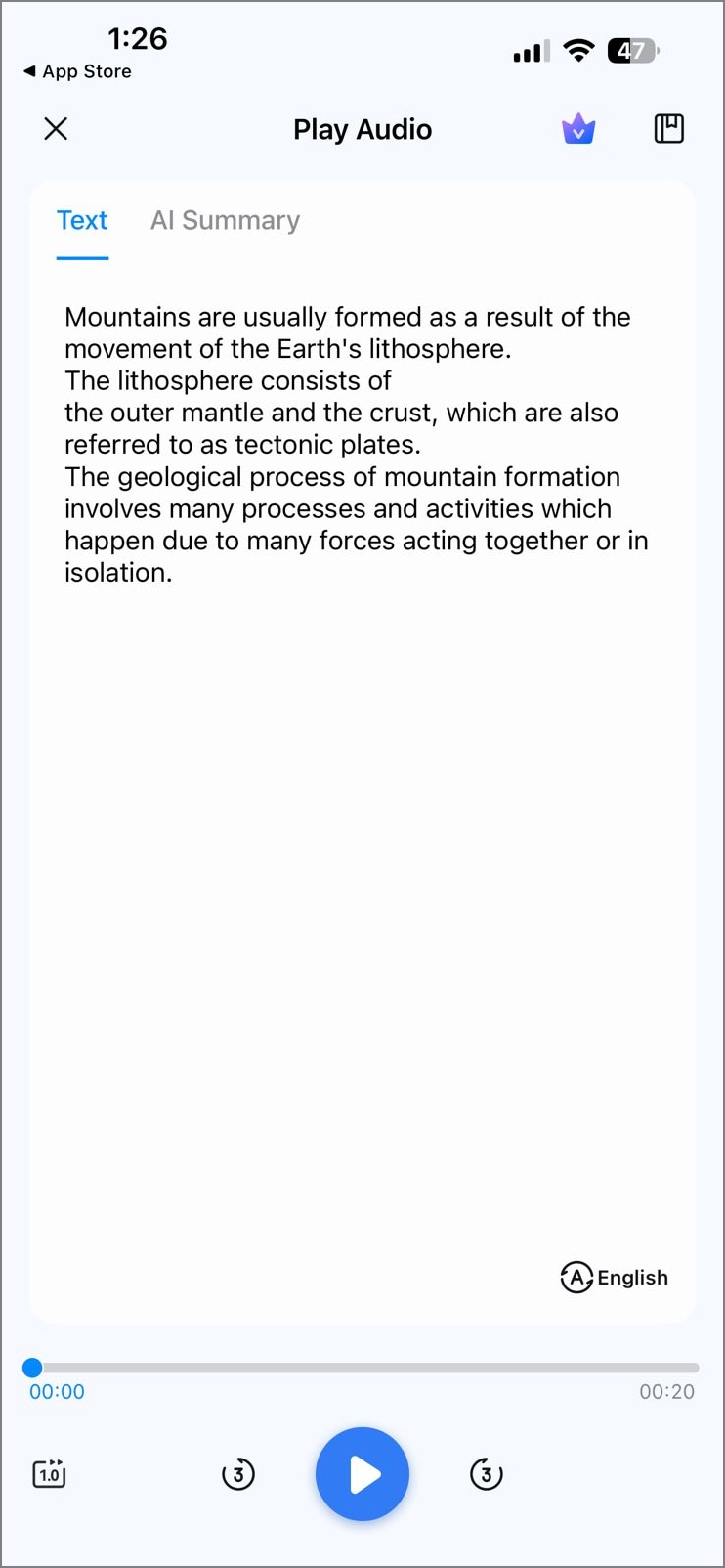
Best for: Transcribing PDF-integrated audio notes while prioritizing privacy, portability, and polished summary outputs.
Pros
- This tool allows users to generate AI summaries, translations, and more.
- You can benefit from the annotation features to mark and comment on your PDF files.
- The Edit PDF mode enables you to add or delete text, URLs, and images to and from your PDF documents.
Con
- You need a paid subscription to save an unwatermarked file.
Who Should Pick it: Users who prefer exporting well-formatted PDF summaries for clients, documentation, or classroom use.
G2 Rating: 4.5/5 |100% Secure
Otter.ai
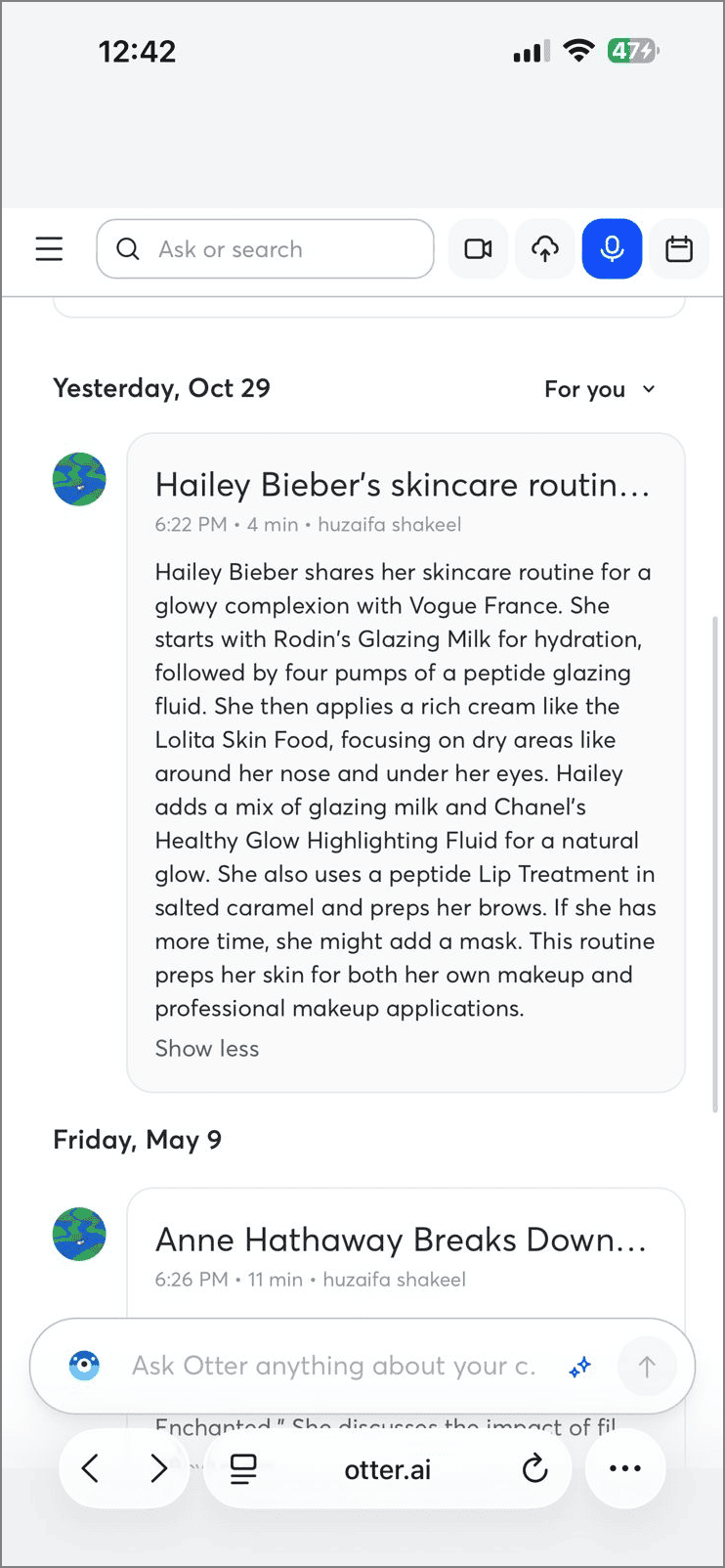
Best For: Live transcription and searchable audio notes.
Key Features
- Otter.ai generates real-time transcripts for instant understanding.
- The chatbot can answer any query from the past meetings as well.
- Users can benefit from the AI chatbot to simplify concepts.
Pros
- Otter supports Zoom, MS Teams, and Google Meet for real-time transcriptions.
- This Evernote transcribe audio-like platform converts meetings of up to 4 hours into text.
Cons
- The free trial of Otter lasts only 7 days.
- You can only transcribe meetings in 3 languages in the free version.
Who Should Pick it: Educators and meeting participants needing quick, collaborative transcriptions.
Notta
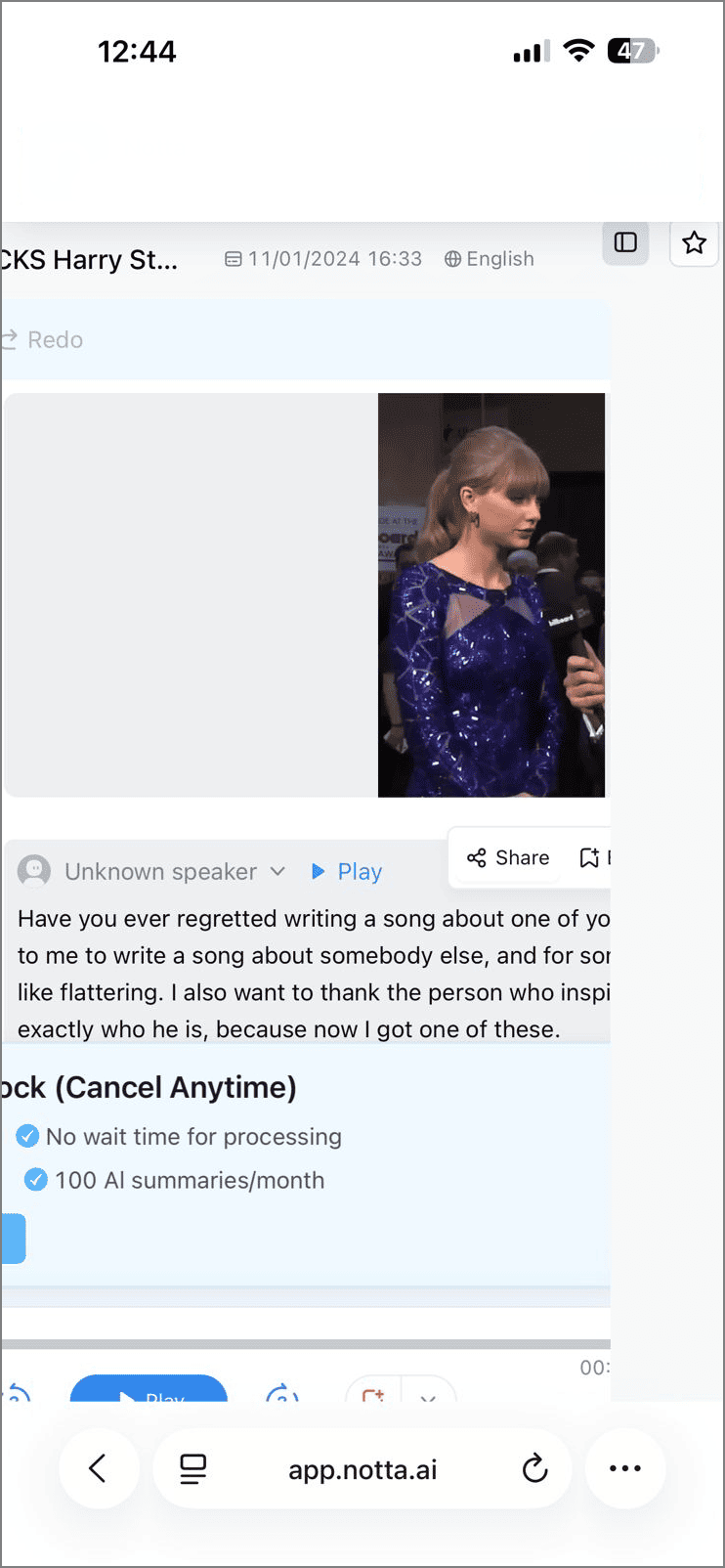
Best For: Frequent virtual meetings, automatic recording, and transcription.
Key Features
- Notta automatically removes excessive noise from your meetings.
- The automated action points are generated as soon as the meeting ends.
- It auto-syncs your meeting notes across all devices you have logged in from.
Pros
- The real-time meeting transcriptions allow for better content understanding.
- Users can add bookmarks during transcription to enable easy navigation.
Cons
- The free version allows only 3 minutes of real-time transcription per recording.
- You can use the free trial for 14 days only.
Who Should Pick it: Anyone whose workflow includes many virtual meetings and sharing feedback.
Bubbles Notetaker
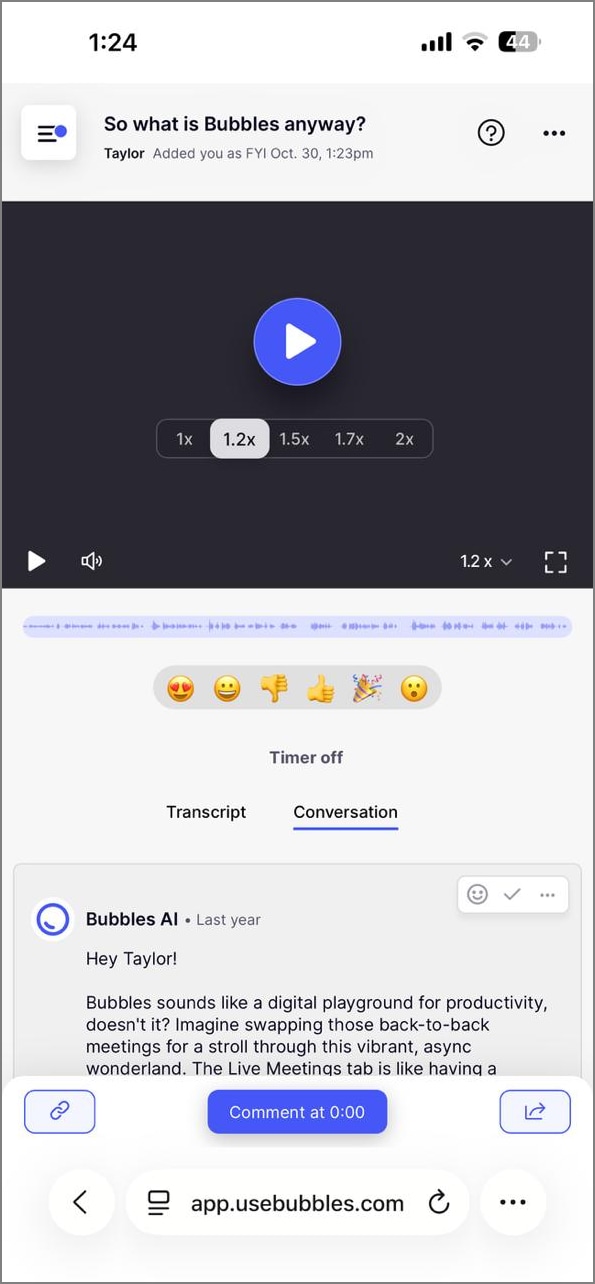
Best For: Remote or hybrid teams, meeting-heavy workflows.
Key Features
- The collaborative features of Bubbles Notetaker let you share a screen cast with your team.
- This Evernote speech-to-text alternative tool supports Google Meet and over 15 other online meeting platforms.
- You can transcribe your meetings in over 60 languages.
Pros
- Email integrations enable you to keep track of your schedule.
- The screen recording facility allows for meeting recording.
Cons
- Being a browser extension, it does not work with desktop tools.
- This platform lacks the advanced features of the competitors.
Who Should Pick it: Content creators who spend significant time in video calls or screen-record sessions.
MeetGeek
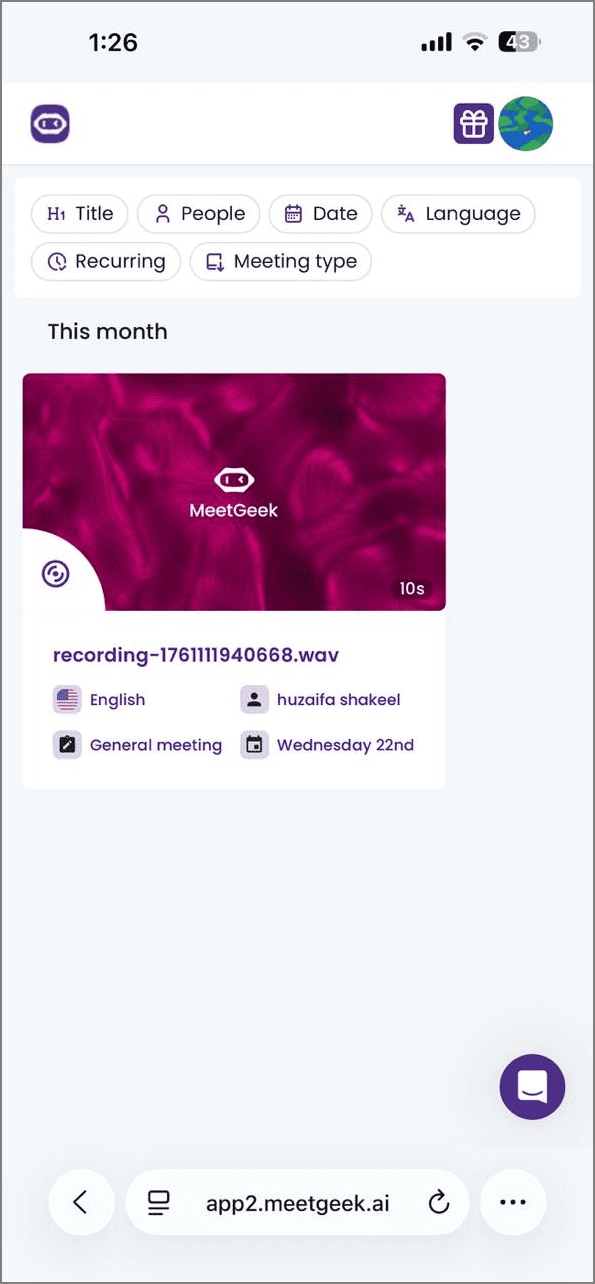
Best For: Virtual and in-person meetings and full automation of results
Key Features
- MeetGeek allows you to record, pause, and automate meetings
- Using its collaborative features, you can share points from past meetings with your team.
- The analytics show the number of spoken words and the duration of speech.
Pros
- The automatic language detection feature generates precise results.
- You can fetch summaries into your CRMs for easy access.
Cons
- Users can only integrate MS and Google calendars.
- The accuracy is compromised in meetings in less common languages.
Who Should Pick it: Groups needing to capture meeting outcomes and share insights.
Cockatoo
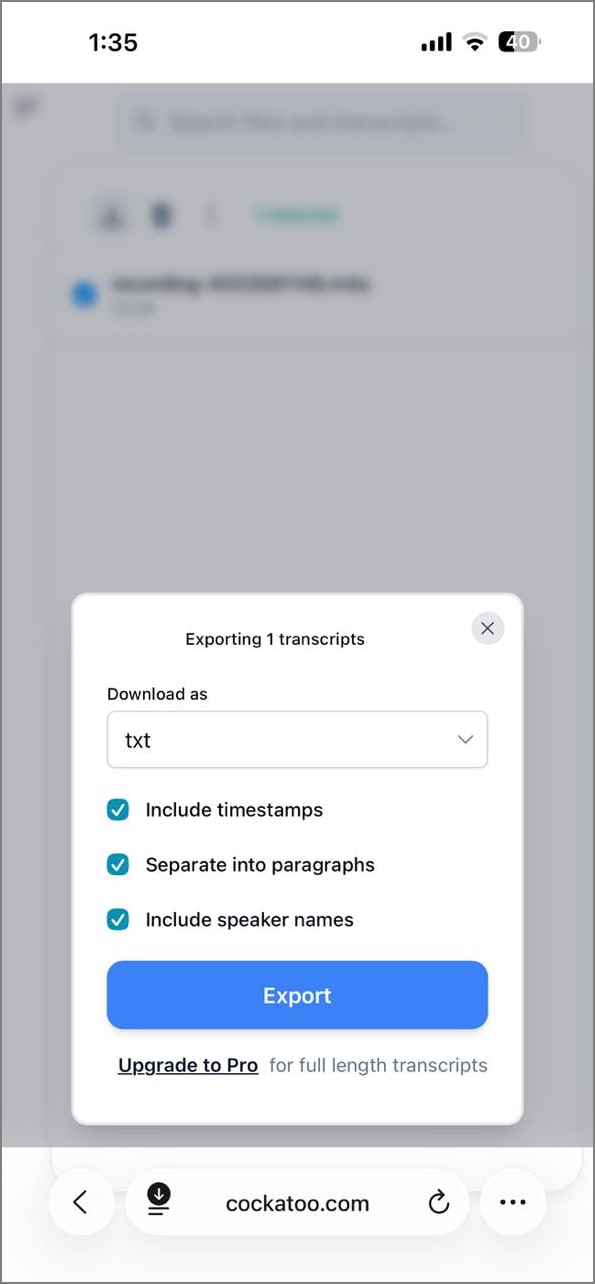
Best For: Integrating generated meeting transcripts on online platforms.
Key Features
- Using this facility, users can see the talking and questioning timing of each speaker.
- Cockatoo also displays the emails of each speaker at the meeting.
- This automatically shares your summaries with your team to implement the action points.
Pros
- Users can upload 5 audio meetings for transcription in the free version.
- By integrating email with the tool, you can manage it in Cockatoo.
Cons
- This Evernote voice-to-text alternative supports only 30 languages for transcription.
- You cannot customize the team members to whom you send the notes.
Who Should Pick it: For automatic post-meeting recording with manual note-taking.
Fireflies.ai
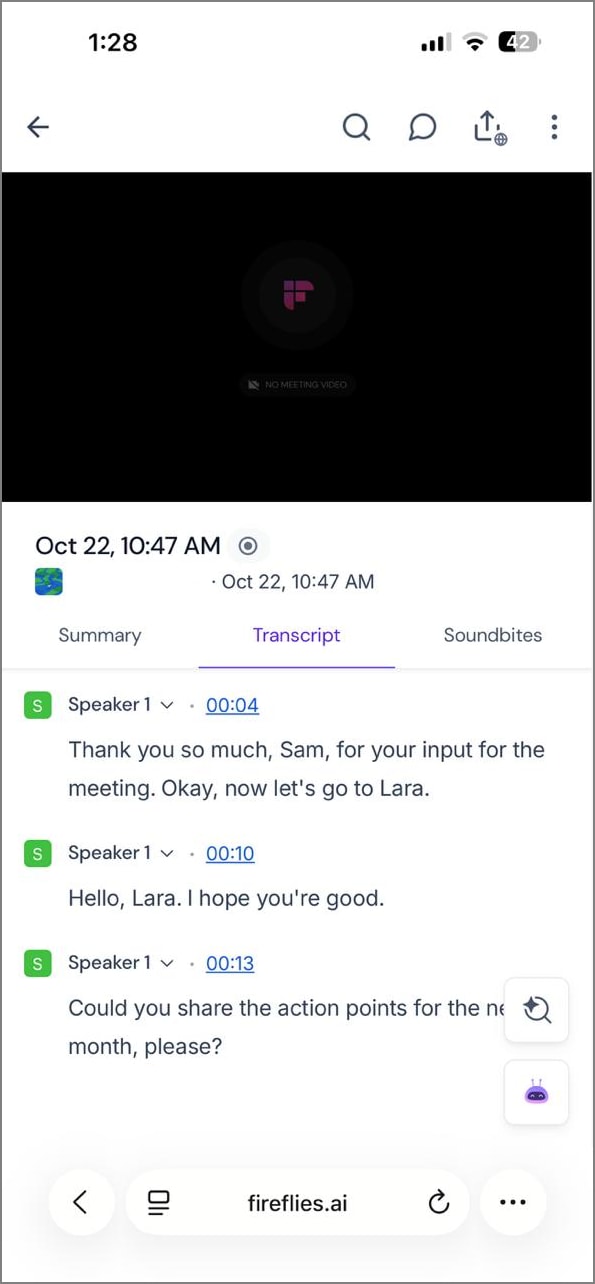
Best For: Virtual meetings and automatic transcription.
Key Features
- Fireflies.ai supports more than 100 languages for transcriptions.
- The language detection capabilities switch languages for multilingual meetings.
- Users can see the time codes to navigate to the desired points in the meeting.
Pros
- The AI Teambot accesses calendars to automatically join meetings.
- You can use its Chrome extensions for efficient transcription.
Cons
- Users often complain about having sign-up difficulties.
- There are some inaccuracies in the speaker recognition tool.
Who Should Pick it: Remote teams or professionals who rely heavily on online meetings.
A Quick Comparison of the Top Evernote Alternatives
The section above explains the major details about the top Evernote transcribe platforms. You can explore the table below to have a quick comparison of their features:
| Works Offline | Accepts Video | AI Summary/Actions | Free Tier | Exports (PDF / TXT) | Privacy (Upload vs On-Device) | Best For | |
| PDFelement Mobile | Yes | No | Yes | Yes | PDF, TXT | On-device | PDF-heavy work, offline editing, embedded transcripts. |
| Otter.AI | No | Yes | Yes | Free basic tools | PDF, TX | Upload | Team meeting transcription & collaboration. |
| Notta | No | Yes | No | Free minutes available | PDF, TXT | Upload | Fast multilingual transcription and summaries. |
| Bubbles Notetaker | No | Yes | Yes | Basic free tier | TXT | Upload | Async meeting capture & action-item generation. |
| MeetGeek | No | Yes | Yes | Free trial | PDF, TXT | Upload | Automated meeting analysis & follow-up automation. |
| Cockatoo | No | No | Yes | Fremium | Upload | Fast bulk transcription jobs. | |
| Fireflies.ai | No | No | No | Basic free functionality | TXT, PDF | Upload | Team meeting capture & CRM-integrated transcription. |
Frequently Asked Questions
-
1. Does Evernote transcribe audio automatically?
Evernote speech-to-text does not automatically transcribe all audio recordings; it indexes audio for search but won’t produce full text. Automatic transcription is limited and often requires third-party tools for full conversion. The PDFelement Mobile app is an appropriate transcription tool for such tasks. -
2. How do I add voice-to-text in Evernote right now?
You can use your device’s built-in dictation feature to record notes directly as text in Evernote. Simply tap the microphone icon on your keyboard and speak, and Evernote will save it as text. -
3. What’s the easiest way to turn Evernote recordings into text?
The easiest method is to export the audio and use an AI transcription service or app to convert it to text. You can consider using the PDFelement app for transcription purposes. Afterward, users can copy the transcript back into their Evernote note. -
4. Can I convert video to text for Evernote?
Yes, you can extract the audio from the video and run it through a transcription service to get text. Then, add the resulting transcript to your Evernote note. -
5. What’s the most private way to transcribe?
The most private method is to transcribe audio locally on your device without uploading it to online services. You can use a mobile app like the PDFelement app to keep your sensitive data safe. -
6. How do I get summaries/action items from a transcript quickly?
You can use AI summarization tools to analyze the transcript and highlight key points or action items automatically. The PDFelement app is a robust platform for efficiently generating a summary. This summary can later be shared in TXT format.
Conclusion
In conclusion, this article discussed the Evernote transcribe application. We concluded that if Evernote does not natively support transcription, combining PDFelement Mobile with Evernote offers a practical alternative. You can transcribe and summarize recordings using PDFelement’s AI tools.
These transcriptions can then be stored and organized within Evernote for easy retrieval. This sidecar workflow not only fills the transcription gap but also keeps your notes, summaries, and audio neatly unified in one reliable ecosystem.




