

Transcribing voice records into neat and well-organized text is no longer a tricky and demanding affair. Potent tools will enable makers, students, and professionals to easily convert audio to text in a few seconds in 2026. The most advanced audio-to-text converter AI solutions even capture speaker identity, fix unclear words, and organize notes.
Free and fast transcription methods now support interviews, lectures, meetings, and podcasts directly from your browser or smartphone. On-device workflows protect privacy, while AI note systems simplify action items. This guide explores the smartest way to transcribe audio in 2026 with accuracy and convenience.
In this article
- Part 1. Quick Answer
- Part 2. Audio → Text → Notes: What Good Transcription Looks Like
- Part 3. Method 1: Convert Existing Audio to Text on Device (PDFelement Mobile)
- Part 4. Method 2: Convert Speech to Text Online (Free & Quick)
- Part 5. Method 3: Record & Convert in One Go (Mobile)
- Part 6. Best “Audio to Text” Tools in 2026
- Part 7. Build a Free Workflow (Editor’s Picks)
- Part 8. Accuracy, Privacy & Speed — Buyer’s Guide
- Part 9. Troubleshooting: Fix Common Audio-to-Text Issues
- Part 10. Browser & Desktop Touchpoints (Micro Sections)
- Frequently Asked Questions
- Conclusion
Part 1. Quick Answer
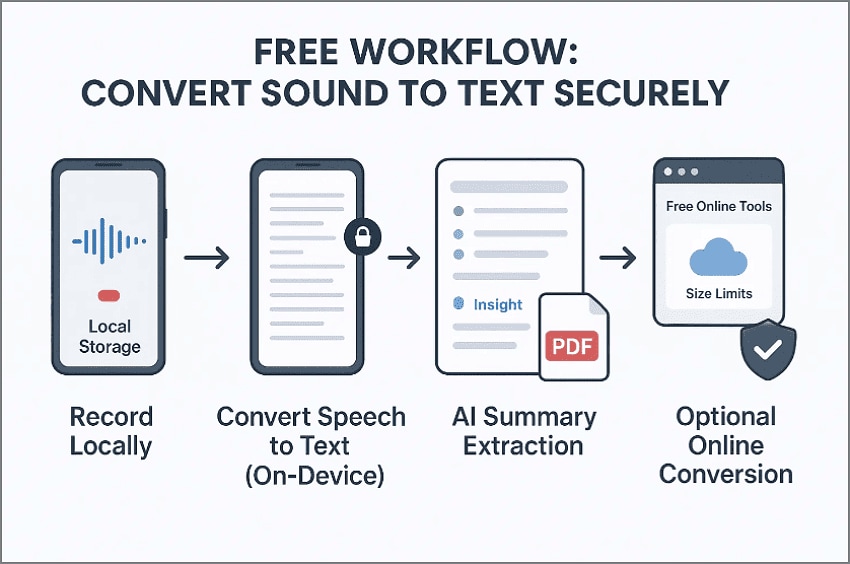
The fastest approach to convert speech into usable documents involves two streamlined options. For quick tasks, online converters instantly process short audio files inside a browser. They are ideal for single uploads but often include file size limits and external data storage. Always check whether your content is safe to upload before converting the recording into text.
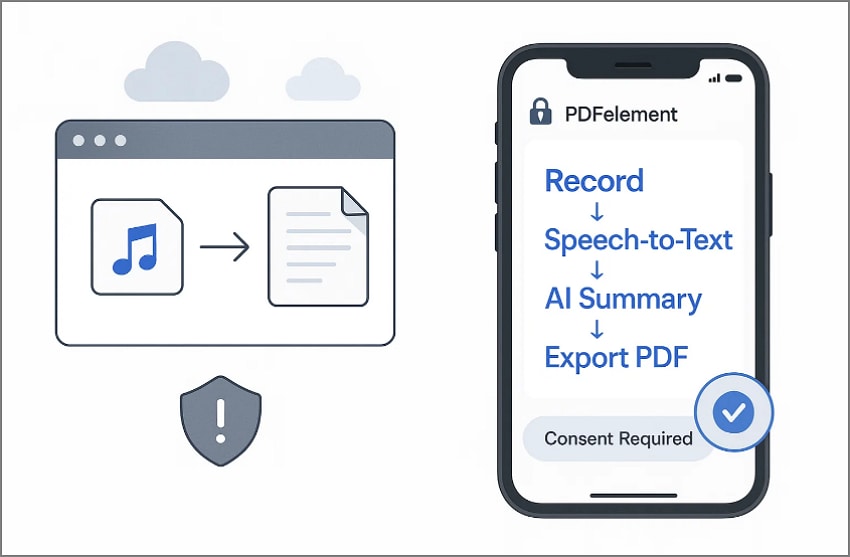
For secure, long, or frequent transcription needs, an on-device workflow is recommended. PDFelement Mobile simplifies everything, import or record audio, apply Speech-to-Text, generate AI summaries, and export as PDF or editable text without cloud exposure. It is also advisable to always seek permission and observe the local privacy laws when recording or writing down voice conversations.


 G2 Rating: 4.5/5 |
 100% Secure
Part 2. Audio → Text → Notes: What Good Transcription Looks Like
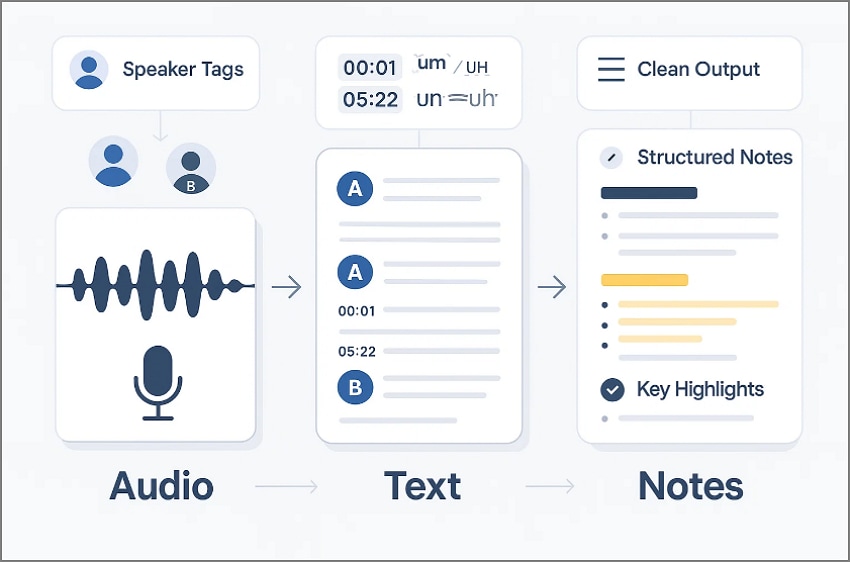
Here are the examples of what a good audio-to-text-to-notes should look like, based on the practices found in the best AI speech-to-text tools:
Speaker Tags: Speaker labels keep dialogue clear and separate across entire recorded conversation sessions. Proper identification helps the audience follow transitions smoothly and maintain context reliably everywhere.
Structured Notes: Short paragraphs improve readability and keep grouped ideas focused for understanding effectively. Summaries capture main points quickly, enabling fast study, recall, and easy access.
Timestamps Segmentation: Timestamps mark topic changes, enabling easy navigation throughout long and complex recordings. Topic segmentation supports quick searching and accurately connects notes to the original timing.
Key Highlights: Highlighting essential ideas directs focus toward decisions, deadlines, and actionable follow-up tasks. Bulleted emphasis keeps action items visible and ready for efficient completion today.
Clean Output: Removing filler words improves reading flow while reducing distracting verbal clutter significantly. Acronym expansion and noise reduction ensure accurate understanding during reviewing audio transcripts.
Part 3. Method 1: Convert Existing Audio to Text on Device (PDFelement Mobile)
Transcribing long recordings often feels slow and risky when everything must pass through cloud servers. PDFelement Mobile (iOS/Android) provides a private and reliable workflow directly on your phone. You can convert any existing audio to speech-to-text notes for review and sharing. This approach protects privacy, avoids upload restrictions, and supports productivity wherever important information is captured.
Beyond transcription, PDFelement Mobile enhances your workflow with intelligent document features tailored for real-world tasks. AI Summarize extracts action items and insights, while template structure content into minutes, lecture notes, or briefs effortlessly. Mind maps and translations extend usefulness further for learning and collaboration. The result is a complete mobile workstation designed to turn any voice recording into professional documentation in moments.
Step-by-Step Guide to Convert Audio to Text with PDFelement Mobile
Let’s walk through the workflow below to convert audio into text easily with PDFelement Mobile:
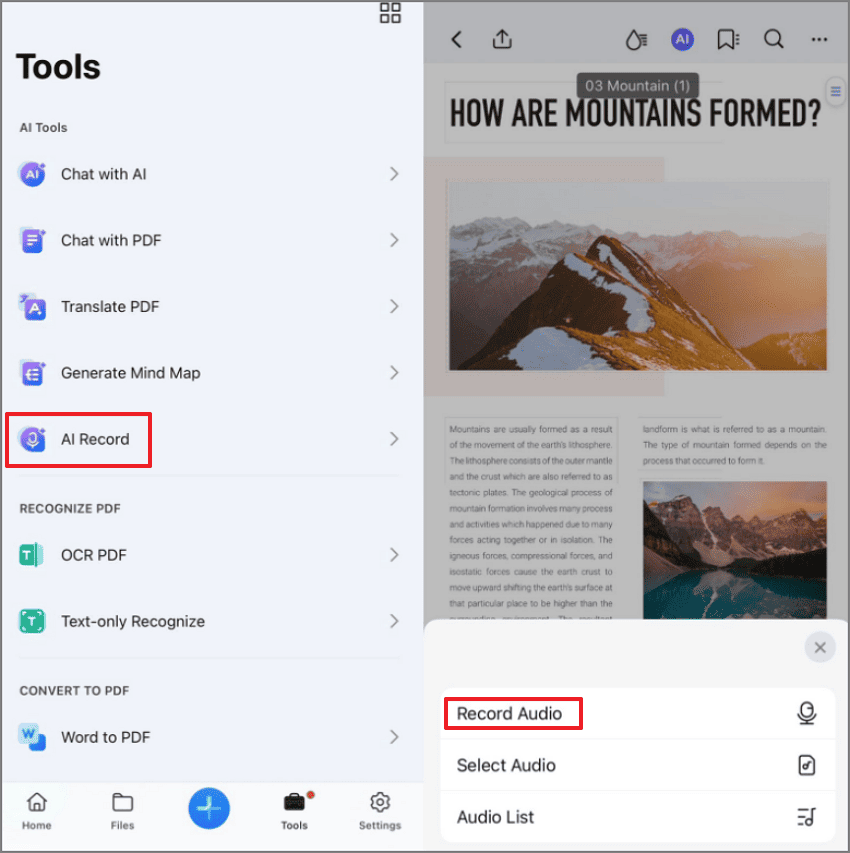
Step 1Select AI Record to Proceed
First, tap on the “Tools” to further select “AI Record” to begin setup. Then press “Record Audio” to capture the voices from the recording.
Step 2Summarize Audio With AI
Afterwards, choose “Transcribe” to convert your audio into editable, readable text. Then switch to the “AI Summary” tab and tap “Summarize” for an automatic brief summary.
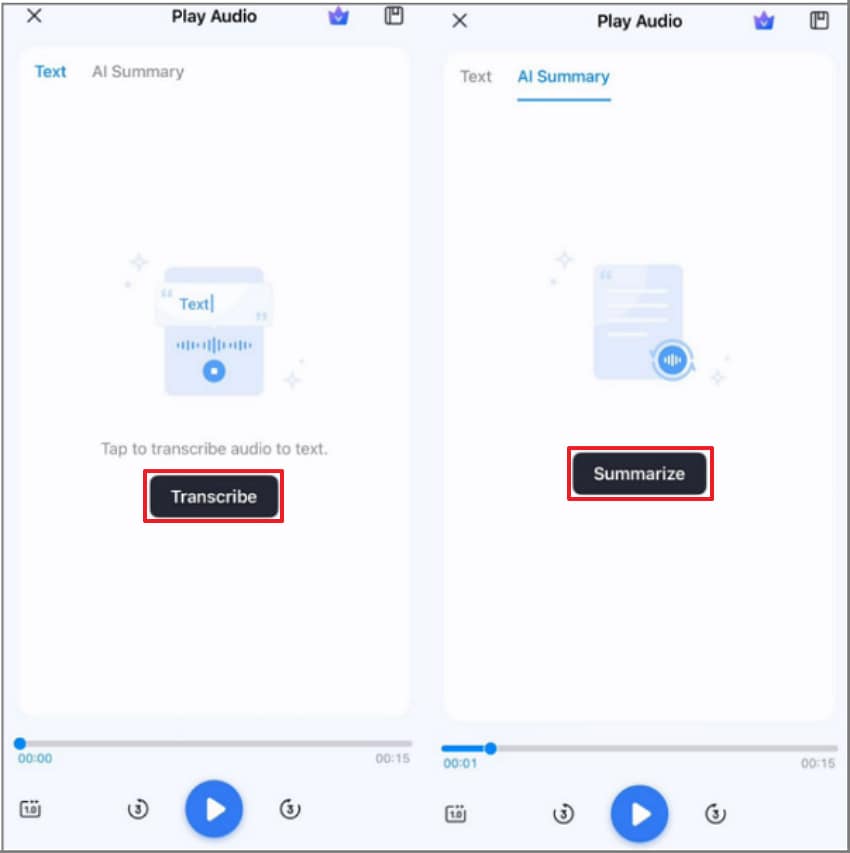
Step 3Share the Generated Text
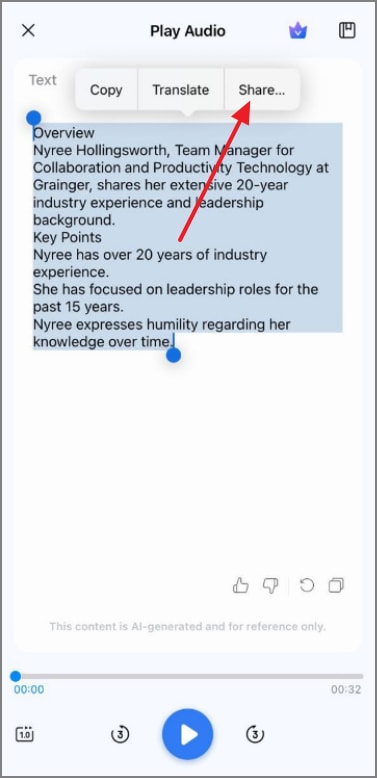
Lastly, review your text notes and tap “Share” at the top to distribute and export the generated text.
Boosters
AI Mind map: Transforms summarized notes into a clean visual layout for reviews or presentations.
AI Translate: Supports instant bilingual versions of transcripts when global collaboration matters.
Model Switching: Lets you choose DeepSeek-V3, GPT-4o, GPT-4o-mini, or Gemini 1.5 Pro to balance precision, cost, and speed.
HTML-to-PDF: Allows easy addition of agendas or briefing pages from the web, consolidating meeting materials in one place.
G2 Rating: 4.5/5 |100% Secure
Part 4. Method 2: Convert Speech to Text Online (Free & Quick)
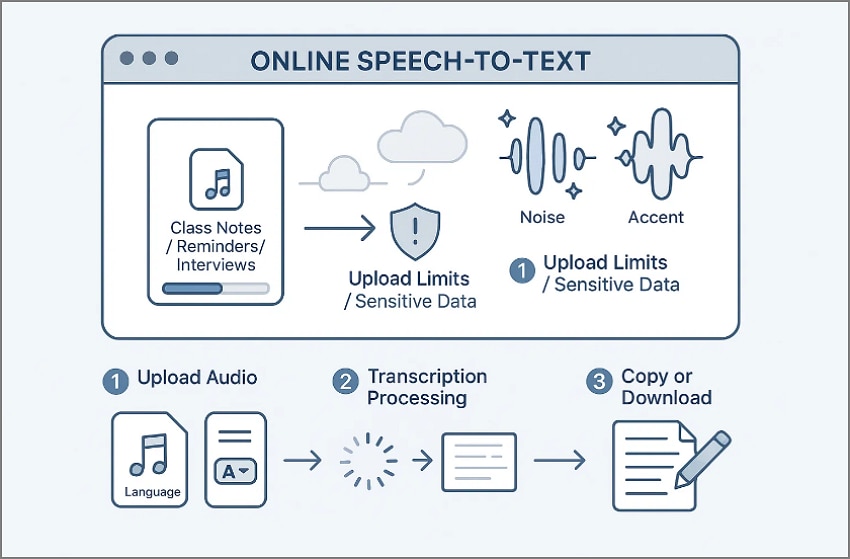
Online converters are popular for quick transcription tasks because most tools let you drop an audio file into your browser and get text instantly. This method is perfect for short recordings that do not include confidential information or sensitive discussions. It saves time and requires no installation, making it ideal for occasional or fast-use situations.
The only requirement is a good internet connection and a clear audio file for better accuracy. Web-based tools work across devices and deliver quick results with minimal setup. With an easy interface and fast processing, online converters simplify the process of turning voice into readable text in the blink of an eye.
Pros
- Very convenient for short and simple tasks
- No software installation required
- Suitable for non-sensitive audio files
- Beginner-friendly and works in all browsers
Cons
- Size limits can restrict longer audio sessions
- Background sounds require noise-free clean recordings
- Requires dependable internet connection
- Uploads may be stored temporarily, depending on provider
Step-by-Step Guide to Convert Audio to Text Online
Here is a demonstration of performing audio-to-text using Any-to-Text (web version):
Step 1
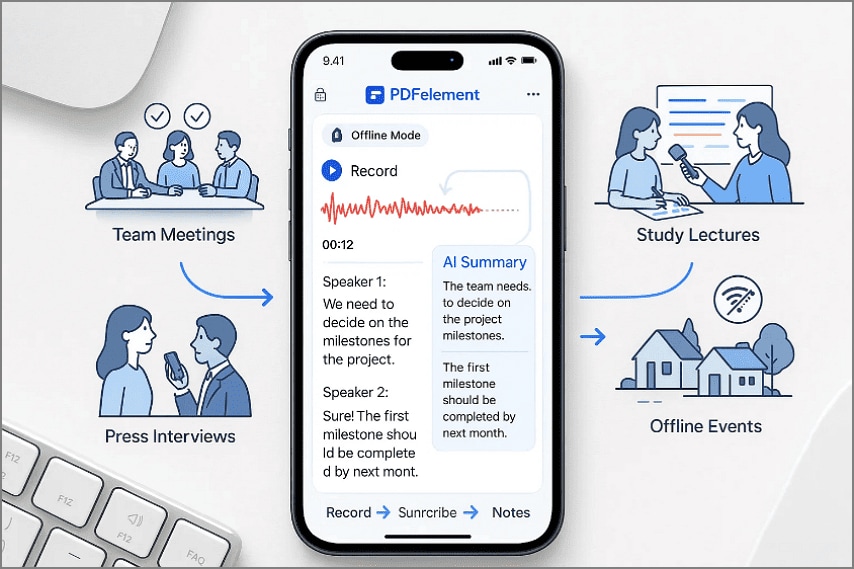
Open the Any-to-Text web tool and upload your desired audio file.
Step 2
Select your audio language and tap "Transcribe" to proceed. Any-to-Text also supports Hindi and similar popular languages.
Step 3
After your text is generated, it can be downloaded as TXT, PDF, DOCX, or copied quickly for notes.
Tips While Using Online Web Tools
- Use for short recordings only
- Avoid uploading confidential materials
- Always ensure audio clarity before uploading
- Check if the service supports your language
- Prefer on-device tools for long or private meetings
Part 5. Method 3: Record & Convert in One Go (Mobile)
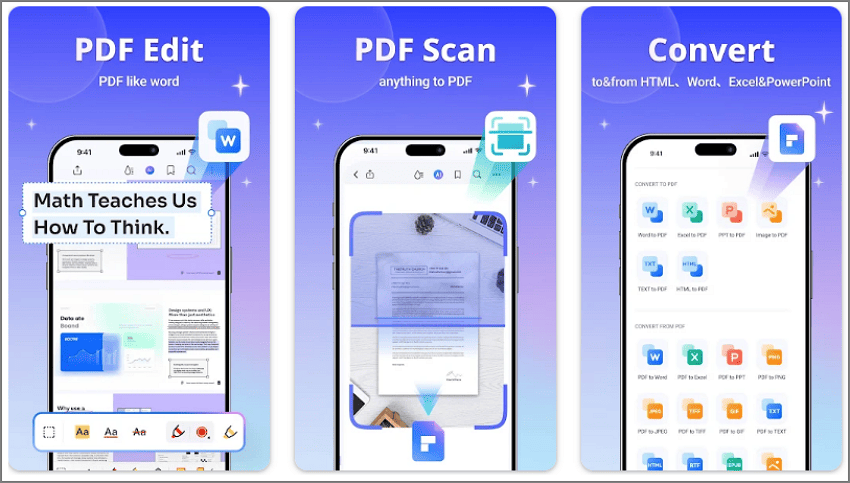
Sometimes the smartest workflow is capturing audio and converting it directly to text from the same place, without exporting different files. Mobile apps like PDFelement Mobile let you record audio directly inside a document and turn it into structured notes in seconds. This reduces steps and enables a smooth flow from capturing the conversation to converting it instantly.
Step 1
Open PDFelement Mobile, choose “AI Record,” and start recording your speech, lecture, or meeting notes in real time.
Step 2
After recording, hit “Transcribe” to convert your voice notes into a readable text block for review.
Step 3
Switch to the “AI Summary” section to generate a clean summary that highlights the main ideas.
Step 4
Copy the summary and use various annotation tools to paste the result inside your PDF document.
Part 6. Best “Audio to Text” Tools in 2026
Once you understand the different methods available for converting audio files to text in 2026, let’s dive into the best choices for each category: on-device, online, meeting note-takers, and desktop software. Each category suits different workflows depending on privacy, length, language support, and the depth of editing needed.
On-Device Tools
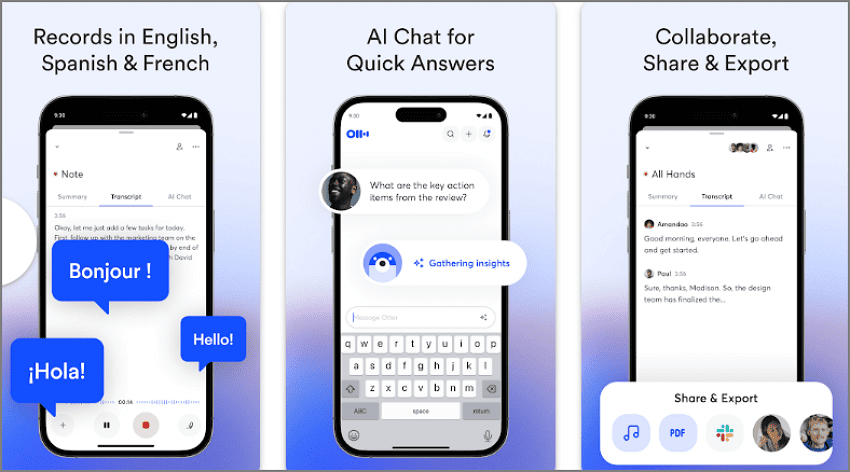
PDFelement Mobile [iOS/Android]
Best For: Users who want private, fast, and reliable transcription directly on their device without relying on the cloud.
Key Features
- You can edit AI-generated text summaries to customize your notes.
- Generate accurate translations of your text using AI language models.
- Includes annotation tools like highlights, bookmarks, and comments to enhance readability.
- You can convert multiple file formats into professional PDFs that are easy to organize and share.
Pros
- Simple to use and perfect for mobile PDF editing workflows.
- Supports OCR to edit scanned or low-quality PDF text.
- AI models ensure high-quality transcription accuracy.
Con
- Saving watermark-free PDFs requires a paid upgrade.
Who Should Use It: Students, freelancers, and business users who frequently edit and annotate converted PDFs.
G2 Rating: 4.5/5 |100% Secure
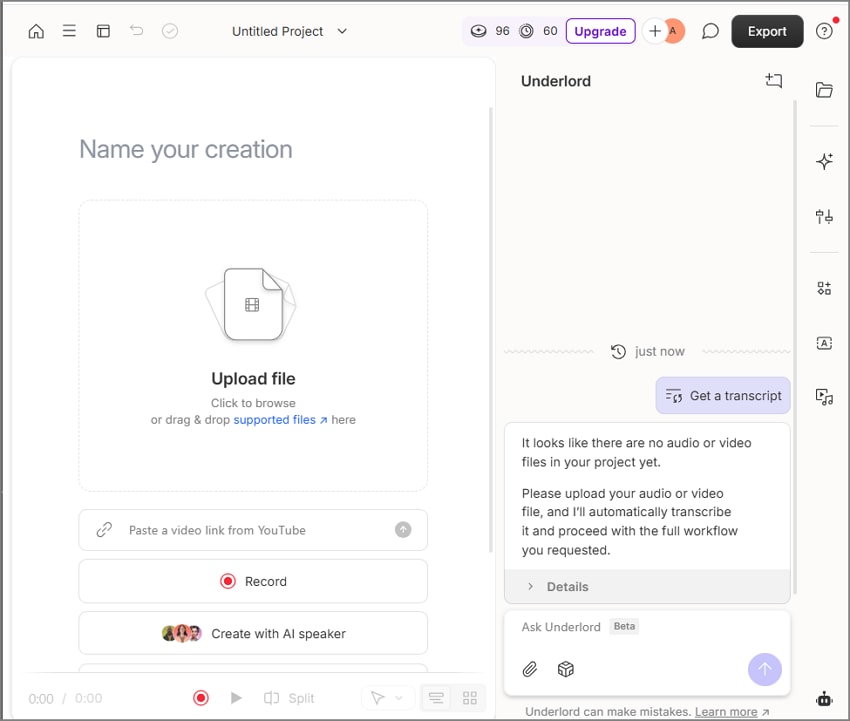
Online Audio Transcribers
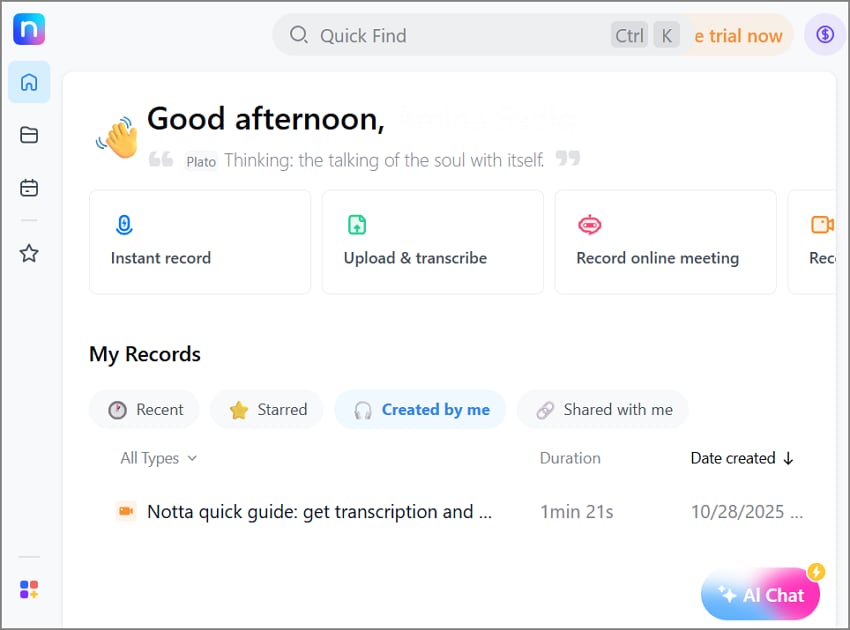
TurboScribe
Best For: Users who need fast, accurate AI transcription for audio & video files.
Key Features
- Provides transcription in 98 languages with excellent accuracy.
- Supports speaker identification and timestamps.
- Imports audio directly from cloud services or YouTube links.
Pros
- Accurate AI-powered transcripts supporting different platforms and file types.
- Ideal for multi-language content workflows.
Cons
- Free version has limited features.
- Requires internet access and reliable connectivity.
Who Should Use It: Journalists, corporate teams, and educators who require multilingual transcription.
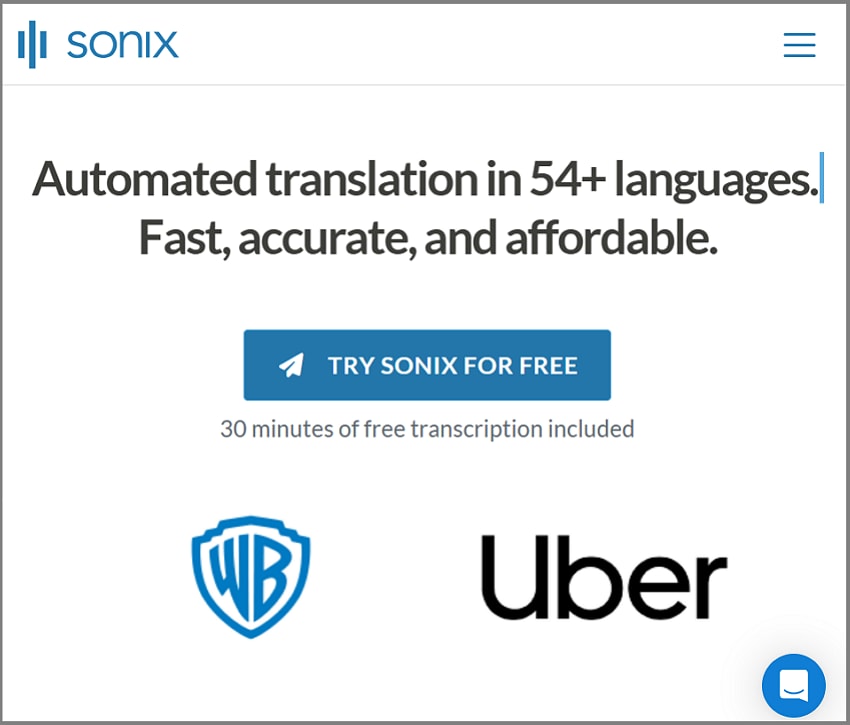
PDFsimpli
Best For: Basic transcription and PDF editing workflows.
Key Features
- Allows editing of PDFs by adjusting text and images.
- Can handle multiple speakers effectively.
- Supports multilingual transcription.
Pros
- Fast transcription workflow.
- Lets you combine multiple transcriptions into one PDF.
Cons
- Lacks advanced features like timestamps.
- Not designed for professional transcription work.
Who Should Use It: Casual users who want simple PDF editing with occasional transcription.
Any to Text
Best For: Everyday transcription needs with simple editing features.
Key Features
- Provides editable text after transcription.
- Supports multiple languages for diverse users.
- Accepts different audio file types beyond MP3.
Pros
- Exports in TXT format quickly and easily.
- User-friendly and suitable for beginners.
Cons
- Larger files require a paid subscription.
- Does not include speaker recognition or timestamps.
Who Should Use It: Students, office users, and anyone needing simple transcription.
Zamzar
Best For: Fast browser-based conversions without installing software.
Key Features
- 100% online conversion tool with no installation required.
- Upload files via device storage, cloud, or URL.
- Supports batch conversions for time-saving workflows.
Pros
- Great for quick conversions without software.
- Files can be deleted after conversion for privacy.
Cons
- File size restrictions for free users.
- Limited advanced AI transcription capabilities.
Who Should Use It: Users needing fast, browser-based file conversions without heavy editing.
HappyScribe
Best For: Professional transcription needs with subtitles, glossaries, and advanced language support.
Key Features
- Supports 120+ languages and accents.
- Users can record audio live or upload from URLs.
- Multiple export formats including SRT, VTT, DOCX, and TXT.
Pros
- Annotation tools help highlight essential content.
- Provides timestamps for navigation.
Cons
- More expensive than most basic tools.
- Steeper learning curve for beginners.
Who Should Use It: Media professionals, legal teams, and advanced transcription workflows.
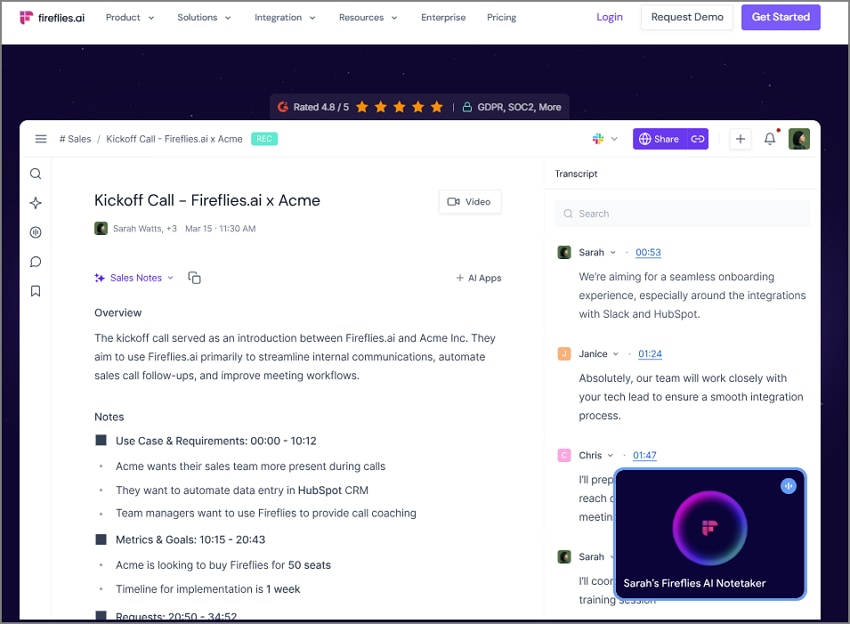
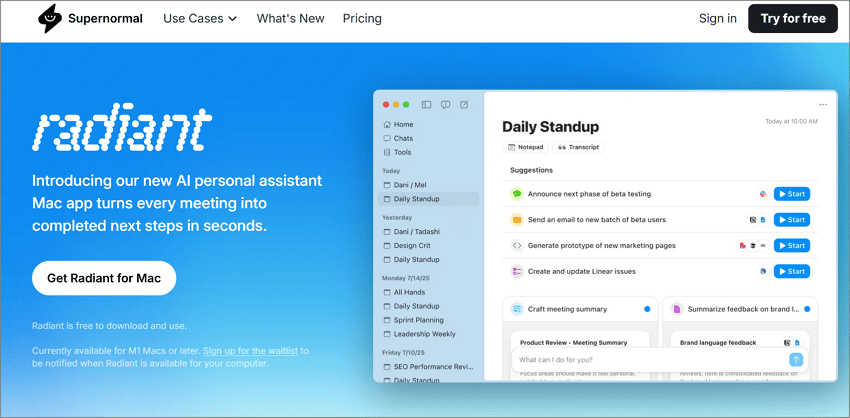
Meeting Note-Taking Tools
Otter AI
Best For: Real-time meeting transcription and team collaboration.
Key Features
- Live transcription and speaker tagging.
- Meeting summaries with key insights.
- Searchable and editable transcripts.
Pros
- Integrates with Zoom and Google Meet.
- Ideal for virtual meeting workflows.
Cons
- Inaccurate when network quality is poor.
- MP3-upload transcription requires a paid version.
Who Should Use It: Remote teams, teachers, and interviewers needing searchable meeting notes.
Desktop Audio Transcribers
NCH Software (Express Scribe)
Best For: Manual or assisted transcription with foot-pedal support.
Key Features
- Supports multiple audio formats.
- Saves transcripts inside the interface.
- Advanced playback controls for reviewing text.
Pros
- Works fully offline.
- Simple layout suitable for beginners.
Cons
- Interface looks outdated compared to modern AI tools.
- Can freeze during long transcription sessions.
Who Should Use It: Legal offices, media professionals, and anyone who needs manual control.
Comparison Table — Best Audio to Text Tools
To help you pick the best speech-to-text tool, here is a detailed comparison of features like offline support, language capability, export formats, and privacy:
| Tools | Works Offline | File Size Limit | Hindi/Multilingual | AI Summary | Free Tier | Export Formats | Privacy (Upload vs On-Device) | Best For |
| PDFelement Mobile | ✓ | No Limit | ✓ | ✓ | ✓ | PDF, Word, Excel, PPT | On-device | PDF editing & AI note-taking |
| TurboScribe | ✘ | 5 GB/10 hrs | ✓ | ✘ | ✓ | TXT, DOCX, SRT | Upload-based | Accurate AI transcription |
| PDFsimpli | ✘ | Unlimited | Limited | ✘ | ✓ | PDF, TXT | Upload-based | Basic PDF & transcription |
| Any to Text | ✘ | Unlimited | ✓ | ✘ | ✓ | TXT | Upload-based | Simple fast transcription |
| Zamzar | ✘ | 50 MB | Limited | ✘ | ✓ | TXT, DOCX, PDF | Upload-based | Quick browser conversions |
| HappyScribe | ✘ | 1 GB | ✓ | ✓ | Limited | TXT, SRT, VTT, DOCX | Upload-based | Professional transcription |
| Otter AI | ✘ | 90 minutes | ✓ | ✓ | ✓ | TXT, PDF, DOCX, SRT | Upload-based | Real-time meeting notes |
| NCH Software | ✓ | 13.5 hrs | ✘ | ✘ | Limited | TXT | On-device | Manual transcription |
Part 7. Build a Free Workflow (Editor’s Picks)
Here are the best combinations to create a "zero-cost audio → text → notes" workflow in 2026 depending on what you need:
For Quick One-Time Conversion
- Use Any-to-Text for fast transcription
- Copy results into your notes app
- Great for short recordings or non-private files
For Students Handling Lectures
- Record voice notes using your phone app
- Convert via TurboScribe (multi-language)
- Summaries can be made using free AI tools afterward
For Privacy-Sensitive Projects
- Use PDFelement Mobile for on-device transcription
- No uploading required, full control on your device
- Export as PDF for sharing
For Multilingual Workflows (incl. Hindi)
- Transcribe in original language first (Hindi, Tamil, Spanish, etc.)
- Use AI Translate inside PDFelement Mobile
- Generate bilingual study notes or research briefs
Part 8. Accuracy, Privacy & Speed — Buyer’s Guide
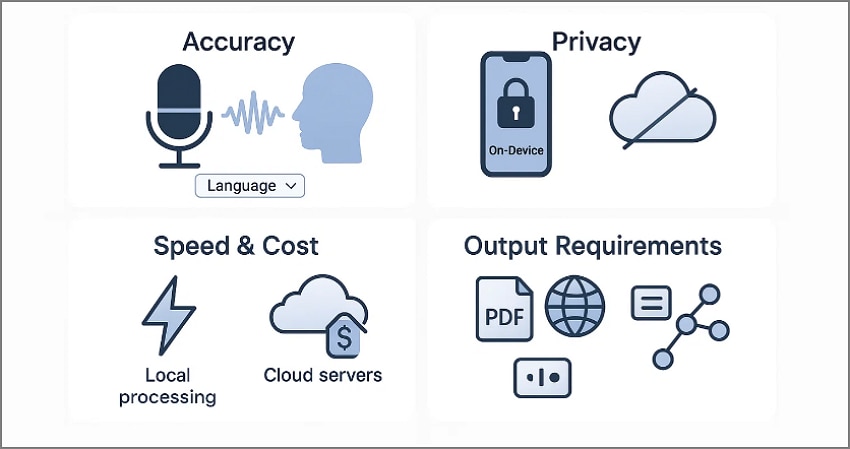
Before choosing any audio-to-text converter, here are essential aspects to keep in mind. These make a huge difference in the quality and usefulness of your final transcript:
Accuracy: Choose tools that handle 16–48 kHz mono audio and offer strong noise reduction. Always pick the correct language model (Hindi, English, Tamil, Spanish).
Privacy: Avoid uploading sensitive recordings unless necessary. For legal, corporate, or private discussions, prefer on-device transcription tools.
Speed & Cost: Online tools may queue long files. On-device tools convert instantly without uploading time. Also check if the tool charges per minute, per file, or per feature.
Output Quality: Choose tools offering summaries, translations, time-stamps, or structured notes—not just raw text.
Ease of Use: The best tools allow fast file import, automatic naming, simple editing, and quick export formats such as PDF/TXT.
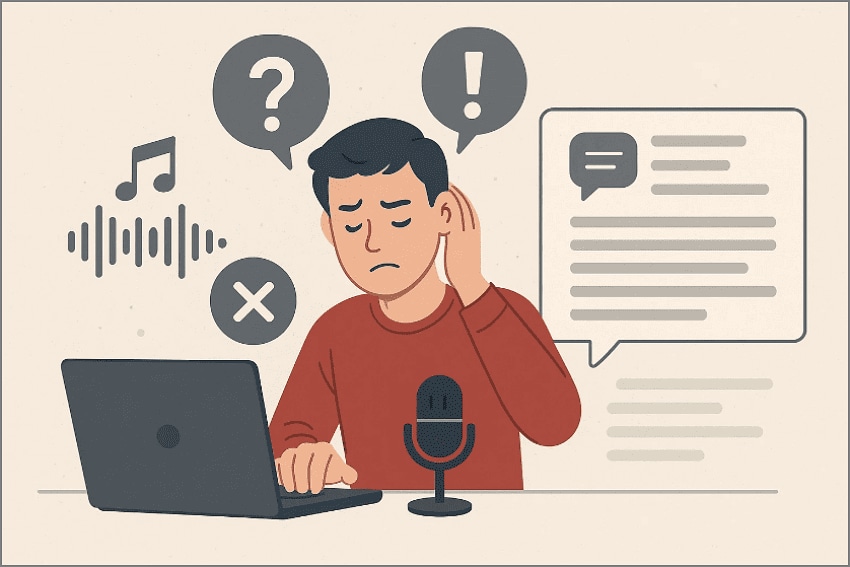
Part 9. Troubleshooting: Fix Common Audio-to-Text Issues
Audio transcription errors can occur for several reasons such as unclear audio, mismatched language settings, or file corruption. Below are the most common challenges users face along with practical solutions to fix them:
Transcript Errors: If your transcript contains inaccuracies or missing words, switch to a different AI model or verify the language settings. Ensure your recording is clean and re-encode your audio to 16 kHz or 48 kHz mono for best results.
Poor Audio Quality: Background noise or distance from the microphone reduces speech clarity. Use a closer mic, minimize ambient noise, and consider normalizing the audio before transcription.
Large File Upload Limits: Many online tools restrict file size. If your file is too large, split it into smaller segments or use an on-device tool like PDFelement Mobile that imposes no upload limitations.
Bilingual Notes Needed: First transcribe audio in the original language for maximum accuracy. Then translate the transcript using AI Translate to create a bilingual version of your notes.
Formatting Problems: Raw transcripts often look messy. Use AI summaries or formatting tools to structure your text. PDFelement Mobile allows fast text cleanup and layout adjustments before exporting.
Shareable Packets: For professional output, use templates and stickers inside PDFelement Mobile to highlight key insights. Export the final note as a clean PDF ready for distribution.
Part 10. Browser & Desktop Touchpoints (Micro Sections)
Besides PDFelement Mobile, you can also access the online and desktop versions to manage your workflows. Each version offers unique benefits depending on your task and environment:
PDFelement Online
Open your exported PDF notes directly in your browser using PDFelement Online. It’s ideal for quick edits, highlights, and sharing without installing desktop software.
PDFelement Desktop
For professional-grade editing, PDFelement Desktop offers a full suite of advanced tools. You can redact sensitive information, add headers and footers, insert page numbers, or apply approval stamps. It also lets you combine multiple PDFs into a print-ready, well-organized packet.
Frequently Asked Questions
-
1. What is the fastest way to convert audio to text in 2026?
The quickest method is using online converters for short recordings. They require no installation and give instant results. For longer recordings or sensitive audio, on-device tools like PDFelement Mobile are much faster and safer because they avoid cloud uploads entirely. -
2. How do I convert audio to text in Hindi?
Choose a tool that supports Hindi transcription, such as PDFelement Mobile. Set the recognition language to Hindi before transcribing. To obtain a bilingual result, translate the Hindi transcript using AI Translate. -
3. Which is better—online or on-device transcription?
Online converters are excellent for one-time, non-confidential files. On-device transcription is better for long, private, or recurring work because it avoids file size limits and keeps data secure. -
4. Can AI summarize the transcript for me?
Yes. Tools like PDFelement Mobile include AI Summary that automatically condenses long transcripts into short, organized notes with key insights and action items. -
5. Can I export the converted text as a PDF?
Absolutely. PDFelement Mobile allows exporting your transcript, summary, and notes as a polished PDF that’s ready to print or share instantly. -
6. Is it safe to upload audio files online?
For non-confidential audio, it's generally safe—depending on the platform. However, avoid uploading sensitive recordings. Use on-device tools to maintain complete privacy and avoid cloud retention policies.
Conclusion
Converting audio to text in 2026 is easier, faster, and smarter than ever. For quick tasks, browser-based tools deliver instant transcription with no setup. For secure or long recordings, PDFelement Mobile offers a complete offline workflow with transcription, AI summaries, translation, and PDF export. Whether you’re a student, professional, or creator, choosing the right tool ensures clean, accurate, and well-structured notes every time.




