

Consider that you are in a lecture, and all the key information is being lost. This is where the AI lecture note taker comes in. These will be the tools that capture the live audio and transcribe the speech-to-text automatically.
In 2026, advanced AI note-takers capture lectures in real time and organize notes into searchable, editable formats. In this article, we will be looking into the details of such tools and the top free and paid note-takers.
In this article
- Quick Top AI Lecture Note Taker Picks
- The AI Lecture Notes Landscape in 2026
- The Best AI Lecture Note Takers
- Editor’s Pick: Best Free AI Lecture Note Takers
- PDFelement Lecture to AI Notes: Quick Guide
- Convert Your Video or Audio Lectures into Notes Using PDFelement
- Generate Notes From Slides or Web Pages Using PDFelement
- Live Lecture Notes, But Visual — Mind Map Workflow
- How PDFelement Helps Students Enrolled in Different Courses and Learning Environments
- Factors to Remember to Maintain Academic Integrity & Privacy
- Browser & Desktop Touchpoints (Micro Sections)
- Frequently Asked Questions
- Conclusion
Quick Top AI Lecture Note Taker Picks
Each situation requires a lecture summarizer that provides the features and capabilities of functions accordingly.
Here are the top 3 tools we have picked for you to choose from in 3 different situations:
Live Lecture Online: The PDFelement Mobile version can be used to assist students who are in a live lecture as you can record what you hear on your phone, and the software will transcribe that recording. It also boosts the off line recording which is an appropriate choice in cases when you are not connected to the internet. You get to edit the transcribed lecture or summarize the content and export the PDF as notes.
Slides or Recorded Lectures: The most suitable tool in this situation is Fathom AI, as it excels in turning the recorded lecture video into searchable transcripts. You get the ability to generate summaries from the lectures to extract the key points that require the main focus.
Knowledge-Based Flashcards: Knowt is the best choice when it comes to converting your study materials into flashcards. It gives you the opportunity to create quizzes from the content as well, so that you get a stronger learning experience online.
Note: Students need to remember that they are required to use the AI technology integrated into such tools with the intention to learn and not to plagiarize content.
The AI Lecture Notes Landscape in 2026
A lecture note-taking AI tool does not just capture words, but it also helps to interpret meaning, highlight patterns, and organize the content for faster revision.
Below are the four modalities that shape the AI lecture note takers landscape in 2026:
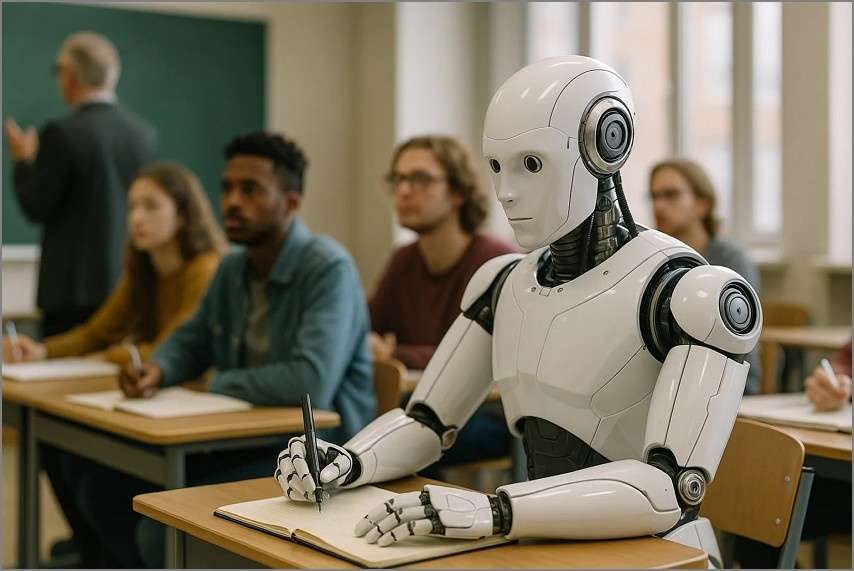
Live Audio Capture
AI note takers can be used to record lectures where the words spoken are transcribed into notes. They assist the students in remaining on track without worrying about missing important points. Summaries, automatic timestamps, and speaker labels make post-lecture review quicker and more effective.
Video to Transcript
Lecture notes apps enable students to post a recorded lecture or an online course to create searchable transcripts of the course. These transcripts may be summarized, highlighted, and exported as PDFs that can be easily revised. It is an ideal solution for online students or those who are returning to complex recorded material.
Slides to Notes
Tools enhance the process of study preparation, making the PowerPoint slides or lecture PDFs simplified into concise and organized notes. It removes subheadings, bullet points, and images to provide an explicit summary. This modality can enable the students to know the crucial themes and definitions fast without having to physically rewrite the content of the slides.
Visual Mind Maps
There are AI lecture notes generators that automatically transform your lecture notes into visually structured mind maps to show the relationship between concepts. Such diagrams simplify understanding of large-scale concepts, follow time scales, and help memorize information in pictorial form. Mind maps are particularly applicable to those topics that involve conceptual connections, like history.
What Factors Do Good AI Lecture Notes Deliver
- Key Points Extraction: AI tools used must be able to remember and point out the most essential facts in the lecture or slides. This helps students focus on what is really important when they are revising.
- Precise Definitions: Quality tools should capture and format the definitions properly to allow learners to use them conveniently in the future.
- Timelines and Structure: Effective AI lecture notes are structured on a timeline or in a topic format to allow the students to see the logical flow of the lecture.
- Example Questions: Use the content of lectures to formulate potential questions for a test or quiz using the smart AI tools.
- Multilingual Support: Good AI-generated notes help international students to either transcribe or translate lectures into several languages to make them more accessible.
- Summarization and Formatting: A great AI note-taker summarizes long transcripts in the form of short and structured notes. It keeps notes clean and legible and prepares them in PDF or flashcard format.
The Best AI Lecture Note Takers
Now that you are aware of the factors that a good lecture note taker must consist of, you must look into the top options you have available.
In this section, we will be looking into the top-most used and preferred note takers of 2026:
PDFelement Mobile [iOS/Android]
Best For: Live lectures, seminars, and lab sessions, especially in low-connectivity campuses or privacy-sensitive learning environments.


 G2 Rating: 4.5/5 |
 100% Secure
Key Features
- AI-Generated Mind Map: PDFelement Mobile can automatically convert long notes or lecture summaries into visual mind maps. This helps students grasp complex ideas faster and identify relationships between key topics.
- AI Translate: The built-in AI Translate feature instantly converts entire documents or selected text into multiple languages. It supports both quick and professional translation modes for accurate comprehension.
- Switch AI Models: Users can switch between different AI models like DeepSeek-V3, GPT-4o, GPT-4o-mini, and Gemini 1.5 Pro. This flexibility ensures optimal performance for summarizing, analyzing, or generating study materials.
- Convert HTML to PDF: PDFelement Mobile allows saving entire web pages or online course slides directly as PDFs. It preserves formatting, links, and media content, making offline study more convenient and organized.
Workflow on How to Generate Notes Using AI Record
Here is a detailed guide on how to generate notes using PDFelement Mobile’s AI Record function:
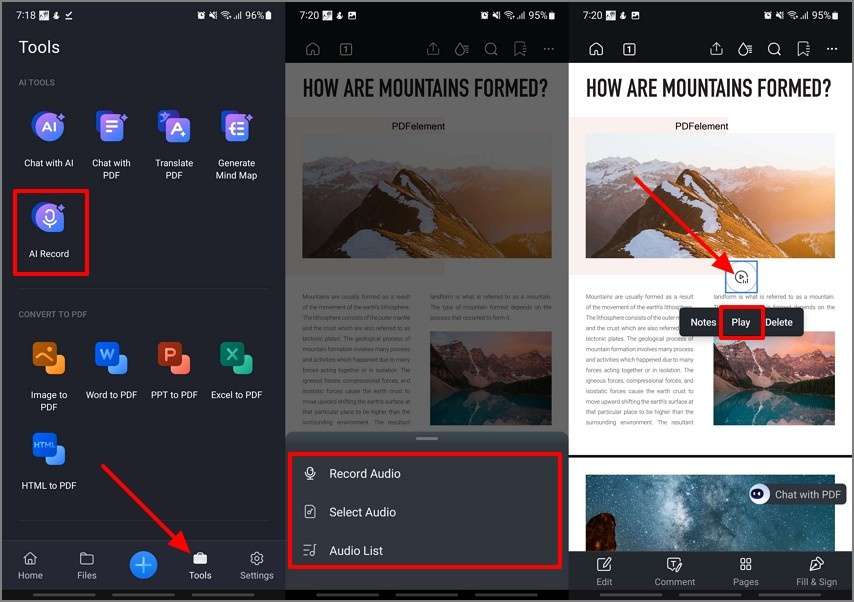
Step 1Launch PDFelement on Your Mobile and Access the AI Record Function
Start the process by installing the latest version of PDFelement on your device and launching it. AT the main screen, hit the “Tools” button to locate and tap on the “AI Record” option. Then, after importing the PDF files, choose the way you want to “Import Audio” into the file. Next, tap on the “Audio” icon and hit the “Play” button.
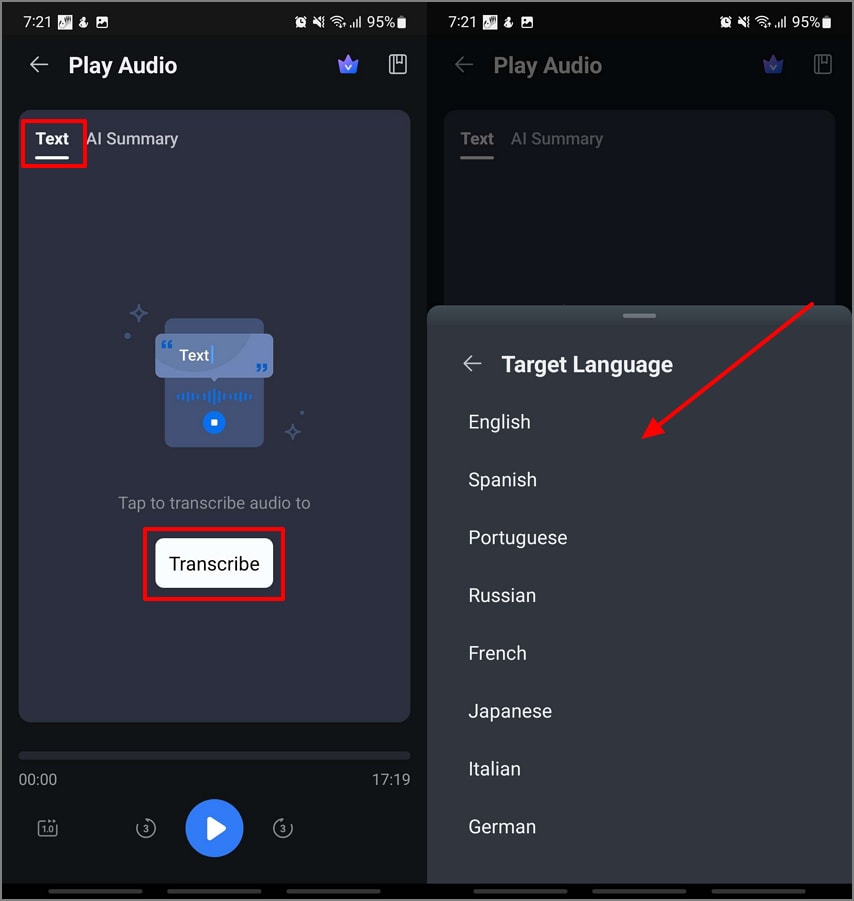
Step 2Transcribe the Audio Played at the Play Audio Screen
Once you enter the “Play Audio” screen, hit the “Transcribe” button in the “Text” section. Choose the “Target Language” as per your requirements and move to the next step.
G2 Rating: 4.5/5 |100% Secure
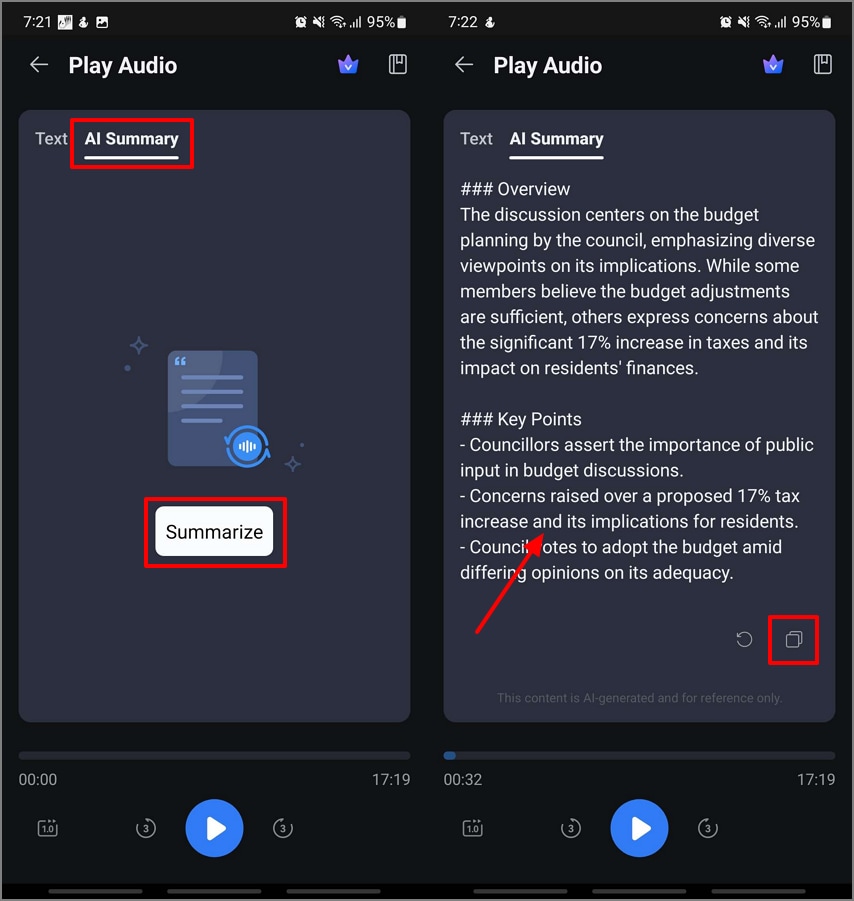
Step 3Generate a Summary From the Transcripted Text Created From the Recording
Jump to the “Summary” section and hit the “Summarize” button. This will summarize the recorded text, which you can “Copy” to your clipboard.
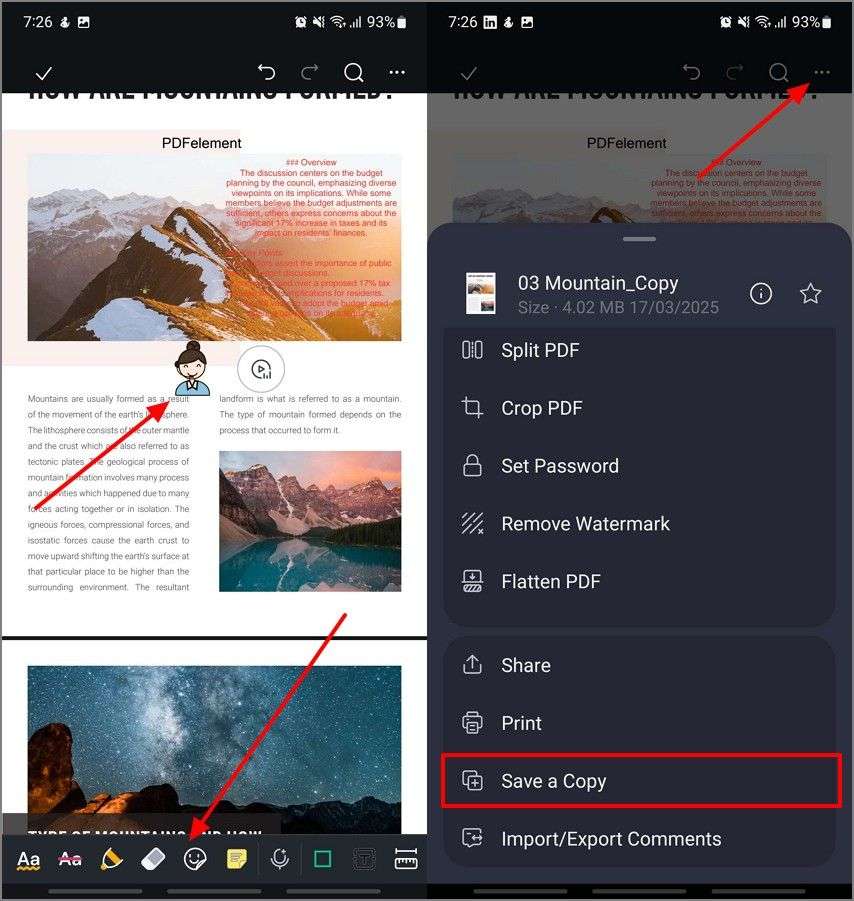
Step 4Go Back to the Editing Interface to Add the Summary, Annotate it, and Export the PDF Notes
Upon coming back to the editing interface, add the summary generated. Use the “Comments” section to add “Stickers” and annotate the document. Finally, hit the “Horizontal Three Dots” to pick the “Save a Copy” option and download the PDF notes.
NoteGPT
Best For: Mostly used for quick summaries, flashcards, and visually organized information from different files.

Key Features
- Users get the ability to upload multiple file formats, including videos, PDFs, documents, text notes, and more.
- The integrated AI Chat assistant allows you to get a deeper understanding of a specific topic in real-time.
- You can enable the Chrome extension of NoteGPT to get in-browser summarizations of online articles or YouTube videos.
Who Should Pick It: Learners who want automated summaries and flashcard generation from diverse content types without needing live transcription.
Notta AI Note Taker
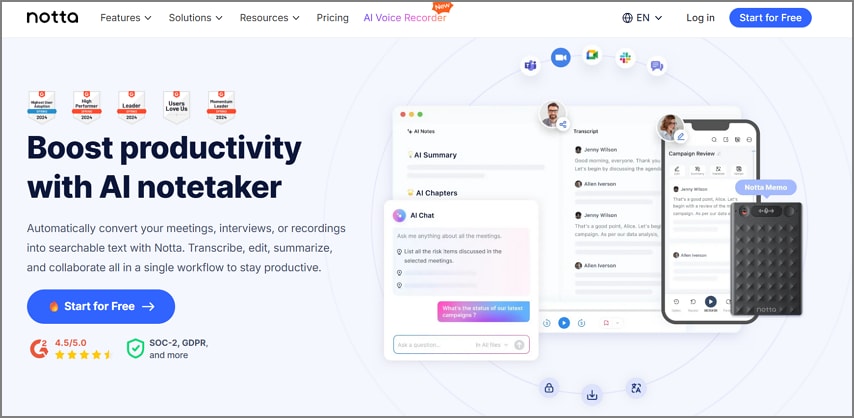
Best For: When a transcript is required and a multi-language support is needed during the meeting or lecture.
Key Features
- It supports over 58 languages to ensure that diverse users can depend on this tool to understand the lectures better.
- You can collaborate with your team and share the notes through Slack, email, and other productivity tools.
- With the help of Notta AI lecture notes summarizer, you get instant clarity through the automatic summaries.
Who Should Pick It: Teams who prioritize accurate live transcriptions in different languages for quick understanding.
Otter AI
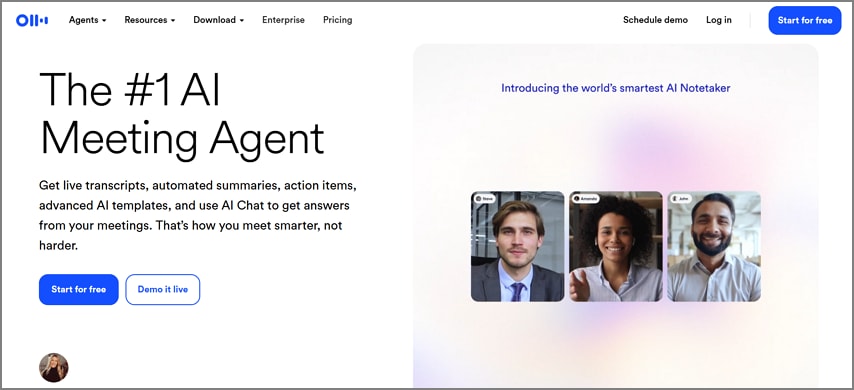
Best For: Users who need live transcriptions along with automatic summaries with team collaboration.
Key Features
- Virtual meetings can be easily carried out and keep everyone on track through live transcriptions.
- Produces AI-generated action items and searchable transcripts for faster review and decision-making.
- It integrates seamlessly with Zoom, Google Meet, Teams, Slack, Notion, and email.
Who Should Pick It: It is best suited to individuals or groups of people to receive a complete one-stop solution of live transcription, collaboration, and structure meeting documentation.
Knowt
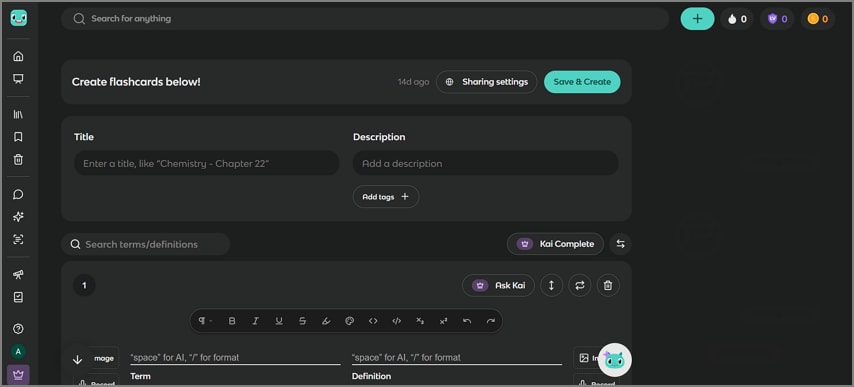
Best For: Learners seeking a smart, self-contained study platform that streamlines flashcard creation and exam preparation.
Key Features
- Knowt transforms the typed notes, PDFs, and videos into flashcards and summaries.
- Students get the ability to import the content from Quizlet for an effortless transition.
- The integrated Learn Mode helps you access the quizzes to prepare for tests.
Who Should Pick It: Students and educators who want to instantly convert notes, PDFs, and lectures into interactive flashcards with built-in study features.
Krisp
Best For: Perfect for anyone attending or hosting meetings in noisy environments.

Key Features
- Krisp uses an AI noise cancellation function to ensure that any unnecessary sounds are not recorded in the transcription notes.
- Once the transcript is generated from the lecture, it generates a concise summary automatically.
- The lecture videos to notes AI function lets you integrated with popular platforms like Zoom, Teams, and Google Meet.
Who Should Pick It: Remote students, teachers, and professionals who need crystal-clear, distraction-free calls with accurate transcription.
Fathom AI
Best For: Remote teams or individuals needing dependable, unlimited online meeting transcriptions.
Key Features
- Users get the ability to achieve unlimited meeting recordings, transcripts, and summaries.
- The AI lecture note taker free tool integrates with the CRM tools to offer a seamless workflow between teams.
- You get the ability to annotate the summaries by highlighting the key words you detect and by bookmarking any key points.
Who Should Pick It: Teams and individuals who want comprehensive online meeting transcription with smart summaries and workflow integrations.
Comparison of the Top AI Lecture Note Takers of 2026
After discussing the 7 best AI lecture note taker tools, here is a quick comparison table to help you figure out which tool matches your needs:
| Tools | Works Offline | Live Audio Capture | Video Notes | Slides Notes | AI Summary Quality | Free Tier | Exports Format | Best For |
| PDFelement Mobile | ✓ | ✓ | ✘ | ✘ | Creates concise, structured summaries with key highlights. | ✓ | Exports clean PDFs for easy sharing. | Best for students who need polished study notes. |
| NoteGPT | ✘ | ✘ | ✓ | ✓ | Accurate context-aware notes for slides and videos. | ✓ | PDF, Word, and Markdown formats. | Best for learners who review lectures later. |
| Notta AI | ✘ | ✓ | ✓ | ✓ | Real-time summaries with key action items. | ✓ | PDF, DOCX, TXT, SRT, MP3. | Recording and summarizing live classes. |
| Otter AI | ✘ | ✓ | ✘ | ✘ | Concise meeting recaps with auto-outlines. | ✓ | PDF, DOCX, TXT. | Mostly used by online and hybrid students. |
| Knowt | ✘ | ✘ | ✓ | ✓ | Simple summaries for quick study and flashcards. | ✓ | PDF exports for offline review. | Useful for students creating revision material. |
| Krisp | ✓ | ✓ | ✘ | ✘ | Focused speech summaries with noise-free clarity. | Limited functions | Audio transcripts only. | Best for speech-heavy lecture recordings. |
| Fathom AI | ✘ | ✓ | ✘ | ✘ | Detailed meeting highlights and key takeaways. | ✓ | PDF and DOCX. | Collaborative scenarios like team meetings and project notes |
G2 Rating: 4.5/5 |100% Secure
Editor’s Pick: Best Free AI Lecture Note Takers
In case you want to capture lecture notes without incurring expenditures, some AI applications have great free versions at the expense of a few compromises. Functions that are best used in Otter AI include live sessions and teamwork, but its free version limits the exports. NoteGPT video lecture to notes AI is efficient in summarizing YouTube slides, but does not support any live recordings. On the other hand, we have PDFelement Mobile, which allows you to record brief lectures and transcribe speech with the help of its STT function. You get the ability to get the AI-generated summary and upload it to your cloud or save it to your device as a PDF format for offline viewing.
PDFelement Lecture to AI Notes: Quick Guide
In this section, we will be looking into a scenario where a student attends a lecture and they will be using PDFelement Mobile to create AI lecture notes:
Step 1Create a Blank Page on PDFelement and Click AI Record
Upon launching the tool, hit the “+” icon to start creating a blank page. Once you set the blank page properties, hit the “Create” button. At this point, make sure you have the consent of the lecturer to start the recording. Then, tap on the “Horizontal Three Dots” to pick the “AI Record” button.

Step 2Start the Live Recording After Getting Consent
Next, pick the “Record Audio” option and start the live recording. Once the lecture is complete, hit the “Pause” button to save it. Tap on the “Audio” icon that appears to hit the “Play” button.

Step 3Transcribe the Recorded Audio in Your Preferred Language
Once you enter the Play Audio screen, tap on the “Transcribe” button under the “Text” section to pick your “Target Language” option.
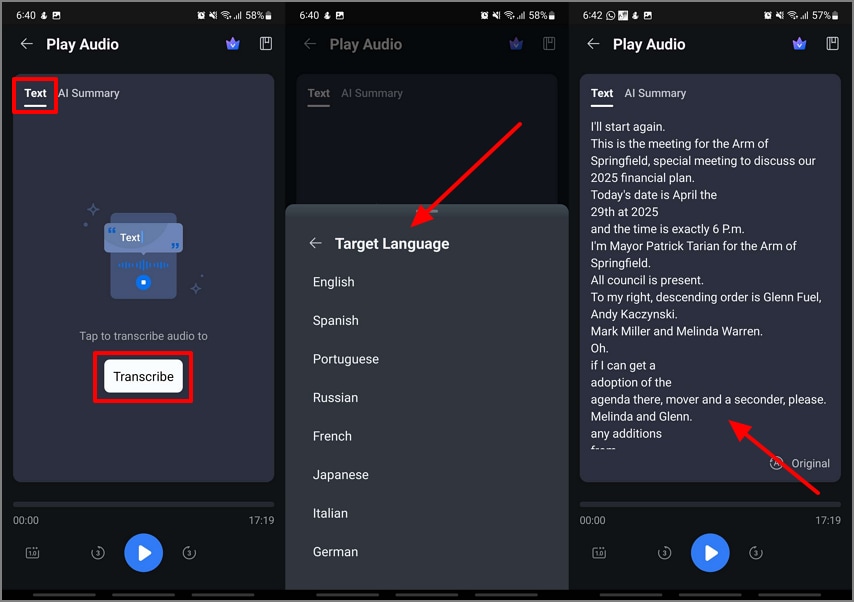
Step 4Summarize the Content and Paste the Lecture Notes into a Blank PDF
Moving on, jump to the “AI Summary” section and hit the “Summarize” button to extract the key points the lecturer mentioned. Once the summary is generated, tap on the “Copy” icon and move back to the blank PDF and create a new text box to paste the summary. Now, you can edit the properties of the text from the features below.

G2 Rating: 4.5/5 |100% Secure
Step 5Annotate the PDF with Stickers and Access The AI Translate Function
Upon editing the text, shift to the “Comment” section and add “Stickers” as per your choice. You can highlight the keywords based on your recollection. Then, if you want to translate the text into a different language, select it and pick the “AI Tools” option to hit the “Translate” button.

Step 6Generate a Mind Map of the Lecture AI Notes and Export the PDF
Coming towards the end, you can use the AI Chat Assistant in PDFelement and “Generate a Mind Map” to get a better understanding of the lecture. Finally, tap on the “Horizontal Three Dots” to pick the “Save a Copy” option and download the lecture AI notes to view them offline.

Convert Your Video or Audio Lectures into Notes Using PDFelement
Moving on, here are the steps on how to convert a recorded lecture in video or audio into notes format using PDFelement lecture AI note taker:
Step 1Upload the Audio File and Start Transcribing and Summarizing the Audio
Initiate the process by importing the audio file into the PDF file, hit the “Play” button to “Transcribe” it and then “Summarize” the text to “Copy” the audio notes.

Step 2Edit the PDF Text and Add Links to Export and Share PDF
In the end, at the editing interface, select the text and pick the “Add Link” option. Then, paste the URL into the text box to hit the “Add” option. Once you are done, tap on the “Three Horizontal Dots” to pick the “Save a Copy” option to download the result.

G2 Rating: 4.5/5 |100% Secure
Generate Notes From Slides or Web Pages Using PDFelement
Some lecturers provide students with slides or web pages as study materials. Here we will discuss the instructions on how to turn lectures into notes from slides and HTML links:
Convert From Slides to PDF
Step 1Convert PPT to PDF Format to Annotate the PDF
Start by accessing the “PPT to PDF” option in the “Tools” section. Then, import the PPT into the app. Once converted, access the “Comment” section and annotate the AI lecture notes with the highlighting features and more.

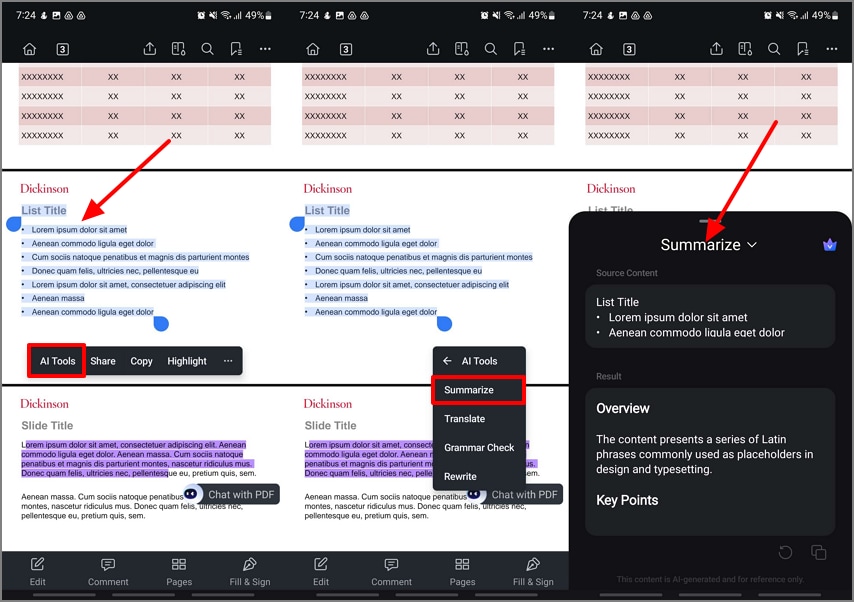
Step 2Select the Text and Choose the AI Summarize Function
Once you highlight the document and extract the key takeaways, select the text and pick the “AI Tools” option. Tap on the “Summarize” button to allow PDFelement AI assistant to start summarizing the text.
Convert HTML to PDF
Step 1Convert the HTML to PDF and Annotate It
Start the process by choosing the “HTML to PDF” option in the “Tools” interface. Next, add the link to your lecture and hit the “Create” button. Once the PDF is generated from the HTML, use the “Comment” screen to start highlighting the text.
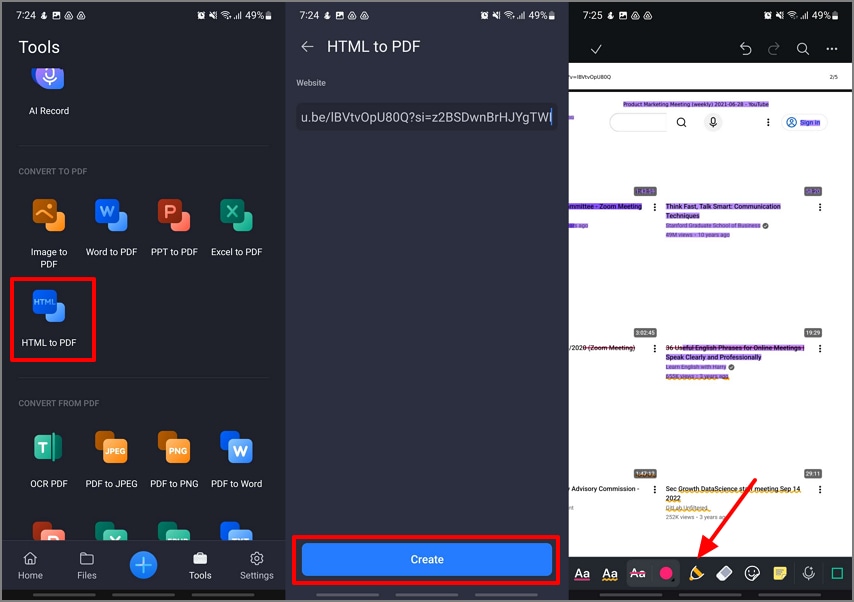
Step 2Perform an AI Summary on the PDF
Moving on, select the text and pick the “Summarize” option from the “AI Tools” option to allow the integrated AI technology to start summarizing the text.

Live Lecture Notes, But Visual — Mind Map Workflow
If you have a PDF document of your lectures and you need a quick visual idea of what the PDF discusses, you can create a mind map.
In this section, we will be looking into the steps you need to take in order to generate a mind map lecture notes AI using PDFelement:
Instructions. Start the process by uploading the PDF document to PDFelement and hitting the “Chat with PDF” floating button in the editing interface. Here, click the “#Generate mind Map” prompt in the text box. This will extract all the key points and create a mind map. Use the “Download” icon to pick the “Download PDF” option to view the mind map and understand the content offline.

How PDFelement Helps Students Enrolled in Different Courses and Learning Environments
Since each course and learning environment requires students to be attentive in different ways, we have shown below how PDFelement Mobile supports students in different ways:
STEM Labs and Fast Talkers
The live capture functions of PDFelement allow students to snap or scan handwritten laboratory notes and whiteboards immediately. Its integrated OCR technology allows you to make the scanned text editable and searchable. This guarantees precision when conducting laboratory sessions at a high pace and eases teamwork when carrying out technical or group-based experiments.
Humanities and Reading-Intensive Courses
PDFelement’s HTML-to-PDF converter stores readings online, which can be studied later when one is not present online, with the formatting preserved. Students are free to underline themes, add comments, and rely on AI conclusions in order to reduce the length of a text. These are built-in tools that simplify analysis, synthesis, and preparation of class discussions or essays.
Foreign Language and Exchange Students
Within PDFelement, you get the ability to access the AI translation function to get immediate translation of documents and text into different supported languages. Students can create bilingual glossaries and use multilingual sticky notes for quick access. It makes you understand the content better, supports immersive learning, and helps manage translations within a single, organized file.
Accessibility and Offline Learning
On-device editing allows students to read, annotate, and summarize content and study offline, which would be useful in low-connectivity conditions. Accessibility audits make sure that the contents are screen reader-friendly and also make it visually optimizable. Privacy in offline mode is also ensured, and students have complete control of sensitive academic information without having to upload it to the cloud.
Factors to Remember to Maintain Academic Integrity & Privacy
Below are the aspects you need to keep in mind before you turn lecture into notes to maintain academic integrity and privacy between the student and teacher:
- Intentional Application of AI: You can apply AI technologies to comprehend, synthesize, and summarize materials instead of copying them. This is so that you get to study in a genuine manner and have no chance of committing any academic misconduct.
- Accurate Citation: Users need to ensure that they add the correct citations when referring to the AI-generated summaries. It will keep your notes and assignments free of plagiarized content and more transparent in terms of academic honesty.
- Consent Recording: Before you record lectures or discussions, it is important to seek permission before recording. Also, respect the privacy of your instructor and classmates to maintain an ethical use of the AI lecture notes generator.
- Data Security: Choose mobile applications like PDFelement that have audio and text capabilities on-device. This will ensure that your recordings remain confidential and prevent any data leakages.
- Cloud Safety: In case of cloud syncing, make sure that the platform supports end-to-end encryption. You must make sure that you review the updates in privacy settings in order to take control of who can access your data.
- Responsible Sharing: Do not make any lectures or other recordings available to the public without the consent or approval of the involved parties. All academic materials are to remain confidential in order to preserve the intellectual property of the lecturers.
Browser & Desktop Touchpoints (Micro Sections)
Apart from using PDFelement Mobile to record lectures and take notes, users can access the PDFelement Online version too to avoid the hassle of installing software’s. It can be used to perform quick edits on the exported notes in PDF format, which you can later share with your batch mates.

Moving on, the PDFelement Desktop tool is the most advanced PDF editor that helps you redact confidential information from the notes before sharing them. You can also add headers, footers, or page numbers to create a print-ready revision of AI lecture notes. With the help of the tool, you can perform advanced editing to the PDF document in batches to ensure you save time and effort.
Frequently Asked Questions
-
1. What’s the best AI lecture note taker overall?
PDFelement Mobile stands out as the most reliable option for 2026, combining audio recordings, transcription, and PDF export, all under one app. It is the best since it offers fast processing and offline access, which is ideal for students who attend live lectures. The smart summarization helps you review the key points mentioned effortlessly. -
2. What’s the best free AI lecture note taker?
Knowt is a strong choice as it helps you convert text or uploaded notes into flashcards and summaries. It is especially useful for students who want structured study materials without paying for premium tools. The platform also supports AI-generated quizzes to reinforce learning. -
3. How do I record lectures and take notes automatically?
You can use tools like PDFelement Mobile to record live audio and generate real-time transcripts. These apps capture every word accurately while highlighting the main ideas. Afterward, you can export clean, study-ready notes in a PDF format. -
4. Can I turn video lectures into notes?
Yes, tools such as Fathom AI and Notta AI can transcribe and summarize recorded lectures automatically. You simply upload the video or link, and the AI extracts the key points. This makes reviewing online classes and webinars much faster. -
5. How do I convert slides to notes quickly (free)?
NoteGPT allows you to upload PowerPoint slides or PDFs and instantly get summarized notes. It organizes the text into bullet points, making it perfect for quick study prep. The free plan is ideal for students managing multiple lecture decks. -
6. Is it legal to record lectures?
In most cases, recording is allowed for personal academic use but requires consent from the instructor and participants. Some institutions have strict policies regarding privacy and data sharing. Always check your school’s rules before recording any lecture. -
7. Can I take notes offline and summarize later?
Yes, the mobile app PDFelement supports offline recording and later transcription for users who do not have stable internet connections. You can record lectures without internet and then sync and summarize them on the go. This feature is especially helpful for students who need quick and reliable AI lecture note generators.
Conclusion
In conclusion, this article has looked into the details of what a good AI lecture note taker consists of. We then discussed the top 7 tools you can depend on to take notes during the lectures. From this discussion, we have come to the conclusion that the best one out of all these tools is PDFelement Mobile. It allows you to perform lecture notes conversion offline and on the go with ease. Download PDFelement Mobile today and enjoy the app in different scenarios.




