
AI Flashcard Generator from PDF
Generate flashcards from PDFs, Word documents, Excel files, PPT slides, images, videos, and more with AI. Customize the difficulty, number of cards, and study focus, then ask AI for deeper explanations as you learn. Study faster, understand more, and remember longer.


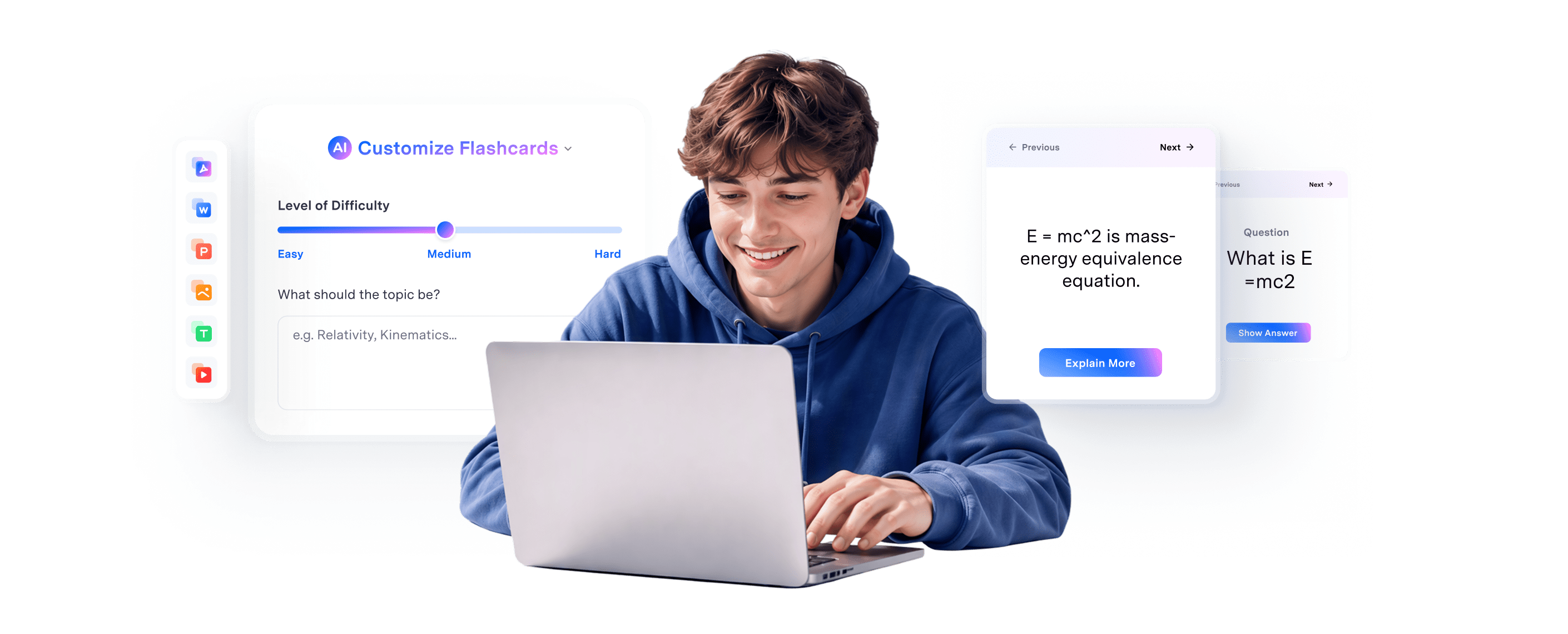
Learn smarter with AI flashcards generator in PDFelement.
Use AI to turn lengthy documents, research papers, and mixed study materials into focused learning sessions. Organize scattered information into clear, structured flashcards that make studying faster, easier, and more effective.
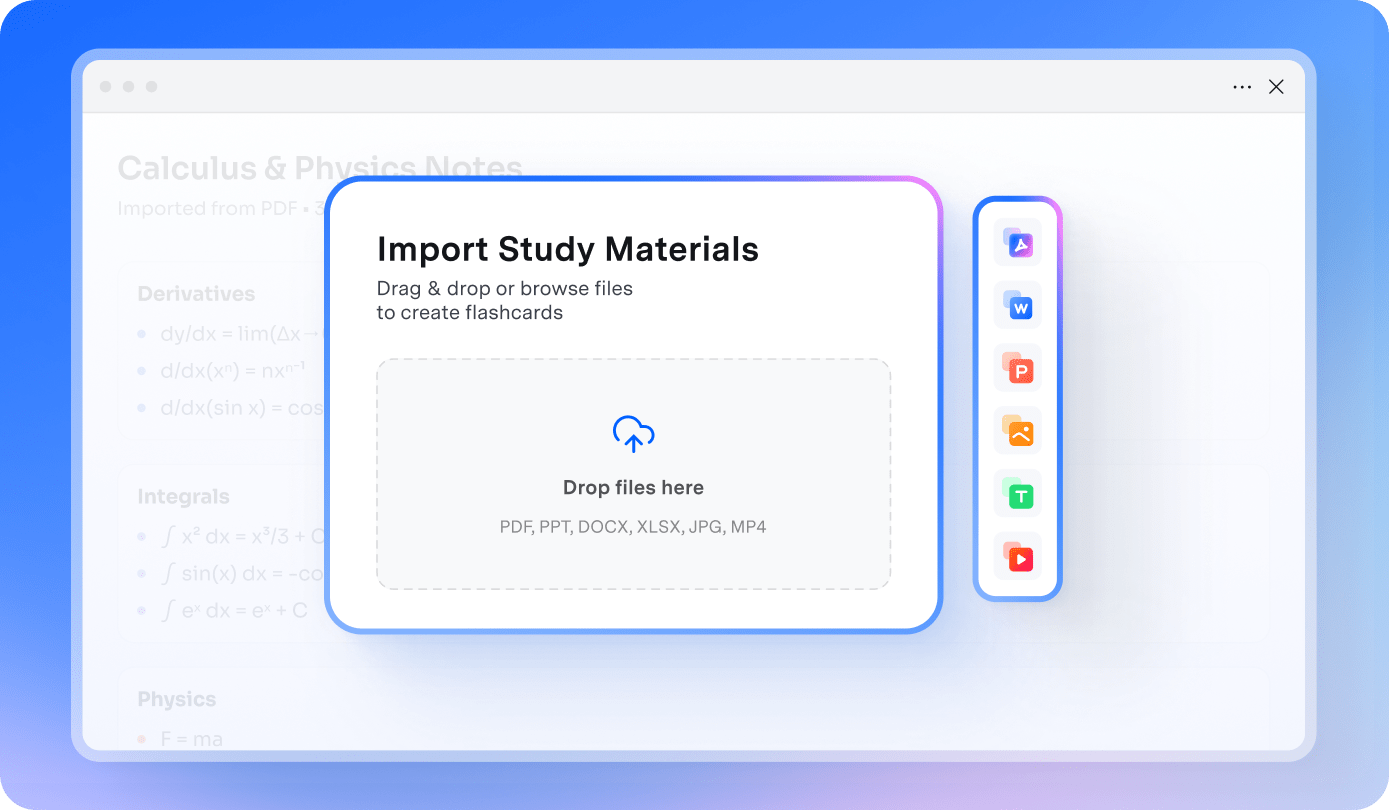
Turn any learning material into AI flashcards.
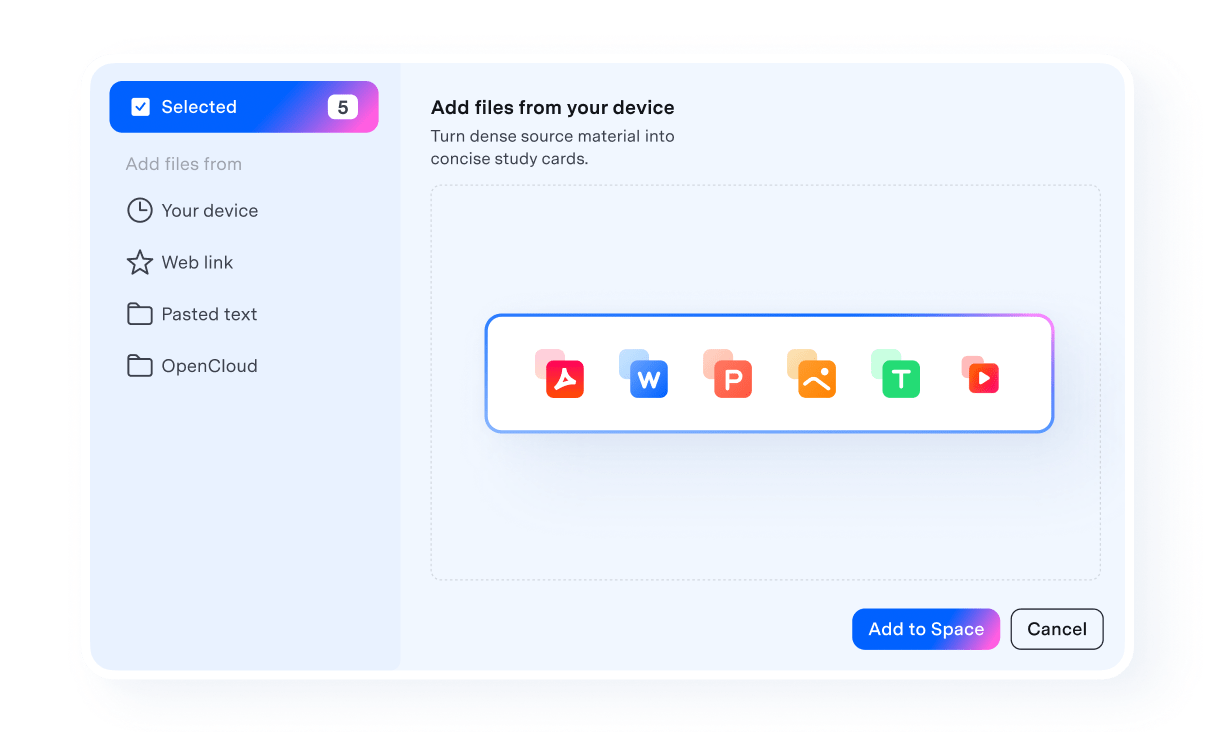
Upload PDFs, PowerPoint presentations, Word documents, Excel spreadsheets, images to generate focused flashcards instantly. Or simply turn pasted text or a YouTube link into flashcard.
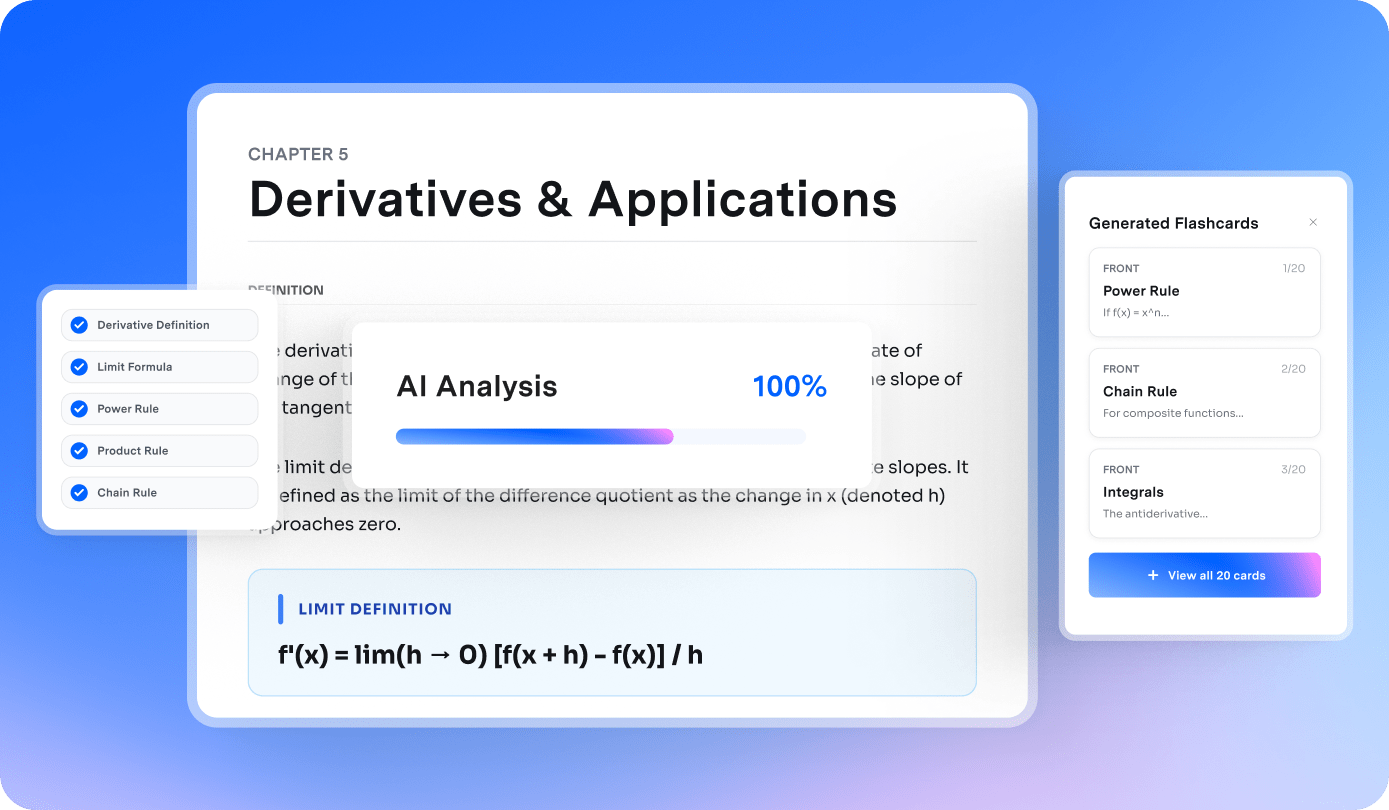
Generate personalized flashcards in seconds.
AI identifies key concepts and creates 10 to 20 customizable flashcards tailored to your learning goals.
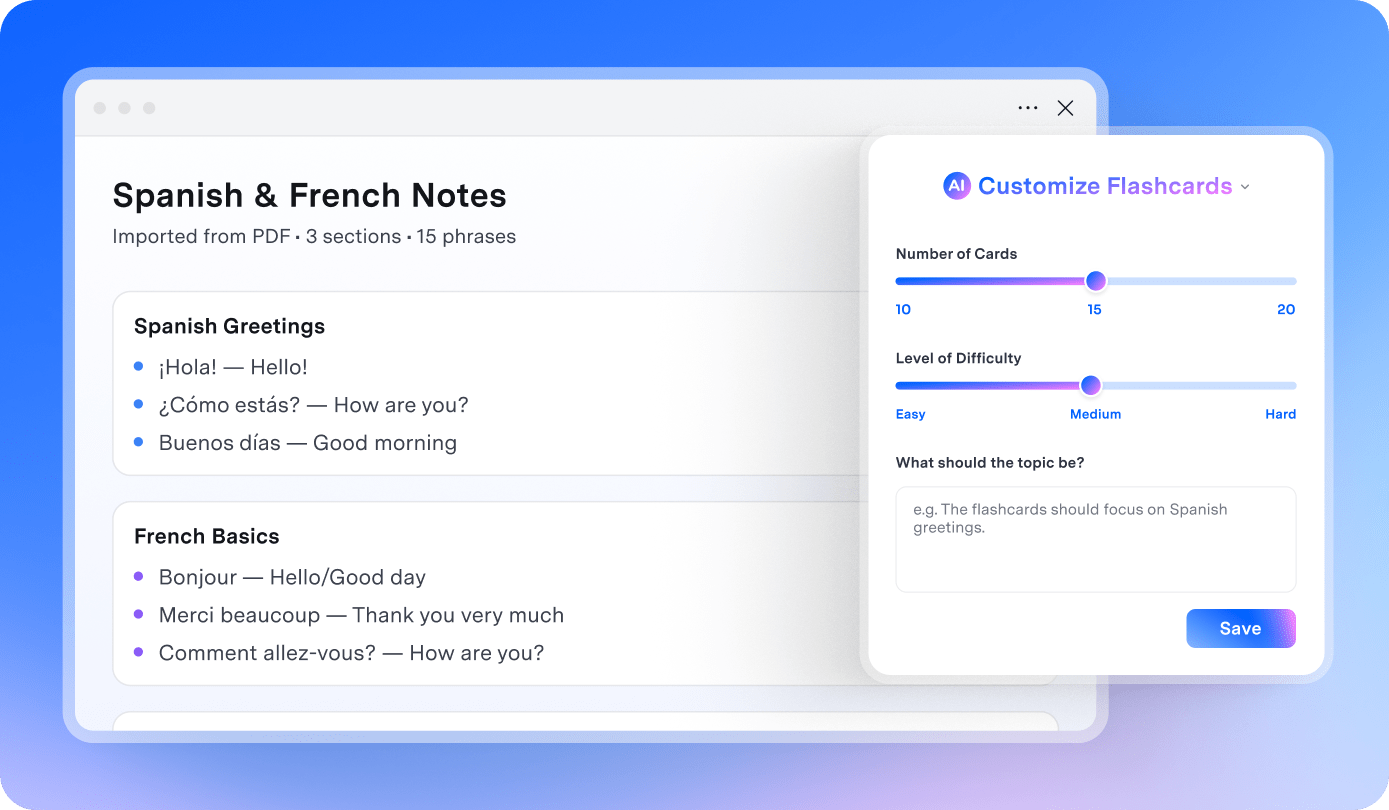
Customize every study session.
Choose easy, medium, or hard flashcards, select the topics you want to focus on, and spend more time mastering the concepts that matter most to you.
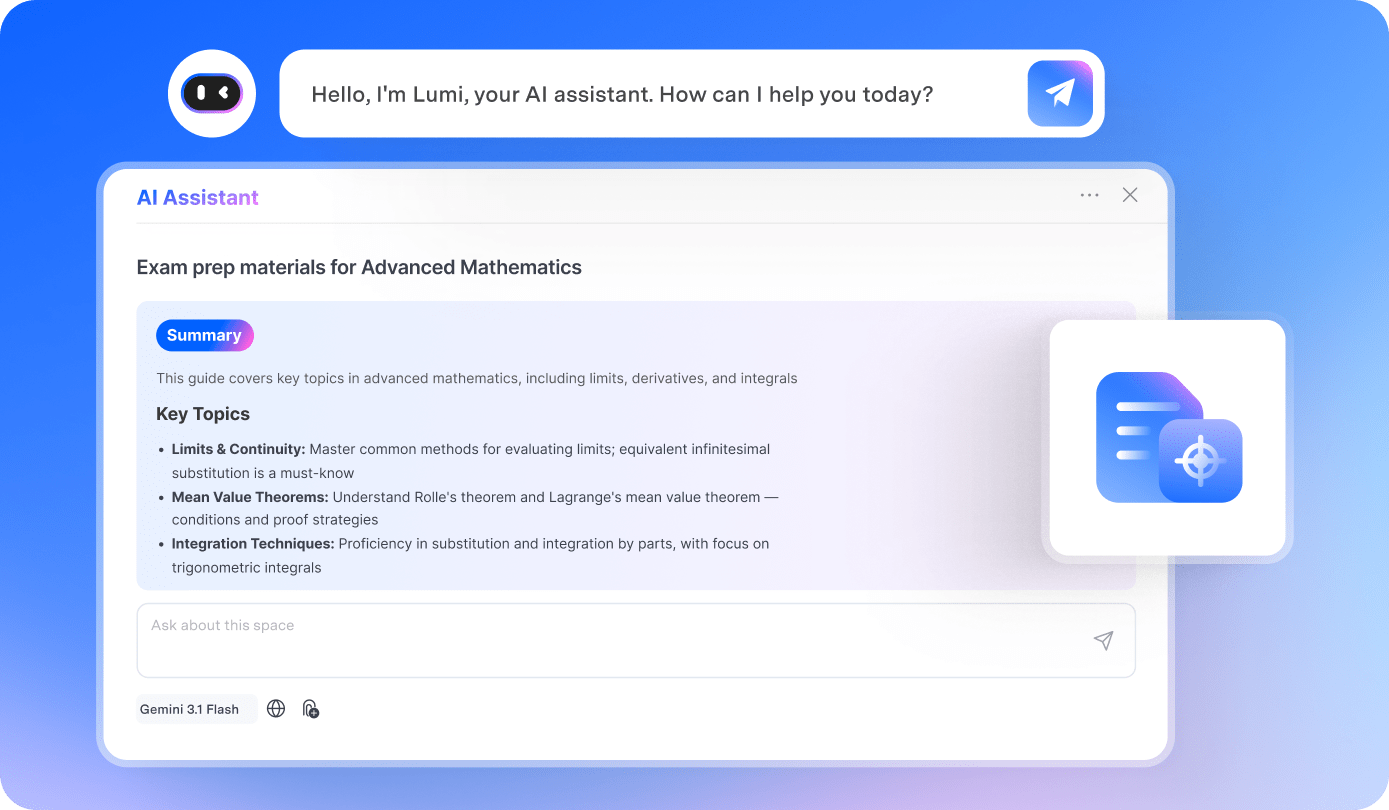
Learn concepts more deeply with AI powered explanations.
Ask follow up questions or select Explain More to get instant answers, clarify difficult ideas, and explore detailed concept breakdowns as you study.
Generate AI Flashcards in 3 Simple Steps
Turn PDFs and other documents into clear, study ready flashcards in just a few simple steps. Quickly capture key concepts, organize your study materials, and review important information more efficiently.
Open Space in PDFelement and create your first study space. Then upload source files, add a link, or paste text to the space.
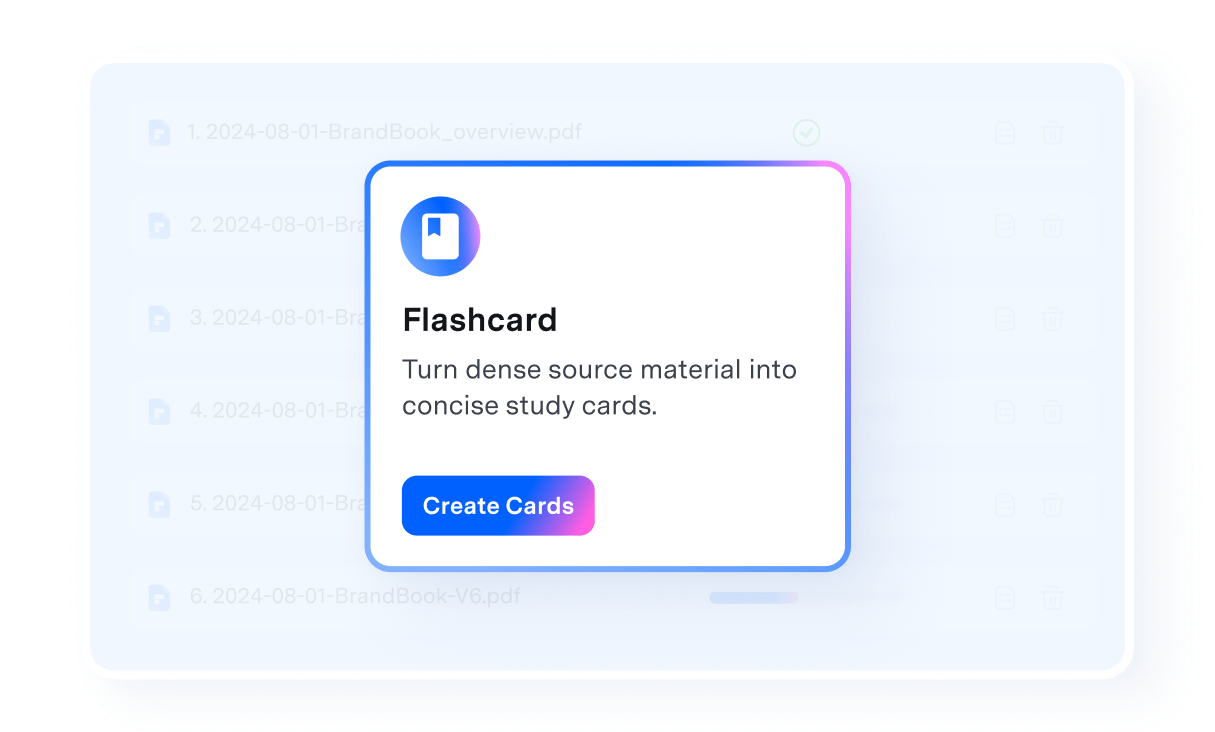
Select the study materials you want to use, then click Create Cards to generate clear, focused flashcards from your content.
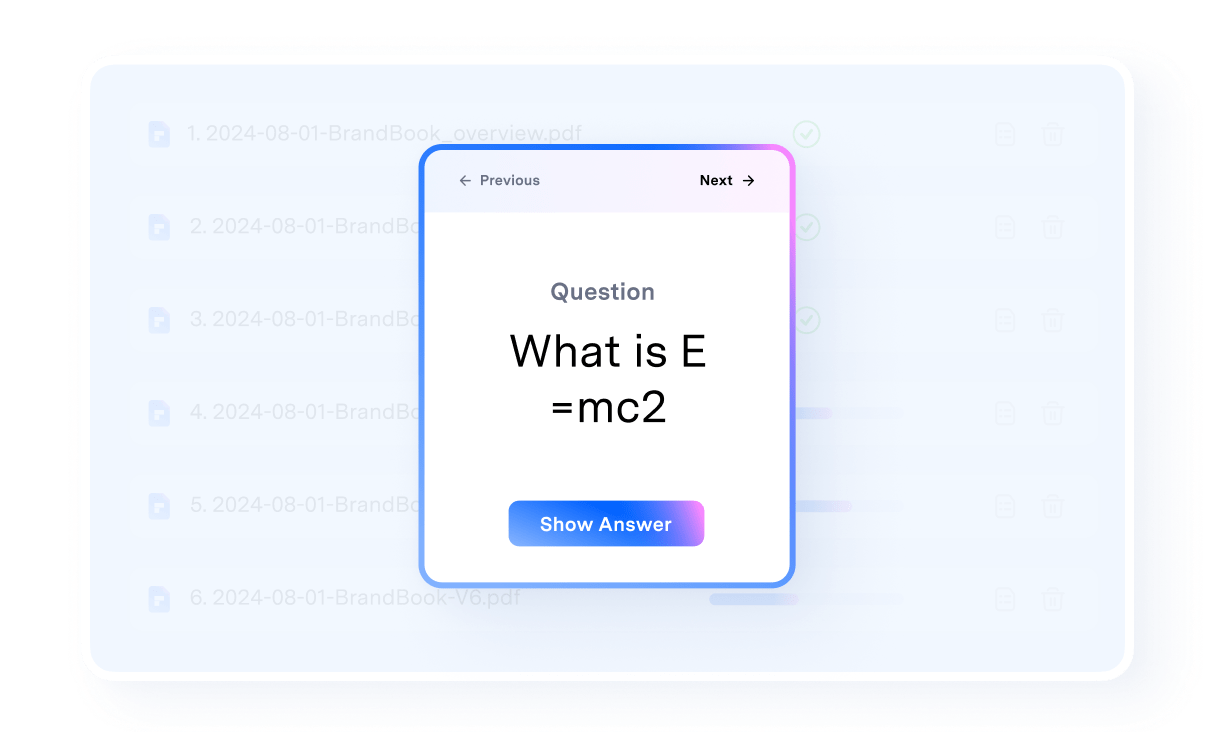
Open your generated flashcards and begin studying right away. Ask AI for a deeper explanation or follow up with additional questions.
Create Flashcards Tailored to Different
Learning Goals
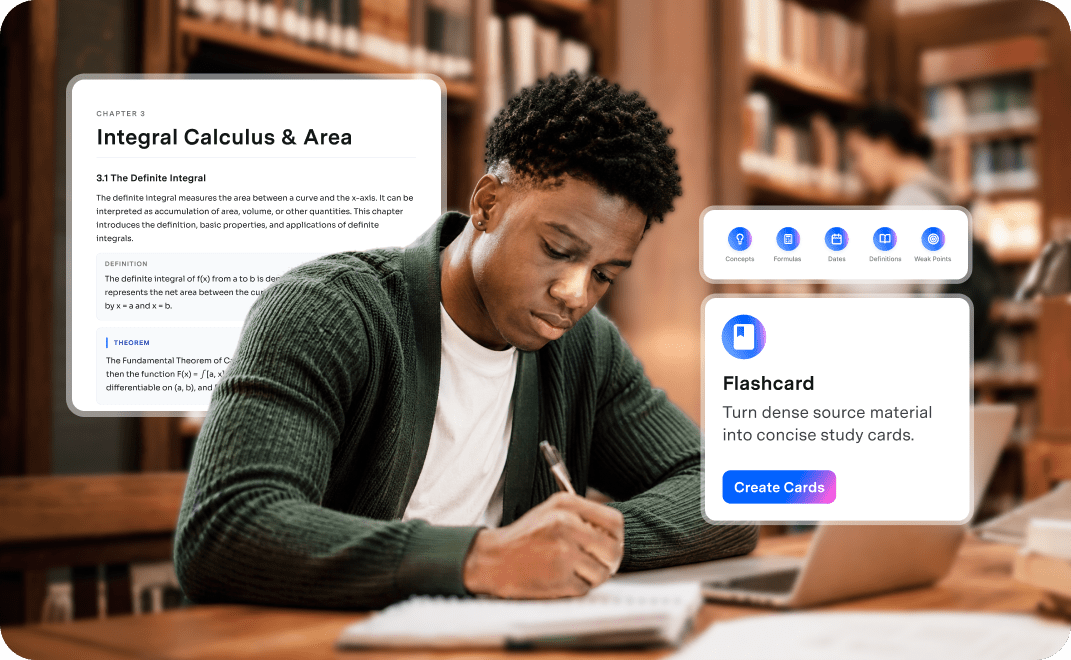
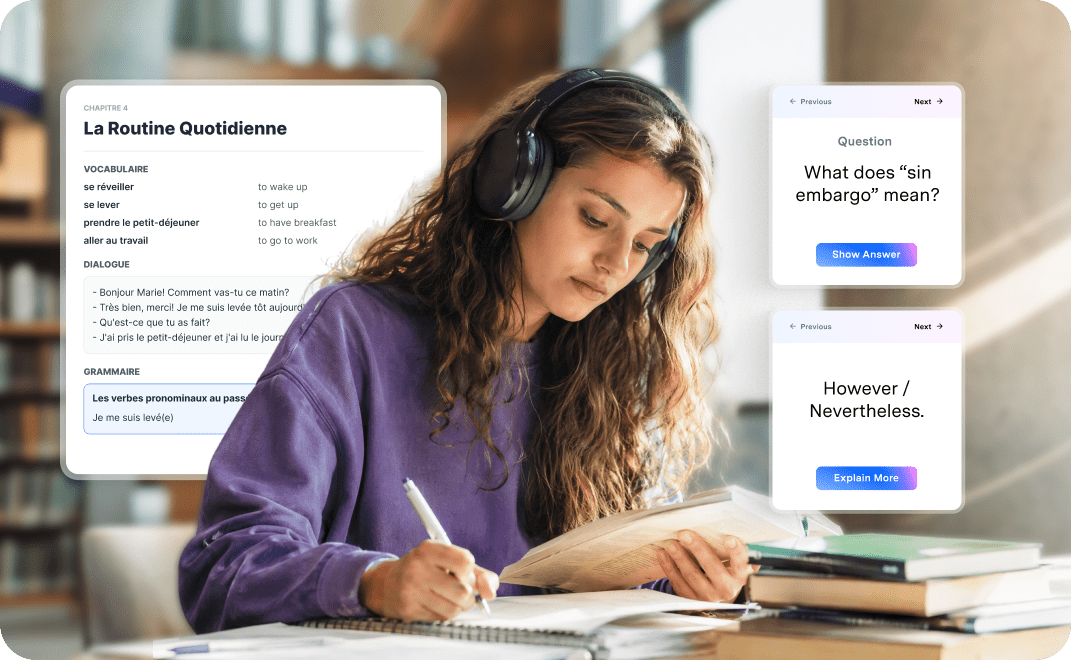
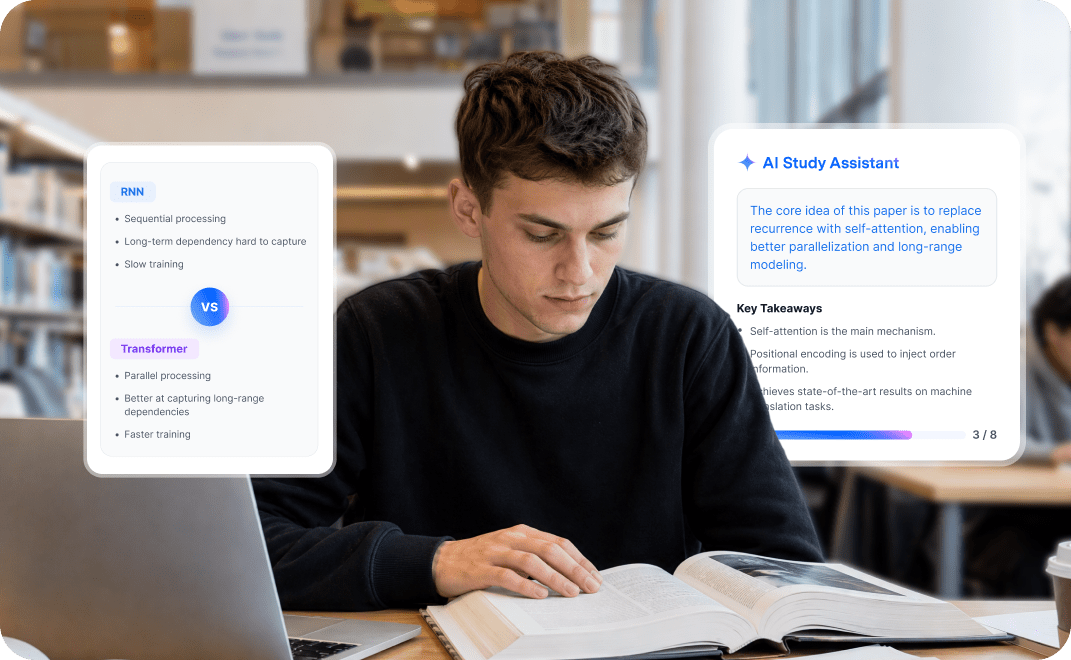
Prepare you for different learning goals
Makes exam revision more organized and less stressful
Turn textbooks, lecture notes, PDFs, and class materials into focused review cards within minutes. Quickly practice key concepts, formulas, dates, definitions, and weak points before test day.
Turn language learning into lasting memory
Create flashcards from lessons, articles, dialogues, or copied text to practice new words, phrases, grammar points. Turn raw language materials into bite-sized cards for daily review.
Break down complex research papers into clear study cards
Help you understand dense academic content step by step, retain important details, compare concepts, and review papers more efficiently without getting lost in long sections or technical language.


I know exactly what to review before the test
Before exams, I turn textbooks, class notes, and study PDFs into flashcards covering important formulas, dates, definitions, and concepts. I can customize the difficulty and focus areas, making each study session more targeted without rereading entire chapters.

I spend more time learning and less time making flashcards
I used to copy vocabulary and grammar points from lesson PDFs into flashcards one by one. Now I can turn class notes and reading materials into ready to review cards, adjust the difficulty, and focus on the areas I find most challenging. It makes daily language practice easier, faster, and more consistent.

I can review the key points of a dense paper without rereading every page
Medical papers and lecture slides are often packed with complex terminology, research findings, and important details. I use flashcards generator in PDFelement to turn that material into focused questions and answers, then customize the cards around the topics I need to remember most.
FAQs about AI Flashcard Generator.
The best tool depends on how you study and where your learning materials are stored.
Use a dedicated flashcard apps: Anki and Quizlet help you create card sets, practice with spaced repetition, and review information regularly.
Use a AI-powered study tool: PDFelement and Microsoft 365 Learning Activities support a more connected learning workflow. For example, PDFelement lets you bring PDFs, Word documents, PowerPoint presentations, spreadsheets, images, text, and YouTube links into one study space. You can then use AI to generate flashcards from those sources.
A flashcard generator is a tool that creates study cards containing questions, terms, prompts, or concepts on one side and corresponding answers or explanations on the other.
A traditional generator may require you to enter each card manually, while an AI flashcard generator can analyze source materials and create cards automatically. You can upload documents, paste text, or provide other learning resources, and the AI identifies important definitions, facts, formulas, dates, and concepts. Many generators also let you adjust the difficulty, number of cards, and learning focus.
You can create flashcards with an AI chatbot or a dedicated AI flashcard generator.
With a chatbot such as ChatGPT, paste your study content and ask it to create questions and answers based on specific topics, difficulty levels, or learning goals. You may need to copy the results into another app for review.
A dedicated tool such as PDFelement offers a more structured workflow. Add your PDFs, Word documents, PowerPoint presentations, spreadsheets, images, links, or text to a Space, select the materials you want to study, and choose Create Cards. The AI then generates customizable flashcards that you can review while asking follow up questions or requesting deeper explanations.
Open PDFelement and select Space, then create a new study space. Upload the PDF you want to study and add any related materials, such as lecture slides, notes, images, or supporting documents. Once your sources are available, select the materials you want the AI to use and click Create Cards. PDFelement analyzes the content, identifies important concepts, and generates a set of focused questions and answers. Open the generated cards to begin reviewing. You can also export the generated flashcards to print them out.
Yes, several AI tools offer free ways to generate flashcards, although usage limits and available features may vary.
Revisely can transform PDFs, notes, and pictures into flashcards with a free account.
ChatGPT can also create flashcards when you paste in study content and provide instructions about the topic, format, and difficulty. However, you may need to organize or transfer the generated cards manually.
PDFelement also offers a free trial that lets you test its AI flashcard generator with an included AI usage quota.Yes. You can try the AI Flashcard Generator in PDFelement for free. The trial version includes an AI usage quota that allows you to test selected AI tools, including flashcard generation. If you use all of the available quota or need to process more materials, you may need to purchase additional AI usage or upgrade your plan.
Generate flashcards with PDFelement. Then Click Export to export them to PDF - a print friendly format, with one question and answer pair per card. Check the page size, spacing, font size, and card order before printing. For double sided cards, confirm that your printer settings align the questions and answers correctly.


