PDF Annotator Online for Free
Need a free, secure way to write on a PDF? Use our online PDF annotation tool to highlight text,
type on files, insert images, and add shapes—right in your browser.
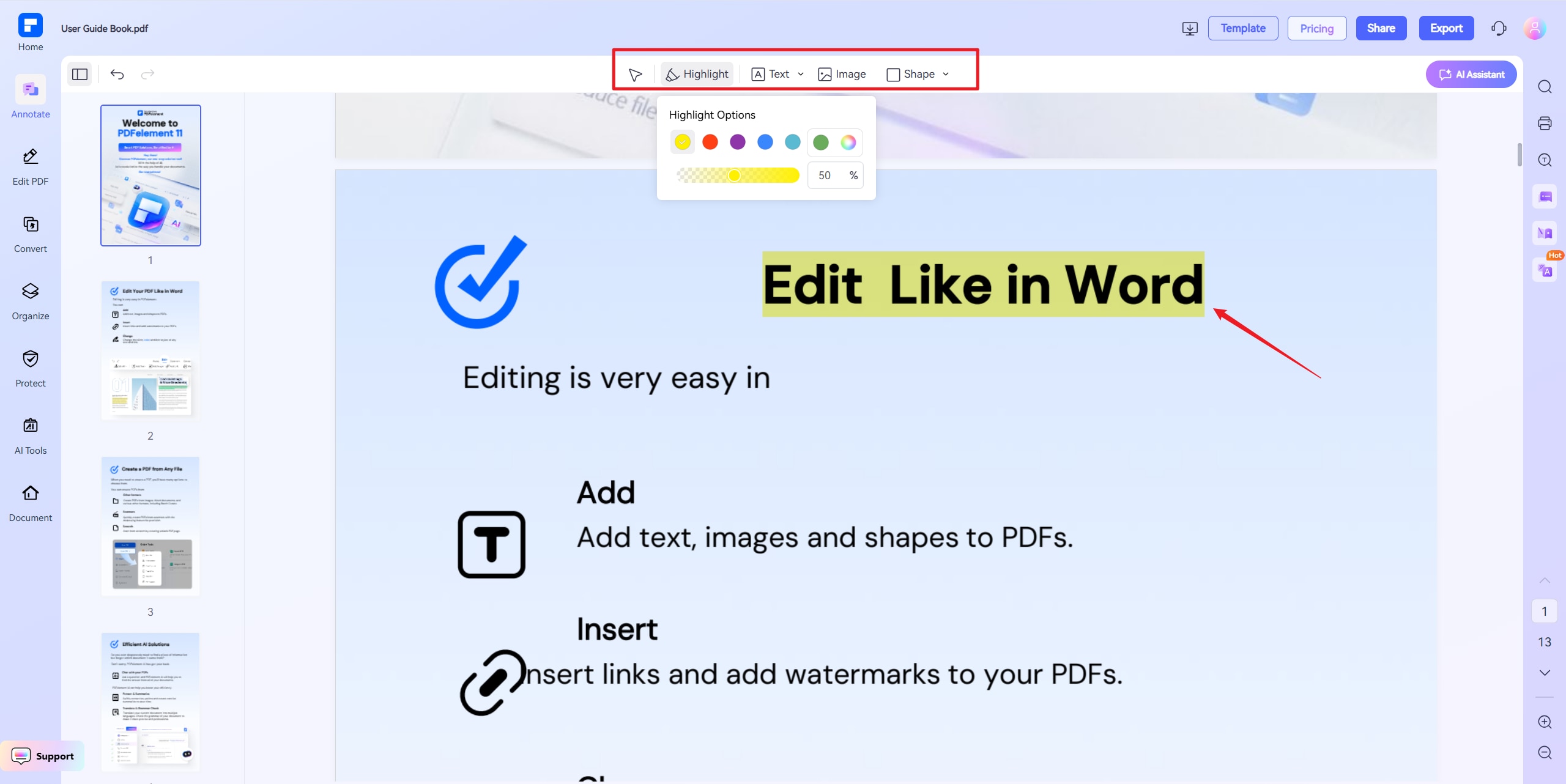
 Highlight, Underline, or Strike Out PDF Text Online
Write on PDF Using Text Boxes
Highlight, Underline, or Strike Out PDF Text Online
Write on PDF Using Text Boxes
With Custom Styles
Add Images and Shapes to PDFs Easily
 Free Download
Try PDF Annotation Software
Try PDF Annotation Software
Free Download
Free Download
Try PDF Annotation Software
Try PDF Annotation Software
Annotate PDF Online vs Offline
How to annotate a PDF online?
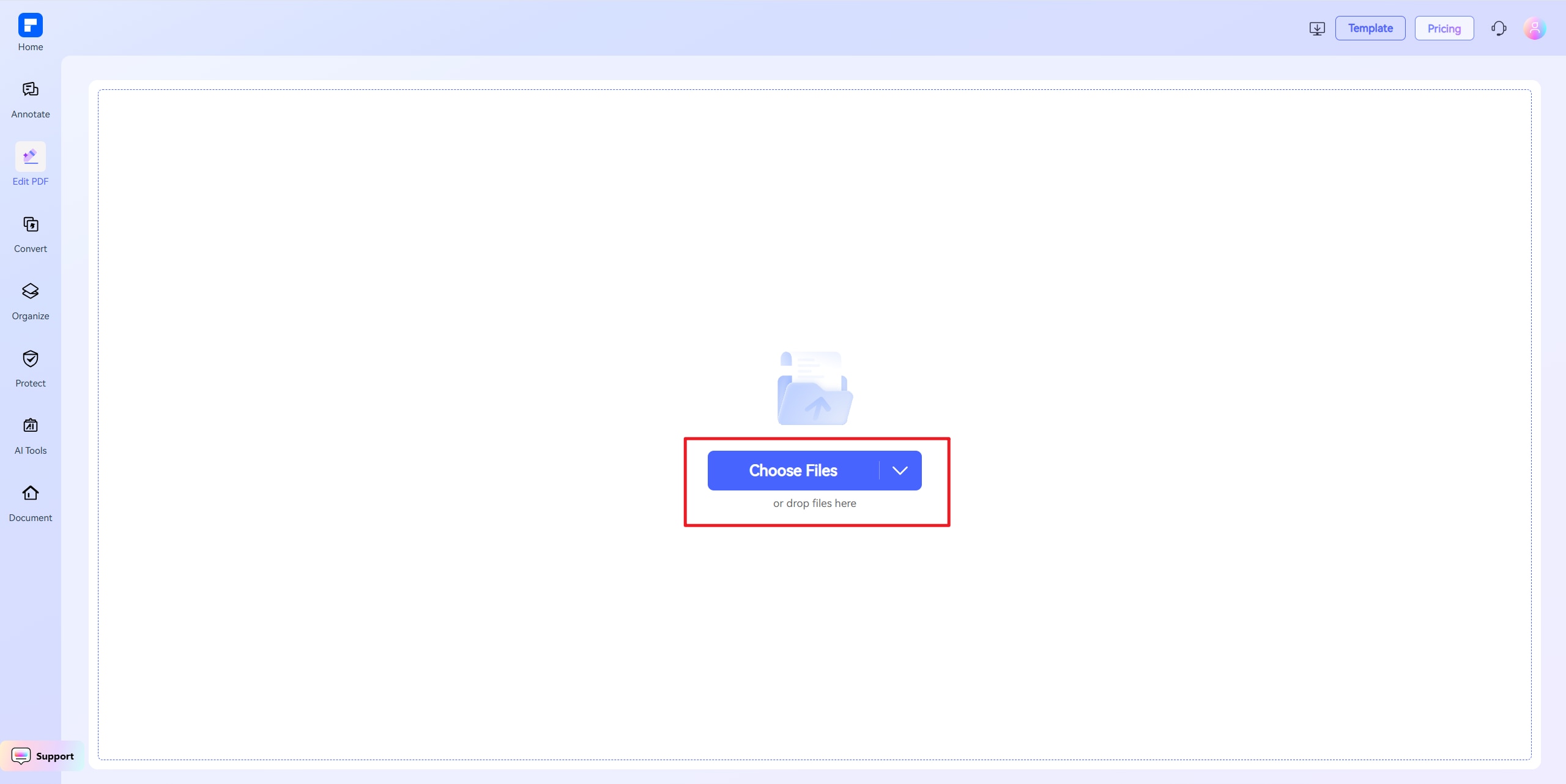
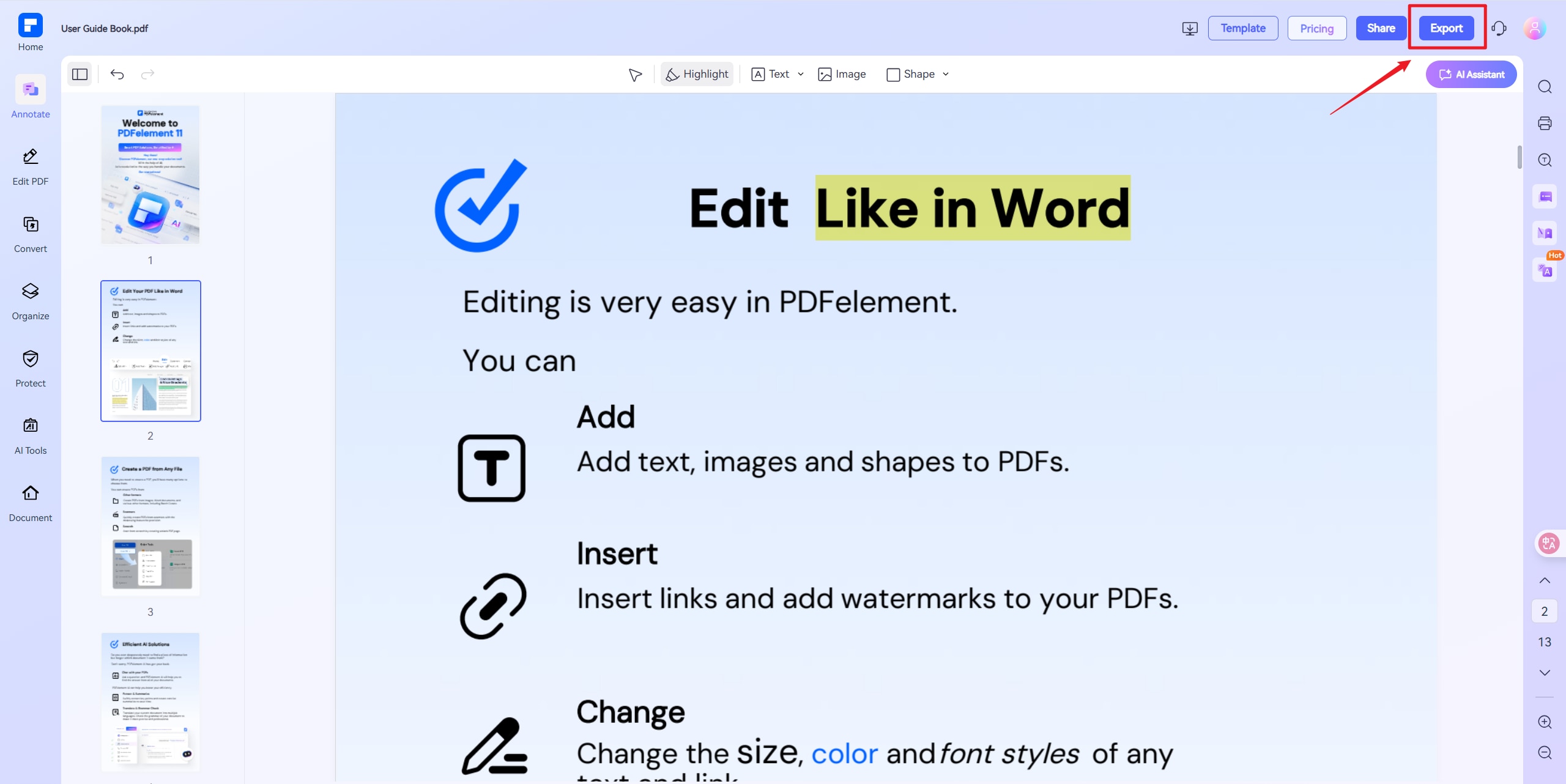
Experience the difference with PDFelement PDF Annotation Tool.
Free PDF Annotator Online Anytime, Anywhere
Access PDF annotation tools instantly in your browser. Highlight, annotate your PDFs online for free—on Windows, Mac, or mobile.
Write on PDF With Highlight,
Text, Image, and Shapes
Mark up PDF documents using custom highlights, type anywhere with text boxes, insert images, or draw shapes like rectangles and lines.
Share Annotated PDFs Via Link
or Email
Collaborate easily by sharing your annotated PDFs through a secure link or email. Let others view or download instantly.
Comment on PDFs Using Sticky
Notes and Callouts
Add sticky notes and text callouts to provide clear, context-rich comments—perfect for reviews, team feedback, or personal annotations.
Add Custom Stamps and Attach
Files to PDFs
Insert approval stamps or custom labels, and attach files directly to your PDF to streamline document workflows.
Enhance Your Workflow With AI PDF Annotator and Editor
Annotate smarter with built-in AI tools—rewrite or explain text, translate content, summarize, and generate images while editing your PDF.
Free Online PDF Annotation for wider use.

Secure, Compliant, and Professional PDF Software - Award - Winning.
PDFelement shines in G2 Winter 2026 as a Leader, Momentum Leader, and High Performer for Enterprise - adding to its 2024 G2 Best Software Award - Top 50 Office Products, ISO 27001 - Information Security Management certification, and PDF Association membership.





 Free Download
Try PDF Annotation Software
Try PDF Annotation Software
Free Download
Free Download
Try PDF Annotation Software
Try PDF Annotation Software
FAQs about annotating PDFs online.
-
How to write on a PDF file for free?
To write on a PDF file for free, you can use the PDFelement Online Annotate PDF Tool.
- Step 1: Access the Tool
Go to the PDFelement Online Annotate PDF Tool in your web browser. No installation or payment is required. - Step 2: Upload Your PDF
Upload the PDF file you want to write on by clicking the upload button or dragging your file into the interface. - Step 3: Add Text
Select the text box or annotation tool to type anywhere on your PDF. Customize the font style, size, and color as needed. - Step 4: Save or Share
Once you finish writing, click the "Save" button to download the edited PDF to your device. You can also share the PDF via email or link.
Once you finish annotating, click the "Save" button to download the edited PDF to your device. You can also share the PDF via email or link.
Using PDFelement Online Annotate PDF Tool is a free, easy, and secure way to write on PDFs instantly from any device.
- Step 1: Access the Tool
-
What is the best PDF markup software?
The best PDF markup software depends on your needs. Below is a comparison of top options.
- PDFelement
- Offers a wide range of annotation tools like highlights, text boxes, shapes, and stamps.
- Available on Windows, Mac, and mobile devices.
- Provides both desktop and online versions for flexible use.
- PDFelement Online Annotate PDF Tool
- A free, web-based tool requiring no installation.
- Allows quick highlighting, adding text, shapes, and images directly in your browser.
- Perfect for fast, secure PDF markup anytime, anywhere.
- Adobe Acrobat Reader
- Industry standard with powerful markup features.
- Supports commenting, highlighting, and drawing tools.
- Available on multiple platforms but can be costly for full features.
- PDFelement
-
How to highlight text in a PDF?
PDFelement Online Annotate PDF Tool offers a fast, secure, and free way to highlight PDFs from any device—no installation needed.
- Step 1: Open the Tool
Go to the PDFelement Online Annotate PDF Tool in your web browser. No installation is required. - Step 2: Upload Your PDF
Click the upload button or drag your PDF file into the tool. - Step 3: Select the Highlight Tool
Choose the highlight option from the toolbar. - Step 4: Highlight Text
Click and drag to select the text you want to highlight. You can change the highlight color if needed. - Step 5: Save or Share
Download the highlighted PDF to your device or share it instantly via link or email.
- Step 1: Open the Tool
-
Can I add comments to a PDF file?
Yes, you can add comments to a PDF easily using the PDFelement Online Annotate PDF Tool. Follow these simple steps:
- Step 1: Open the Tool
Visit the PDFelement Online Annotate PDF Tool in your web browser. No installation is needed. - Step 2: Upload Your PDF
Drag and drop your PDF or click to upload it. - Step 3: Add Comments
Use the text box to add comments anywhere on the PDF. Customize font style, size, and color as needed. - Step 4: Save or Share
Download the annotated file or share it directly via a secure link or email.
With PDFelement Online, you can comment on PDFs anytime, from any device—free, fast, and user-friendly. If you want more annotation tools, like sticky notes, callouts, and more, you can choose PDFelement for Desktop.
- Step 1: Open the Tool
-
What is the best PDF annotation app for iPad?
If you need a reliable and user-friendly PDF annotation tool for iPad, here are the top options:
- PDFelement for iOS
- Full-featured PDF annotation app with highlight, text boxes, shapes, stamps, and drawing tools.
- Optimized for iPad and supports Apple Pencil for precision markup.
- Syncs with PDFelement Cloud for easy access across devices.
- PDFelement Online Annotate PDF Tool
- Web-based solution that works on iPad through any browser—no installation needed.
- Highlight text, add notes, draw shapes, and insert images directly in your PDF.
- Save or share annotated PDFs instantly via link or email.
- Ideal for quick edits on the go.
- GoodNotes
- Great for handwritten annotations using Apple Pencil.
- Combines PDF markup with digital note-taking.
- Useful for students and creative professionals.
- PDFelement for iOS
-
Are there any limitations to the PDFelement online PDF editor?
Yes, there are certain limitations for free users:
- Daily Usage Limits:
- Most editing and conversion tools allow 1 free use per day (e.g., Edit PDF, Merge, Split, Compress, Convert, Protect).
- AI PDF Tool Limits:
- Chat with PDF, AI Read, AI Proofreader:
- Limited to 10 uses
- Supports PDFs up to 100MB and 260 pages
- AI Translator & AI Detector:
- Limited to 10 uses (every 10 pages = 1 use; under 10 pages still counts as 1 use)
- Max file size: 100MB (AI Translator), 10MB (AI Detector)
- Chat with PDF, AI Read, AI Proofreader:
- Note:
- To enjoy unlimited usage, you can upgrade to premium access.
- Page/File Size Restrictions:
- PDF files must be under 100MB (except for AI Detector)
- Max file size for OCR: 50MB
- Max 260 pages for AI tools
- Daily Usage Limits:
Tips and tricks for PDF annotation.
Rate PDFelement Online PDF tools:

4.8
(188,357 Votes)You have to upload and download at least 1 file to rate! We've already perfectly processed 307,292,373 files with a total size of 10,124 TB
Try more PDFelement online PDF tools.



Simplified by AI.
Fast, easy, and affordable PDF editor. Convert, edit, sign PDFs, and more.
Free Download
Free Download
Try PDF Annotation Software
Try PDF Annotation Software


