Delete Pages from PDF
Remove pages from PDFs online for free. Delete blank, extra, or outdated pages in seconds. Keep your documents clean, organized,
and professional with PDFelement's free PDF page remover.
 Free Online PDF Page Remover
Remove Single or Some Pages From PDF
Maintain Layout and Quality
Free Online PDF Page Remover
Remove Single or Some Pages From PDF
Maintain Layout and Quality
 Discover advantages of removing pages from a PDF.
PDFs can build up blank, outdated, or sensitive pages over time. Removing them helps clean up your files, protect confidential data, reduce file size, and fix mistakes quickly. It also makes your documents easier to read and keeps them looking professional.
 Free Download
Delete PDF Pages Online vs. Offline
How to delete pages from PDF files?
See how PDFelement free online PDF page remover stands out.
Free Online PDF Page Deletion
Remove pages right in your browser—no downloads needed. Fast, easy, and perfect for quick edits on the go.
Delete Single or Multiple Pages
Delete one page, a continuous range (e.g., pages 1-5), or specific pages (e.g., 2, 5, 8). Preview changes in real time to ensure accuracy.
High-Quality Output with
Original Format
Keep the PDF’s original layout, images, and text intact. Cloud-powered for speed, with instant access to your updated file.
Compatible with Windows, Mac,
and Mobile
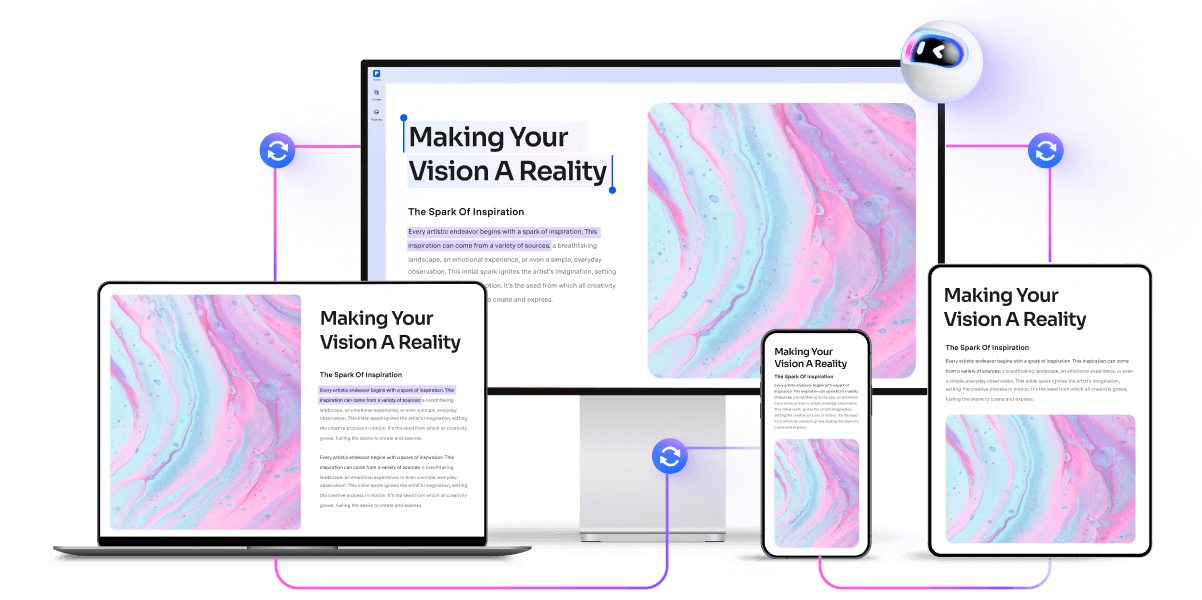
Edit PDFs anytime on Windows, Mac, iOS, or Android devices—seamlessly and without hassle.
30+ Tools for All Your PDF Needs
Combine with features like merge and compress for comprehensive PDF management.
Privacy and Security You Can Trust
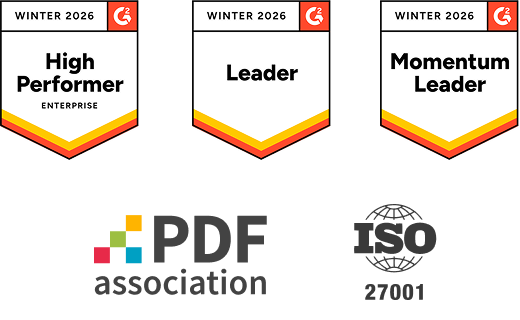
A reliable PDF editor, certified by PDF Association and holding ISO 27001 & SSI SECURE certifications to protect your data.
Remove pages from PDF document for wider use.
Secure, Compliant, and Professional PDF Software - Award - Winning.
PDFelement shines in G2 Winter 2026 as a Leader, Momentum Leader, and High Performer for Enterprise - adding to its 2024 G2 Best Software Award - Top 50 Office Products, ISO 27001 - Information Security Management certification, and PDF Association membership.




FAQs about PDF Editor delete pages.
-
How to delete pages from PDF free?
Here’s a simple guide on how to delete pages from a PDF for free easily:
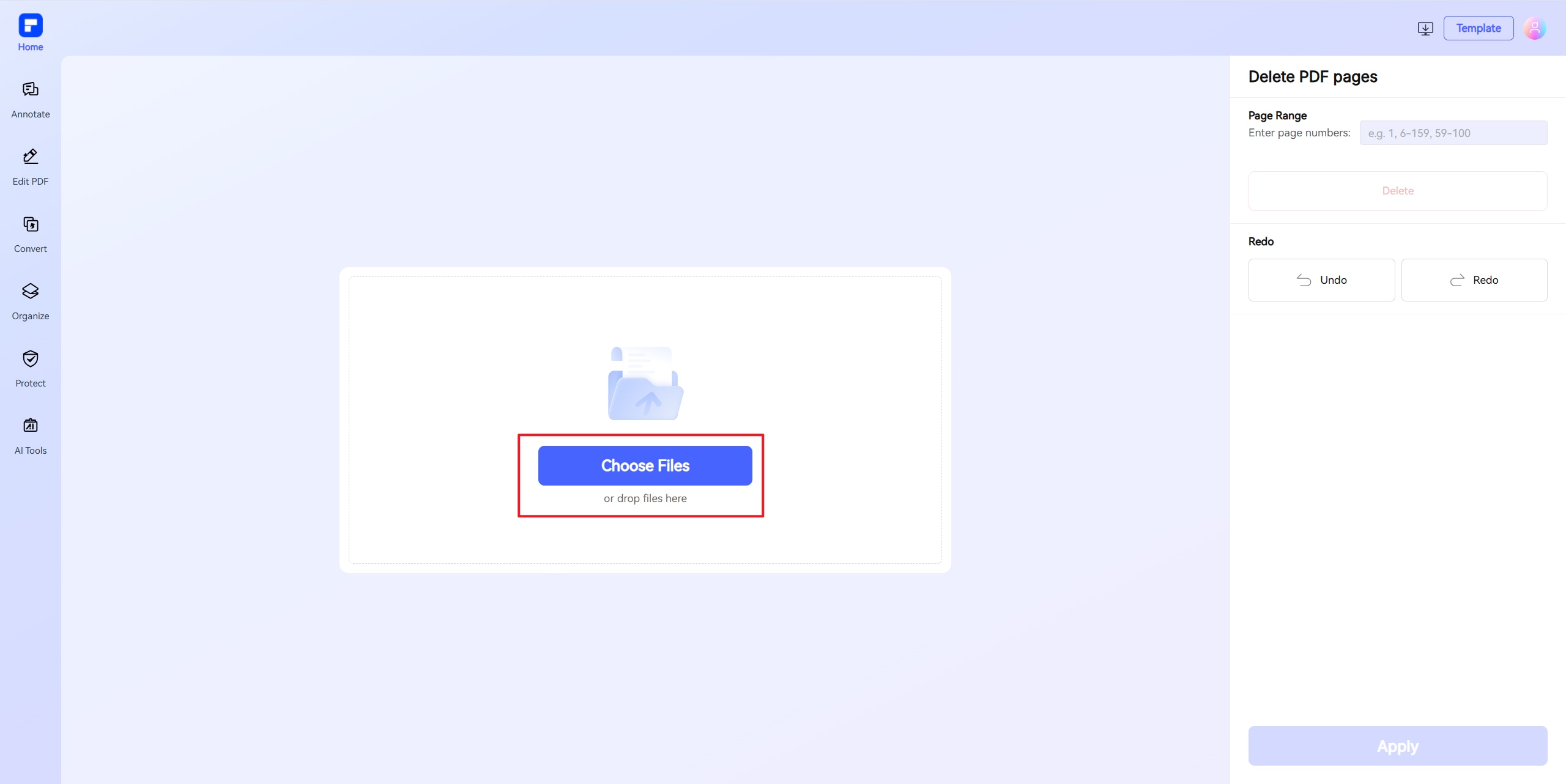
- Go to PDFelement Online Delete Pages tool.
- Upload your PDF file.
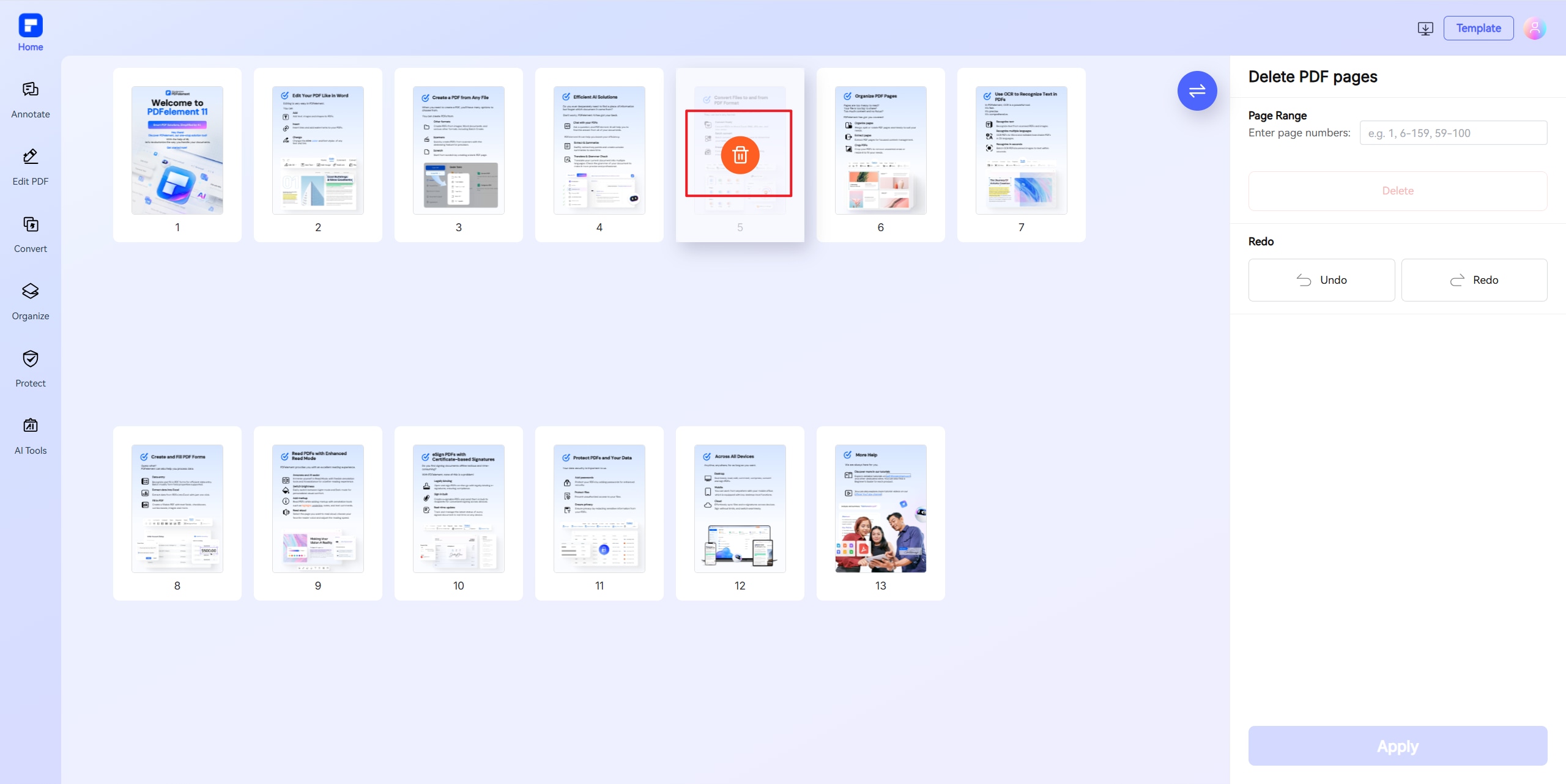
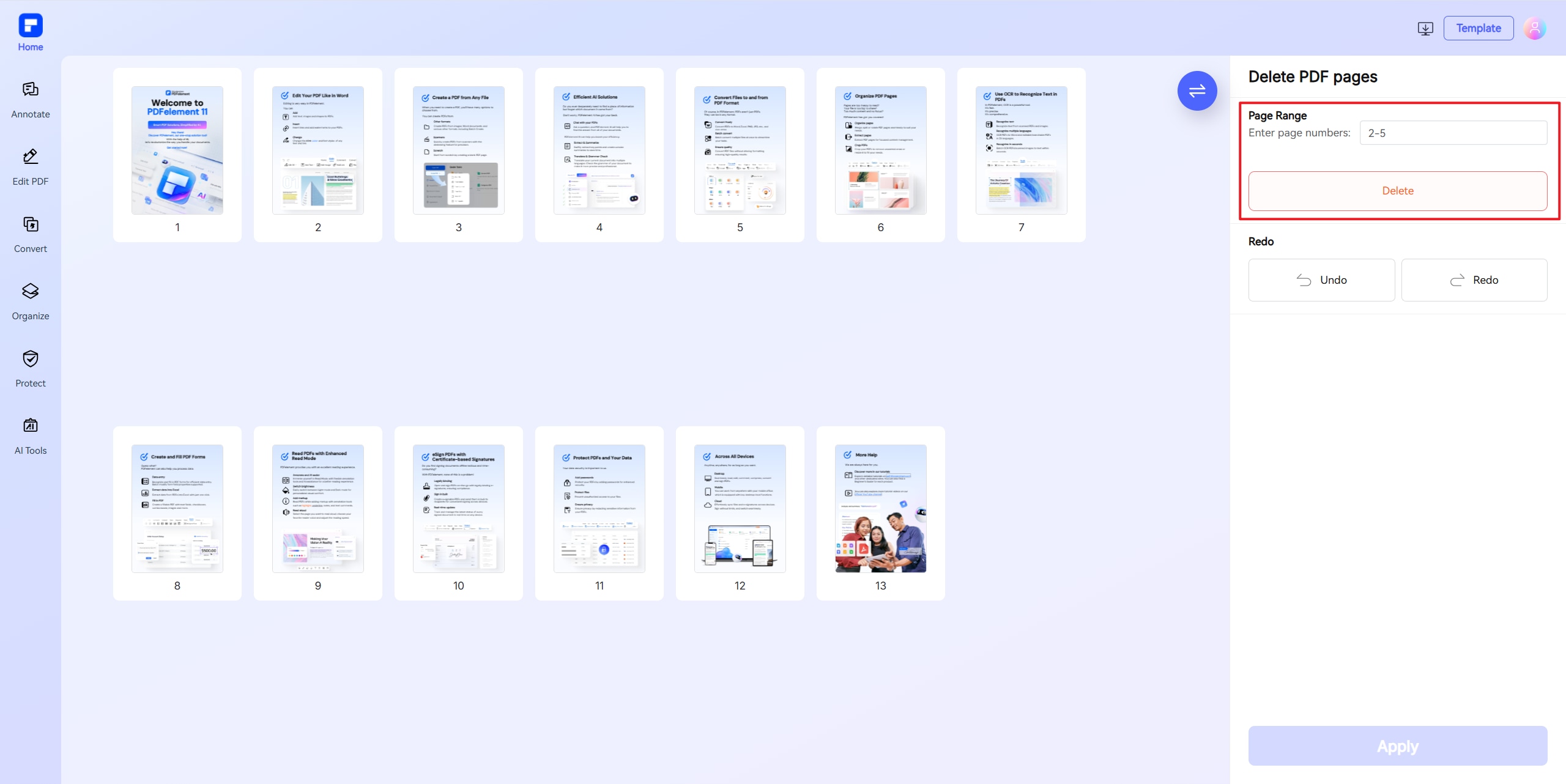
- Choose the pages to delete by clicking their thumbnails or by entering a specific page range, and then click the Delete button.
- Click Apply and then your updated PDF will automatically download to your device.
-
How to delete pages from PDF without Adobe?
You can delete pages from a PDF without Adobe by using a variety of free online tools and PDF editors that make it easy to remove pages from a PDF document, delete pages on a PDF, or erase pages from PDF files. For a streamlined and versatile experience, the PDFelement Online Delete PDF Pages Tool is highly recommended. It enables you to quickly delete selected pages from PDF, remove extra pages from PDF, or even remove blank PDF pages, all through an intuitive online interface. This free PDF page remover is especially useful for those who want to delete pages from PDF online without hassle, ensuring your PDF document is precise and up to date.
-
How to remove page from PDF on Mac?
To remove a page from a PDF on Mac, you can use the built-in Preview app, which offers a simple and free solution. First, open your PDF file in Preview. If you don’t see page thumbnails on the side, go to the menu and select View > Thumbnails. This will display all the pages as small previews. Click on the page you want to delete to select it-if you want to delete multiple pages, hold the Command key and click each page. Once selected, press the Delete key on your keyboard, or choose Edit > Delete from the menu. The selected pages will be erased from your PDF instantly.
If you prefer an online solution, you can use tools like the PDFelement Online Delete PDF Pages Tool, which allows you to upload your PDF, select the pages to remove, and download the updated document-all directly from your browser. This is especially useful if Preview isn’t working or you want a quick, installation-free method to delete pages from a PDF on Mac.
-
How to delete a page in a scanned PDF file?
To delete a page in a scanned PDF file, you can use free online tools that make the process quick and accessible from any device. For example, with the PDFelement Delete PDF Pages tool, simply drag your scanned PDF into the online tool, then click the trash icon on the page you want to remove. Once you've deleted the desired pages, click "Apply" and download the updated PDF to your device. This method works well for removing one or multiple pages from a scanned PDF without needing to rescan the document or install any software.
-
How do I delete PDF pages in Google Chrome?
To delete PDF pages in Google Chrome, you can use the built-in print-to-PDF feature in Chrome. Open your PDF in Chrome, press Ctrl + P (or Cmd + P on Mac) to open the print dialog, set the destination to "Save as PDF," and specify the page numbers you want to keep (for example, "1,3-5" to exclude page 2). Save the new file, and you’ll have a PDF with the unwanted pages removed.
If you want a straightforward online solution, the PDFelement Online Delete PDF Pages Tool is also recommended. This tool lets you upload your PDF, select and delete pages, and download the updated document-all from within your Chrome browser.
-
How do I delete pages from a PDF in Google Drive?
To delete pages from a PDF in Google Drive, you’ll need to use an integrated online PDF editor or a connected third-party tool, as Google Drive’s built-in viewer does not support removing pages directly. Here’s how you can do it:
- Use a Connected App like DocHub:
- Right-click your PDF in Google Drive, select Open with, and choose DocHub (if it’s not listed, you can connect it via Google Workspace Marketplace).
- Once the PDF opens in DocHub, use the page control panel on the left to select the pages you want to remove.
- Click the delete icon at the bottom of the panel and confirm the deletion. Save and export the updated PDF back to your Drive.
- Download and Use an Online PDF Page Remover:
- Download the PDF from Google Drive to your computer.
- Visit a free online PDF page remover like Smallpdf, iLovePDF, or PDFelement.
- Upload your PDF, select and delete unwanted pages, then download the new file and re-upload it to Google Drive.
- Use a Connected App like DocHub:
-
Are there any limitations to PDFelement's online PDF editor?
Yes, there are certain limitations for free users:
Daily Usage Limits:
· Most editing and conversion tools allow 1 free use per day (e.g., Edit PDF, Merge, Split, Compress, Convert, Protect).
AI PDF Tool Limits:
· Chat with PDF, AI Read, AI Proofreader:
①Limited to 10 uses
②Supports PDFs up to 100MB and 260 pages
AI Translator & AI Detector:
· Limited to 10 uses (every 10 pages = 1 use; under 10 pages still counts as 1 use)
· Max file size: 100MB (AI Translator), 10MB (AI Detector)
Note:
· To enjoy unlimited usage, you can upgrade to premium access.
Page/File Size Restrictions:
· PDF files must be under 100MB (except for AI Detector)
· Max file size for OCR: 50MB
· Max 260 pages for AI tools
More tips for PDF remove a page.
Rate PDFelement Online PDF tools:

4.8
(188,357 Votes)You have to upload and download at least 1 file to rate! We've already perfectly processed 307,292,373 files with a total size of 10,124 TB
Try more PDFelement online PDF tools.



Simplified by AI.
Fast, easy, and affordable PDF editor. Convert, edit, sign PDFs, and more.


