PUB to PDF
Convert PUB to PDF free online—fast, secure, and hassle-free.
Easily turn Microsoft Publisher files into PDFs and access your documents anywhere, on any device.
 Easy PUB to PDF Converter
Free & Online Publisher to PDF Converter
Works on Windows, Mac, and Mobile
Easy PUB to PDF Converter
Free & Online Publisher to PDF Converter
Works on Windows, Mac, and Mobile
 What is .pub format?
Microsoft Publisher's .pub format is tailored for crafting layouts like brochures and newsletters. However, its limited compatibility and lack of cross-platform support can hinder sharing and printing. Converting Publisher files to PDF ensures your designs are easily accessible and maintain their intended formatting across all devices.
 Free Download
Convert PUB to PDF Online vs. Offline
3 easy steps to convert PUB file to PDF.
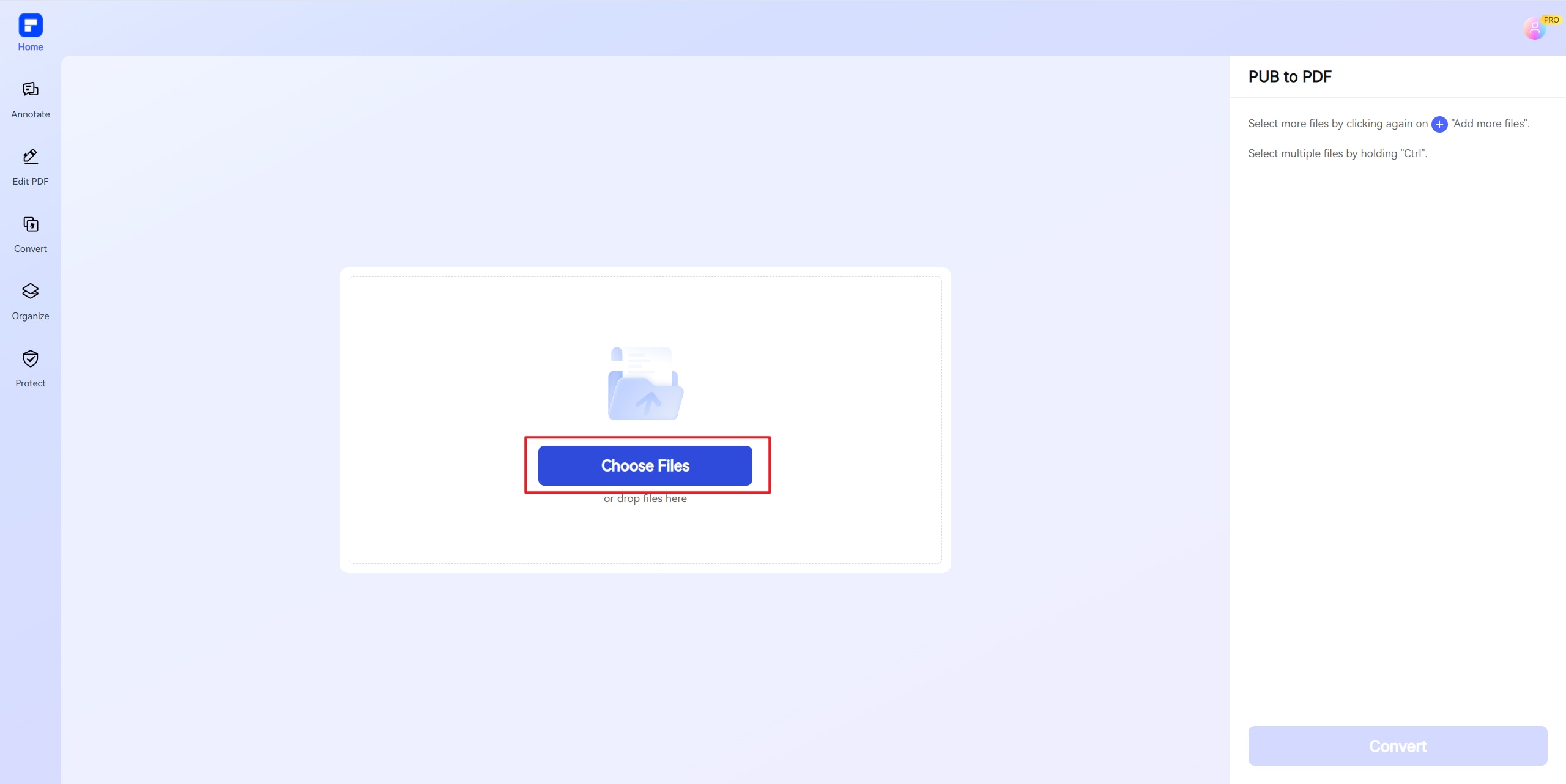
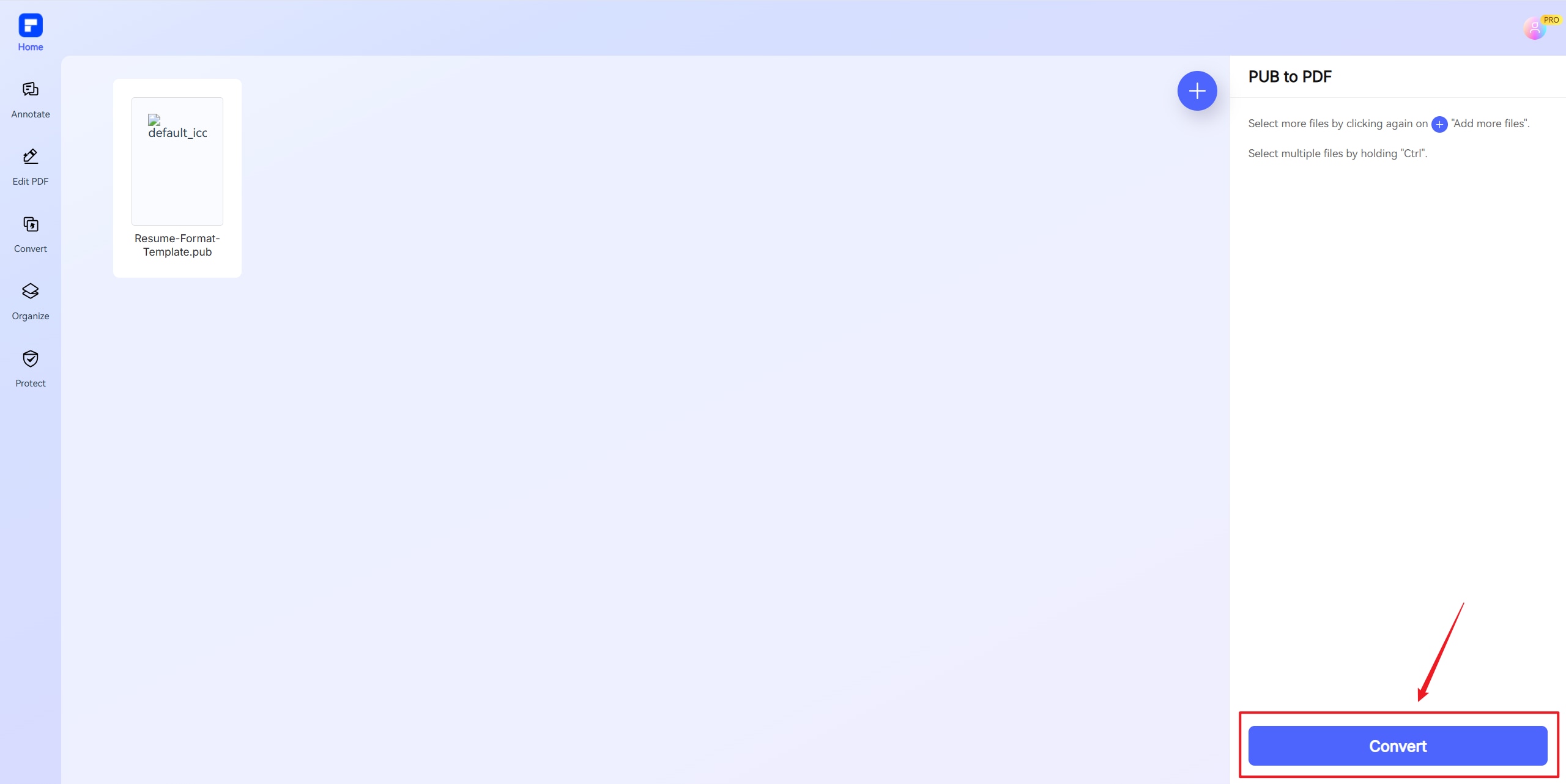
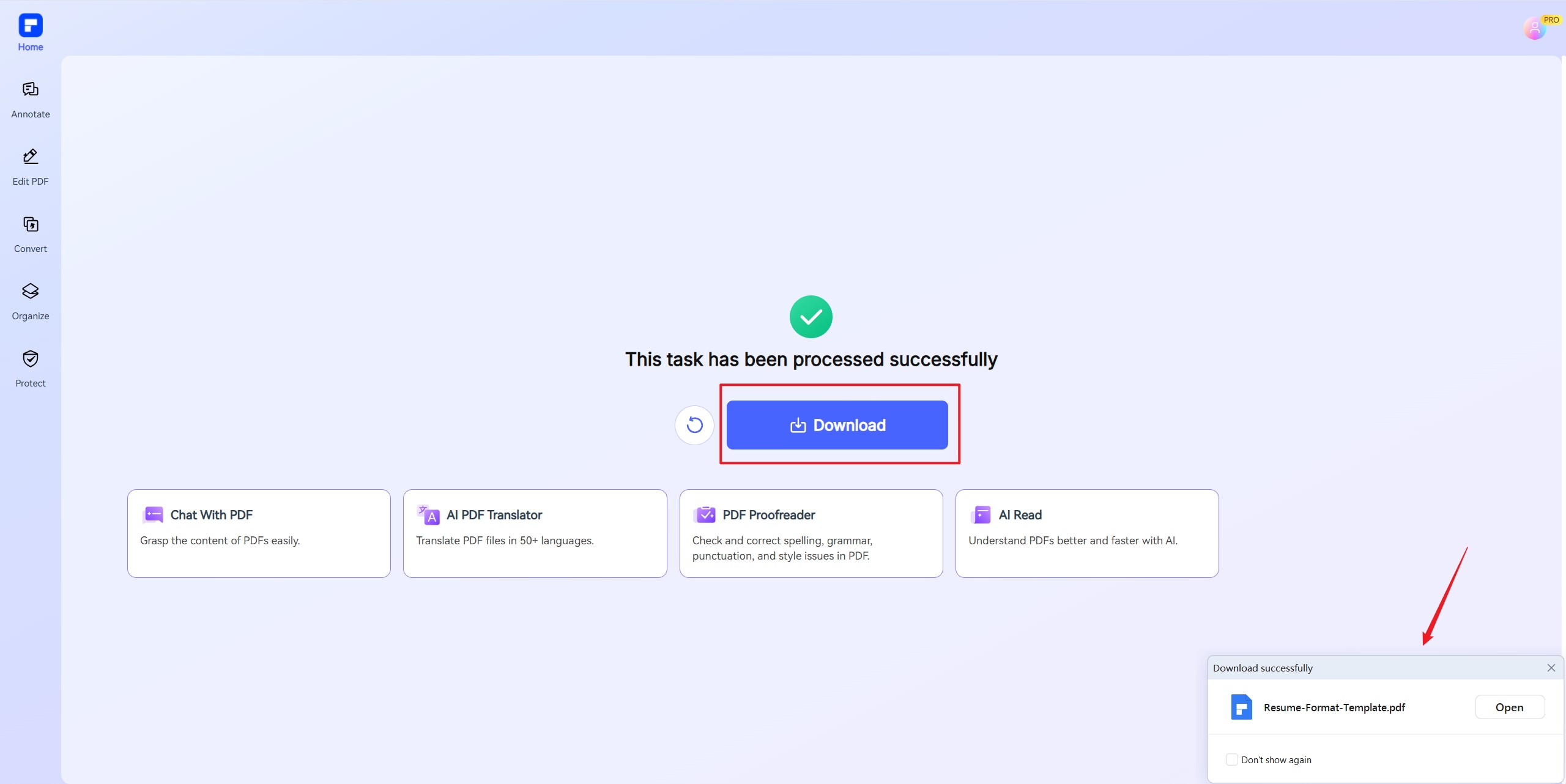
Experience a next-level online publisher to PDF converter.
Free & Online PUB to PDF Converter
Convert Publisher into PDF online for free, with no watermarks—quick, high-quality conversion you can trust, right from your browser.
Keep Your Formatting Perfect
Convert PUB to PDF while perfectly preserving layout, fonts, and design, ensuring your document looks exactly right on any device or platform.
Secure Like a Bank
For your security and privacy, all uploaded files are automatically deleted from our servers shortly after the conversion is complete.
Batch Convert
Upload and convert up to 3 PUB files into PDF at once. Save time with our fast and reliable batch conversion feature.
More Than Converter
Access additional PDF tools such as edit, compress, and merge to streamline your document workflow in one powerful platform.
Cross-Platform
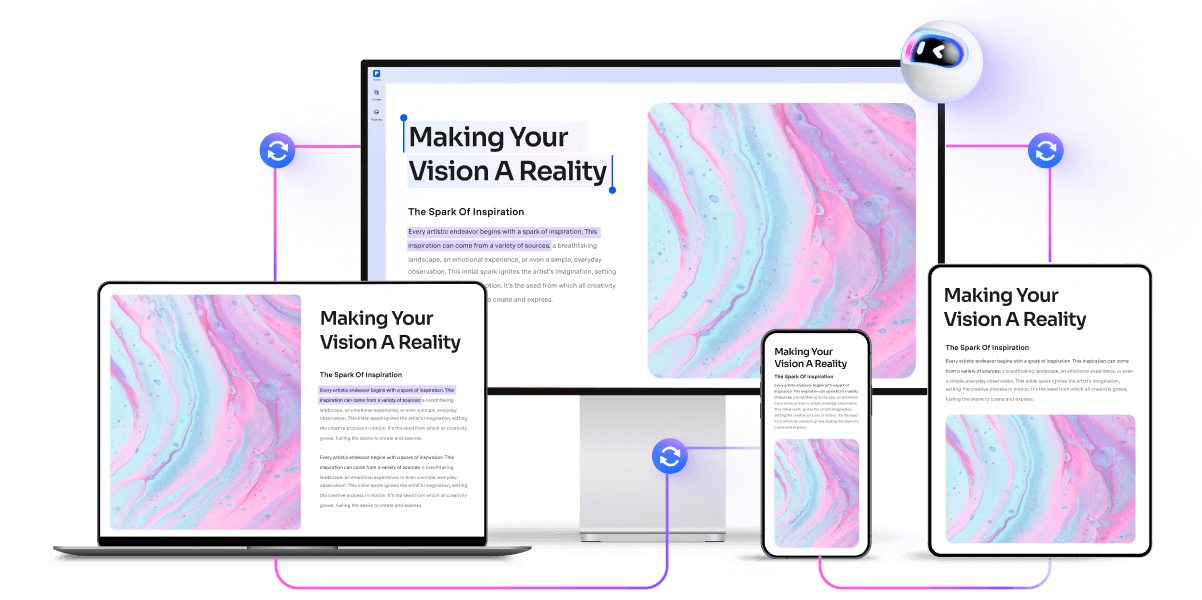
Fully compatible with Windows, Mac, iOS, and Android, allowing seamless PUB to PDF conversion anytime, anywhere.
Change PUB to PDF for wider use.
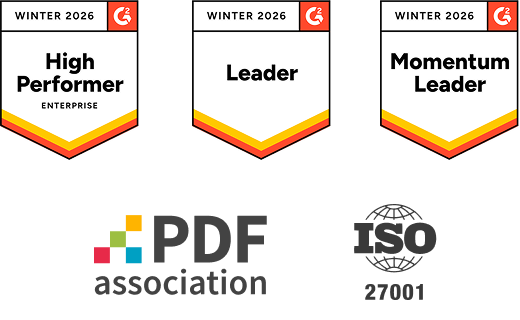
Secure, Compliant, and Professional PDF Software - Award - Winning.
PDFelement shines in G2 Winter 2026 as a Leader, Momentum Leader, and High Performer for Enterprise - adding to its 2024 G2 Best Software Award - Top 50 Office Products, ISO 27001 - Information Security Management certification, and PDF Association membership.



FAQs about convert publisher
document to PDF.
-
Can I open a .pub File without Publisher?
If you need to convert a Microsoft Publisher (.pub) file to PDF, Wondershare PDFelement Online PUB to PDF Converter offers a simple and efficient solution. This tool allows you to upload your .pub file and convert it to PDF without requiring Microsoft Publisher or any software installation. The process is quick, secure, and preserves the original layout of your document.
For a seamless experience, you can also explore other free online converters like FreeConvert.com or Zamzar, which support PUB-to-PDF conversions with similar ease. These platforms are ideal for users who need a fast, no-frills solution without downloading additional software.
If you prefer a desktop application, PDFelement (by Wondershare) provides advanced editing and conversion features, including OCR for scanned documents and batch processing. Whether you choose an online or offline tool, converting PUB to PDF ensures broader compatibility and easier sharing.
-
How do I convert a batch of Publisher files to PDF?
To efficiently convert a batch of Microsoft Publisher (.pub) files to PDF, you can use specialized software or built-in automation tools. Wondershare PDFelement is a powerful solution for batch conversion, allowing you to process multiple .pub files simultaneously while preserving formatting and embedding fonts. Simply open PDFelement, navigate to "Batch PDFs"-“Create”, add your Publisher files, and apply the conversion.
Alternatively, if you have Microsoft Publisher installed, you can automate bulk conversions using a VBA macro. The script from SS64.com scans a folder (and subfolders) for .pub files and exports each as a PDF. This method requires enabling macros and referencing the Microsoft Scripting Runtime library.
For smaller batches, online converters like PDFelement Online, or Zamzar offer free but limited conversions. However, desktop tools like PDFelement provide more reliability for large-scale needs. Always verify the output PDFs for formatting accuracy, especially when handling complex layouts.
-
How do I turn a pub File into a PDF?
To convert a Microsoft Publisher (.pub) file to PDF, you have several options depending on whether you have Publisher installed or need a free alternative.
- Using Microsoft Publisher:
Open the .pub file in Publisher, go to File > Export > Create PDF/XPS, select PDF as the output format, adjust quality settings (e.g., "Standard" for email or "High Quality" for printing), and click Publish.
- Online Converters (No software required):
Tools like PDFelement Online, Zamzar, FreeConvert, or AnyConv allow free conversions. Upload your .pub file, select PDF as the output, and download the result. Note: Free versions may limit file size or daily conversions.
For best results, ensure fonts are embedded and check the PDF’s formatting post-conversion. If you frequently need conversions, desktop tools like PDFelement or Publisher’s built-in export offer more reliability than online tools.
- Using Microsoft Publisher:
-
Why can’t I save a Publisher File as PDF?
If you're encountering difficulties saving a Microsoft Publisher file as a PDF, several factors could be contributing to the issue. One common reason is the absence of a default printer setting. Microsoft Publisher relies on printer configurations to generate PDFs. Without a default printer, the application may fail to save the file as a PDF. To resolve this, ensure that a default printer is set in your system's settings.
Another potential cause is the 'Microsoft Print to PDF' feature being disabled. This feature is essential for converting Publisher files into PDFs. To check if it's enabled, go to your system's settings and navigate to the 'Printers & Scanners' section. Ensure that 'Microsoft Print to PDF' is listed and enabled. If it's missing, you might need to install or enable it through the Windows Features settings.
Additionally, complex or corrupted content within your Publisher document can interfere with the PDF conversion process. Large images, transparent elements, or intricate layouts might cause errors. Simplifying the content by compressing images, removing unnecessary elements, or simplifying the layout can help facilitate a successful PDF conversion.
If the issue persists, consider using alternative methods to convert your Publisher file to PDF. Online tools such as PDFelement, Zamzar or Convertio offer free services to convert PUB files to PDF. These platforms can be especially useful if you're looking for a quick solution without altering your system settings.
By addressing these potential issues, you should be able to successfully convert your Publisher document into a PDF.
-
How to convert PUB to PDF in high quality?
To convert a PUB file to PDF in high quality, you have several effective options. If you have access to Microsoft Publisher, you can export your publication directly by selecting File > Export > Create PDF/XPS Document. In the export settings, choose the Commercial Press option to ensure the highest quality output.
Alternatively, if you don't have Microsoft Publisher, free online tools can help. For instance, PDFelement Online provides a user-friendly interface for converting PUB files to PDF with high quality, preserving the original layout and design.
When using these online converters, ensure that your PUB file contains high-resolution images and embedded fonts to maintain quality. Additionally, check the output settings to avoid unnecessary compression, which can degrade the final PDF quality.
-
Are there any limitations to PDFelement's online PDF editor?
Yes, there are certain limitations for free users:
Daily Usage Limits:
· Most editing and conversion tools allow 1 free use per day (e.g., Edit PDF, Merge, Split, Compress, Convert, Protect).
AI PDF Tool Limits:
· Chat with PDF, AI Read, AI Proofreader:
①Limited to 10 uses
②Supports PDFs up to 100MB and 260 pages
AI Translator & AI Detector:
· Limited to 10 uses (every 10 pages = 1 use; under 10 pages still counts as 1 use)
· Max file size: 100MB (AI Translator), 10MB (AI Detector)
Note:
· To enjoy unlimited usage, you can upgrade to premium access.
Page/File Size Restrictions:
· PDF files must be under 100MB (except for AI Detector)
· Max file size for OCR: 50MB
· Max 260 pages for AI tools
More tips for converting PUB to PDF
Rate PDFelement Online PDF tools:

4.8
(188,357 Votes)You have to upload and download at least 1 file to rate! We've already perfectly processed 307,292,373 files with a total size of 10,124 TB
Try more PDFelement online PDF tools.



Simplified by AI.
Fast, easy, and affordable PDF editor. Convert, edit, sign PDFs, and more.


