Password Protect a PDF for Free
What you see is an easy way to password protect a PDF document for free!
Upload your file, encrypt the PDF, and download your secure, locked document in seconds.
 Secure PDFs With AES-256 Encryption
Free Online PDF Protector With Privacy
Encrypt PDF on Mac/ Windows/ Mobile
Secure PDFs With AES-256 Encryption
Free Online PDF Protector With Privacy
Encrypt PDF on Mac/ Windows/ Mobile
 What is PDF password?
A PDF password is a security feature used to protect a PDF document from unauthorized access or changes. It may be required to open a locked PDF or to restrict editing, copying, or printing. PDF encryption typically uses AES-128 or AES-256. While AES-128 ensures solid protection with faster performance, AES-256 offers stronger encryption for securing highly sensitive files.
 Free Download
Protect PDF Online vs. Offline
How to password-protect a PDF for free?
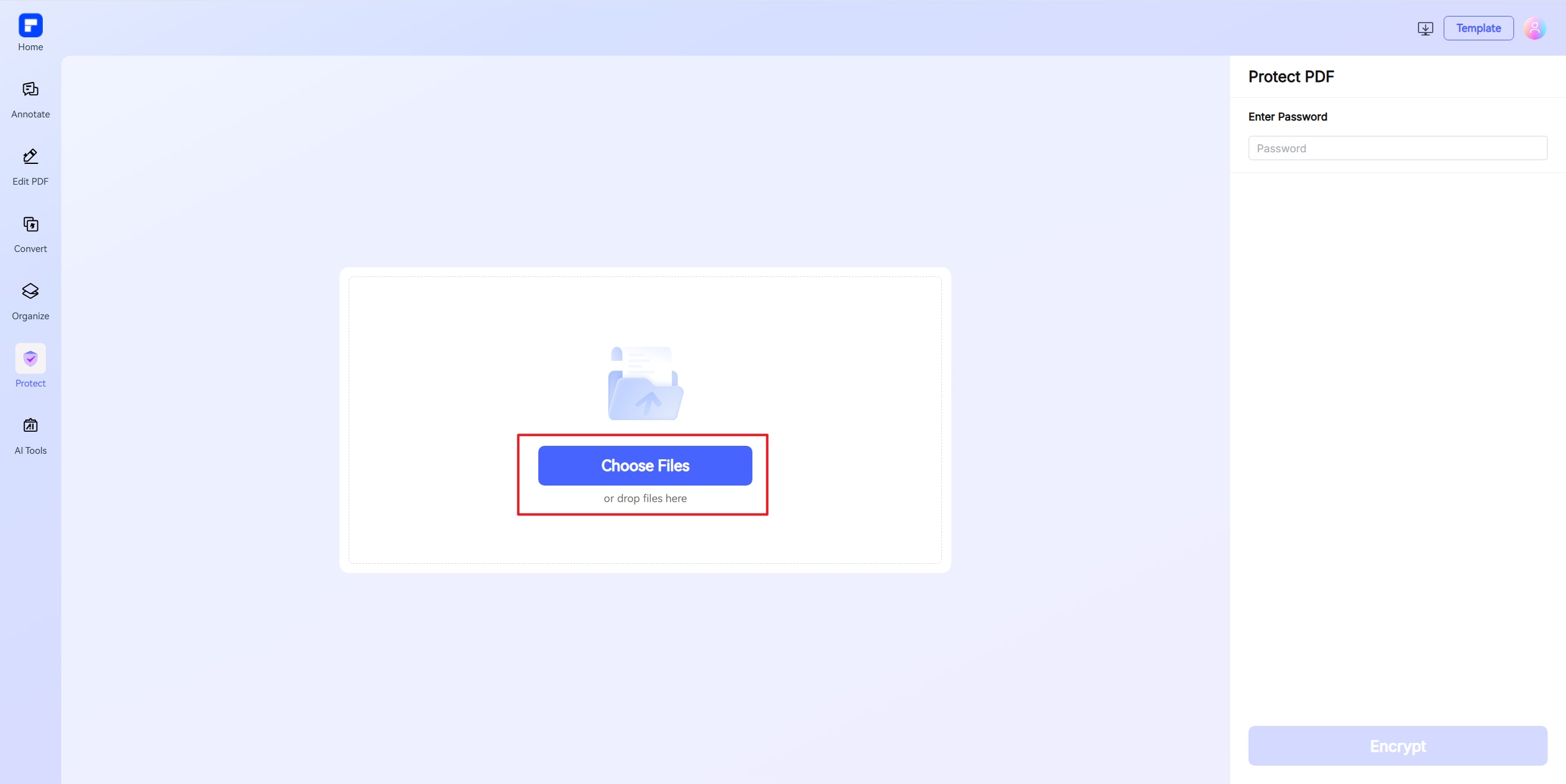
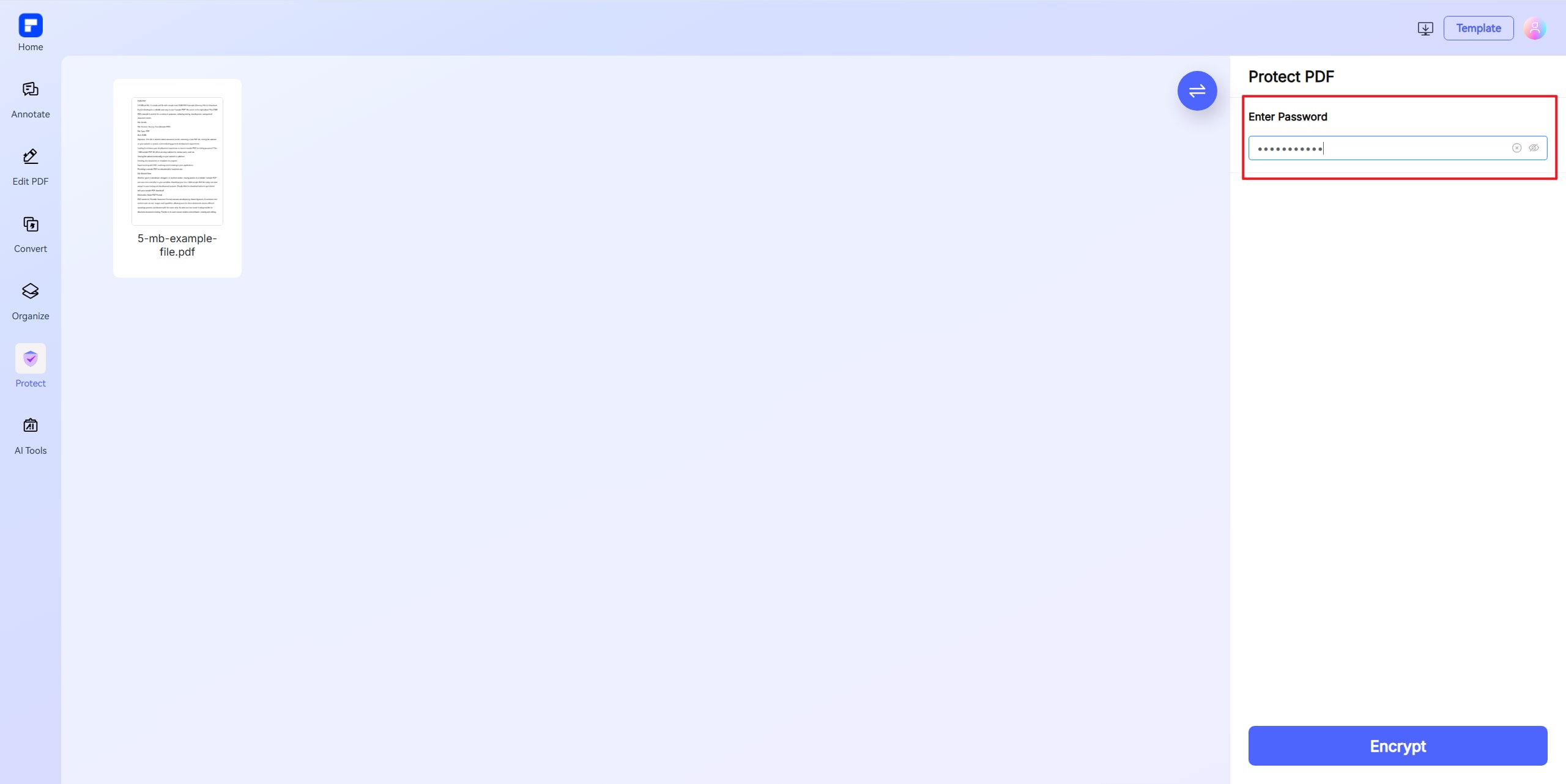
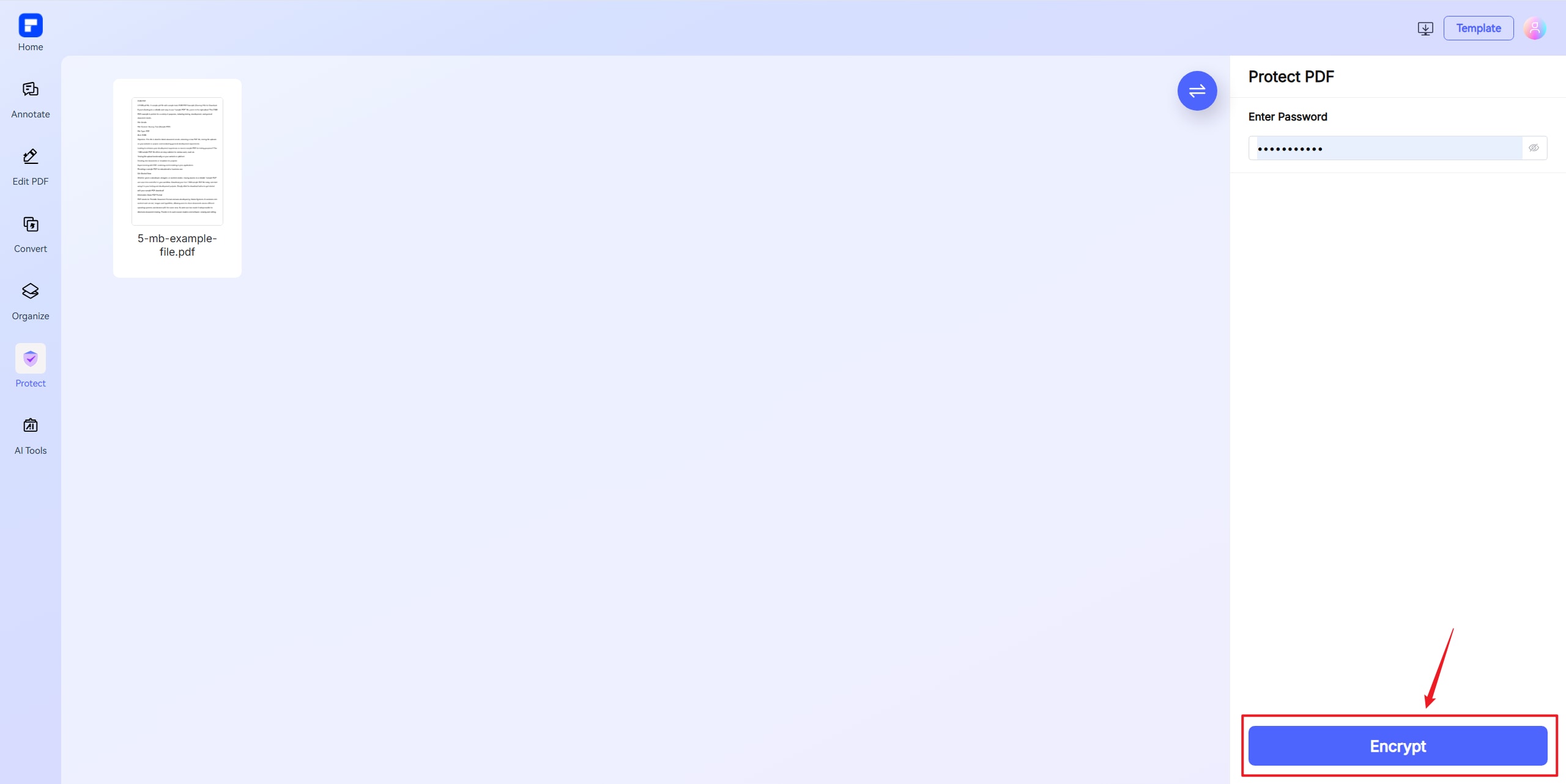
See how easy it is to password protect PDFs with PDFelement.
Password Protect a PDF for Free at High Level
Secure your PDF with AES-256 encryption and protect your documents for free in just a few clicks.
Quick and Easy Online PDF Protection
Protect your PDF online in 3 simple steps: Upload, Add Password, and Encrypt.
Secure PDFs on Any Device
Easily password protect PDFs on Mac, Windows, smartphones, and tablets.
Password Protect a PDF with Custom Permissions
Lock your PDF from editing, printing, or copying, giving you complete control over access.
Enhance PDF Security with Watermarks
Add watermarks for extra security and a professional touch to your PDF, ensuring content is protected and identifiable.
Maintain PDF Quality After Protection
Secure your PDFs without sacrificing quality. Protect your files while keeping the original formatting, images, and layouts intact.
Free online PDF locker for wider use.

Secure, Compliant, and Professional PDF Software - Award - Winning.
PDFelement shines in G2 Winter 2026 as a Leader, Momentum Leader, and High Performer for Enterprise - adding to its 2024 G2 Best Software Award - Top 50 Office Products, ISO 27001 - Information Security Management certification, and PDF Association membership.





FAQs about password protect PDF free.
-
AES-128 vs AES-256: What is the difference?
AES-128 and AES-256 are both encryption standards used to password protect a PDF document, ensuring that only authorized users can access or edit sensitive content. The main difference between AES-128 and AES-256 lies in the key length and the number of encryption rounds:
AES-128 uses a 128-bit key and 10 rounds, while AES-256 employs a 256-bit key and 14 rounds. This means AES-256 offers a significantly higher level of security, making brute-force attacks virtually impossible with today’s technology, which is why it is often used for top-secret government and highly sensitive data. However, AES-128 is already extremely secure-requiring an astronomical amount of time and computational power to crack-and is generally faster and more efficient for everyday use.For those seeking a reliable and user-friendly solution, the PDFelement online PDF password protect tool is an excellent choice. It lets you easily set strong passwords and encrypt your PDF files with AES-256, providing both security and peace of mind. In summary, both AES-128 and AES-256 can be used to protect your PDFs, but AES-256 offers the highest level of security, while AES-128 is sufficient for most practical purposes and is widely supported by free online PDF lockers and protectors.
-
How to send a PDF with password protection?
- Protect the PDF
Use a trusted tool like PDFelement Online Password Protect tool, Adobe Acrobat to encrypt the file with a strong password.
Tip: Use a mix of letters, numbers, and symbols (e.g., Fin@2025!Plan). - Save the Secured File
Once encrypted, save and label the file clearly (e.g., Q2_Report_PROTECTED.pdf).
- Share the File
Attach to email or Upload to a secure cloud service (e.g., Dropbox, Google Drive with restricted access). Tip: If using a cloud link, ensure it has restricted access or an expiration date.
- Send the Password Seperately
Never include the password in the same email. Instead, share it via:SMS, Phone call, Secure messaging apps (e.g., Signal, WhatsApp)
-
Optional Extras
Use tools that allow link expiration or QR sharing (PDFelement supports this).
Set permissions to disable printing or copying if supported.
- Protect the PDF
-
How do you lock a PDF from editing?
To prevent editing a PDF, you need to set permission restrictions—not just an open password. This is done by applying an owner password, which controls actions like editing, copying, \ or printing without restricting access for viewing.
Tools to Lock PDF Editing:
- PDFelement (Desktop)
- Go to Protect > Encrypt.
- Set a permission password (also known as an owner password).
- Choose which actions to restrict—editing, copying, printing, etc.
- Supports AES-128, AES-256, and RC4 encryption.
- Optional: Use redaction tools to permanently remove sensitive content.
- Adobe Acrobat Pro
- Open the PDF and go to All Tools > Protect a PDF > Protect with Password.
- Choose “Restrict Editing” and set a password.
- Save the file to apply protection.
- Free Online Tools (e.g., PDF2Go, iLovePDF)
- Upload your PDF.
- Choose to set restrictions (editing, copying).
- Apply a permission password and download the protected file.
Note: Online tools are convenient but may offer weaker security than desktop apps.
- PDFelement (Desktop)
-
How to lock a PDF from copying?
To lock a PDF from copying, you need to apply permission restrictions—specifically disabling the "content copying" permission using a permission (owner) password. Here’s how to do it with different tools:
- PDFelement (Desktop)
- Open your PDF in PDFelement.
- Go to Protect > Encrypt.
- Enable Permission Password (also called Owner Password).
- Uncheck "Enable copying of text, images and other content."
- Save the file.
Supports strong encryption: AES-128, AES-256, RC4.
- Adobe Acrobat Pro
- Open the PDF.
- Go to File > Protect Using Password.
- Choose “Restrict editing and printing”.
- Under Permissions, uncheck “Enable copying of text, images, and other content.”
- Set a password and save.
- Free Online Tools
Tools like PDF2Go, iLovePDF, or Sejda let you apply basic permission restrictions:
- Upload your file.
- Select “Restrict copying.”
- Set a permission password.
- Download the protected PDF.
- PDFelement (Desktop)
-
How to password protect a PDF on Mac?
Password protecting a PDF on a Mac is simple, thanks to built-in tools and third-party software. Here’s how you can encrypt a PDF and lock editing in PDF files:
- Method 1: Using macOS Preview (Free & Built-In)
- Open the PDF in Preview.
- Click File > Export (or File > Export as PDF in newer macOS versions).
- Check the box for "Encrypt" and enter a password to protect the PDF.
- Save the file-now, anyone opening it will need the password.
- Method 2: Using Adobe Acrobat (Paid Option)
If you need advanced security, Adobe Acrobat lets you:
- Set owner passwords (to restrict printing/editing).
- Apply permissions (like blocking copying text).
- Method 3: Online Tools (Free & Convenient)
For a quick solution without software, try:
- PDFelement’s online PDF password protect tool – Secures files in seconds.
- PDF2Go or I Love PDF Password – Free web-based encryptors.
- Online PDF locker services like Smallpdf or PDF2Go.
By following these steps, you can easily password protect a PDF for free on Mac while keeping your documents secure from unauthorized copying or editing.
- Method 1: Using macOS Preview (Free & Built-In)
-
How to protect PDF document with password in Adobe Reader?
Adobe Reader (the free version) does not allow you to password-protect a PDF directly—you’ll need Adobe Acrobat Pro or an online tool to encrypt a PDF. However, you can still open and view password-protected files in Adobe Reader. Here’s how to secure a PDF if you have Acrobat Pro or alternative solutions:
- Method 1: Using Adobe Acrobat Pro (Paid)
- Open the PDF in Adobe Acrobat Pro (not Reader).
- Go to File > Protect Using Password (or Tools > Protect > Encrypt > Encrypt with Password).
- Choose:
Require a password to open the document" (sets a user password).
Restrict editing and printing" (sets an owner password to lock editing in PDF). - Enter and confirm the password, then save the file.
- Method 2: Using Free Online Tools
If you don’t have Acrobat Pro, try these free alternatives:
- PDFelement's online PDF password protect tool-Simple and secure encryption.
- iLovePDF Password Protect - Adds passwords without software.
- PDF2Go - Lets you lock PDFs from copying/editing.
For a quick, free way to password protect a PDF, online tools are the best choice if you don’t have Acrobat Pro. Otherwise, Adobe’s paid software provides the most control over permissions.
- Method 1: Using Adobe Acrobat Pro (Paid)
-
Are there any limitations to PDFelement's online PDF editor?
Yes, there are certain limitations for free users:
Daily Usage Limits:
· Most editing and conversion tools allow 1 free use per day (e.g., Edit PDF, Merge, Split, Compress, Convert, Protect).
AI PDF Tool Limits:
· Chat with PDF, AI Read, AI Proofreader:
①Limited to 10 uses
②Supports PDFs up to 100MB and 260 pages
AI Translator & AI Detector:
· Limited to 10 uses (every 10 pages = 1 use; under 10 pages still counts as 1 use)
· Max file size: 100MB (AI Translator), 10MB (AI Detector)
Note:
· To enjoy unlimited usage, you can upgrade to premium access.
Page/File Size Restrictions:
· PDF files must be under 100MB (except for AI Detector)
· Max file size for OCR: 50MB
· Max 260 pages for AI tools
Tips and tricks for password protecting PDF.
Rate PDFelement Online PDF tools:

4.8
(188,357 Votes)You have to upload and download at least 1 file to rate! We've already perfectly processed 307,292,373 files with a total size of 10,124 TB
Try more PDFelement online PDF tools.



Simplified by AI.
Fast, easy, and affordable PDF editor. Convert, edit, sign PDFs, and more.


