Extract Images From PDF
Export all images from a PDF instantly. Easily get pictures, photos, or JPGs from PDF online without
quality loss. Fast, free, and high-quality image export.
 Safeguard Your Security and Privacy
Extract All Images From PDF Files
No Loss in Image Quality
Safeguard Your Security and Privacy
Extract All Images From PDF Files
No Loss in Image Quality
 Top reasons to extract images from PDF.
Extracting images from PDFs lets you save, edit, and repurpose visual content independently of the document. It’s ideal for retrieving design assets, enabling high-quality printing, streamlining data processing (such as OCR or scanned files), optimizing storage, supporting legal archiving, and creating content for social media.
 Free Download
Extract Images From PDF Online vs. Offline
How to extract images from PDF?
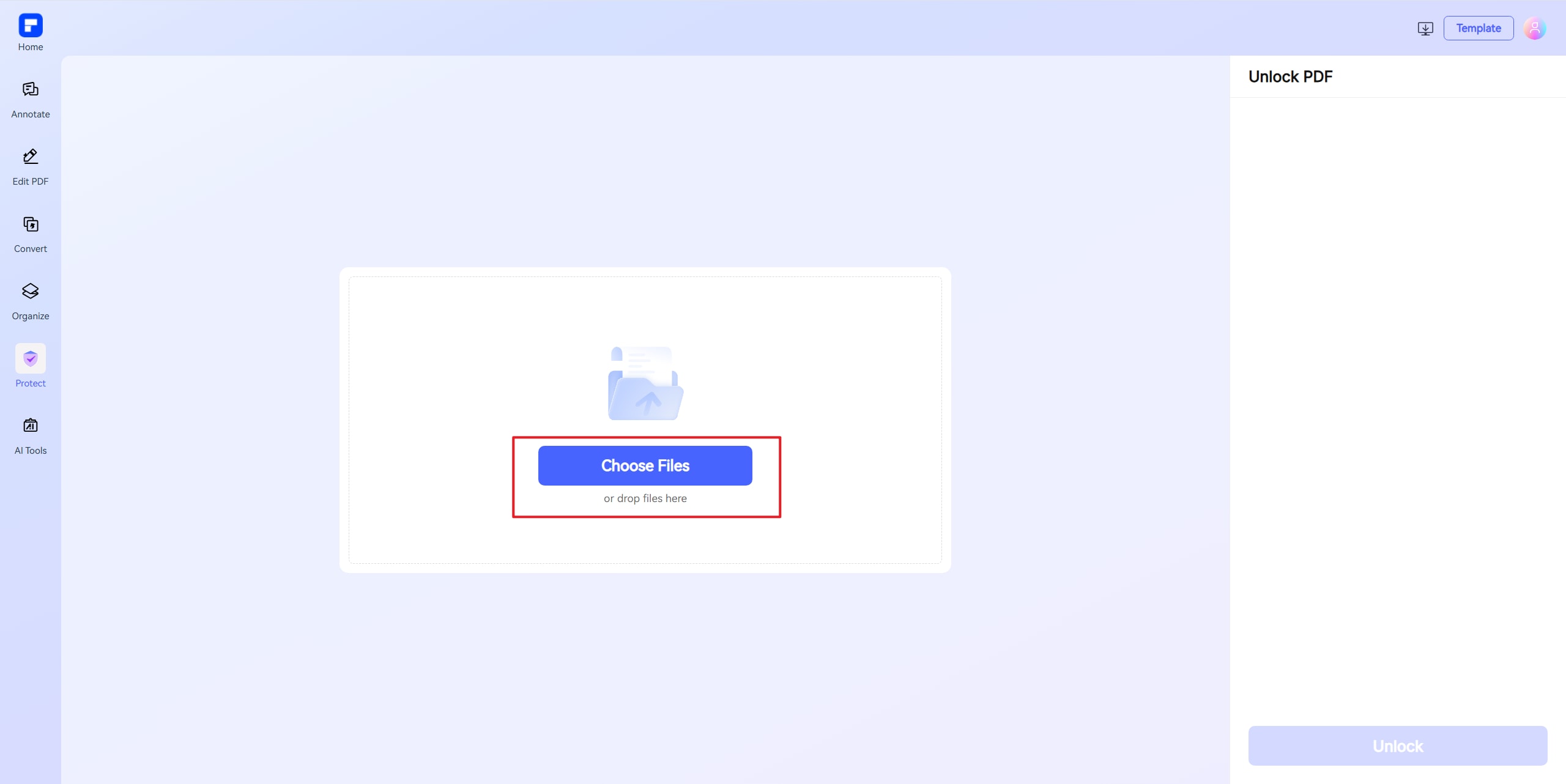


Discover the power of the PDFelement Extract Images From PDF Online tool.
Extract Every Image from Your PDF
Easily extract all images from your PDF—each image is saved as an individual file for easy access and reuse.
Preserve Original Image Quality
Images are extracted exactly as they appear in your PDF, maintaining their original resolution and format with zero quality loss.
Download as a ZIP Archive
Once extraction is complete, download all images in a single ZIP file for convenient storage and transfer.
Your Privacy and Security Matter
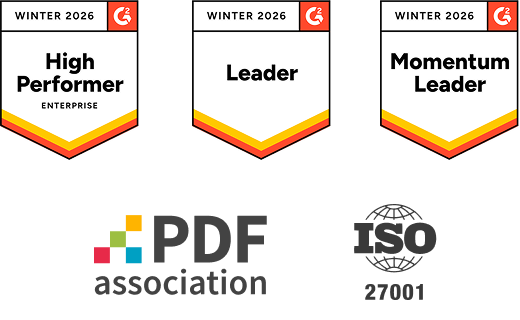
PDFelement stands out as a trusted solution, certified by ISO 27001 and SSI SECURE, and it’s proud to be a member of the PDF Association.
Advanced OCR Support
Extract images and detect text from scanned or image-based PDFs automatically with built-in OCR functionality.
Convert PDF to Multiple Image Formats
Easily convert PDF pages to JPG, PNG, BMP, TIFF, or GIF to suit your specific needs.
Extract pictures from PDF for every project.
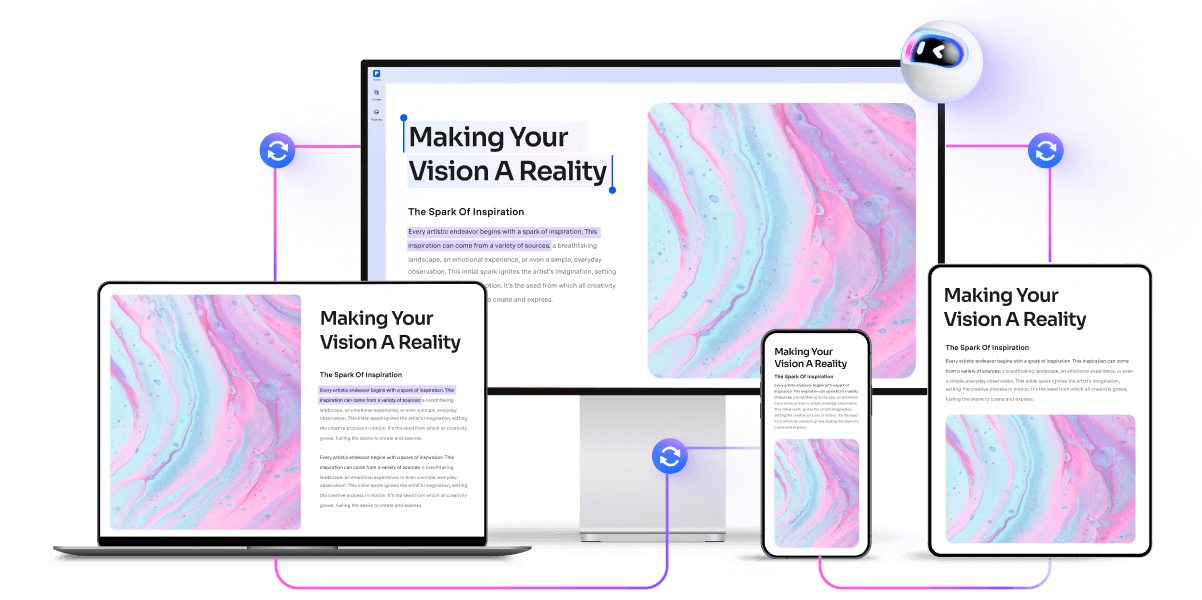
Secure, Compliant, and Professional PDF Software - Award - Winning.
PDFelement shines in G2 Winter 2026 as a Leader, Momentum Leader, and High Performer for Enterprise - adding to its 2024 G2 Best Software Award - Top 50 Office Products, ISO 27001 - Information Security Management certification, and PDF Association membership.


FAQs about get images from PDF.
-
How do you extract images from a PDF file?
For those who need to extract all images from a PDF or convert PDF to images in bulk, specialized tools offer more robust solutions. One standout option is the PDFelement Extract Images From PDF Online Tool. With PDFelement, you can extract images from PDF files in JPG format, and save them directly to your device. The tool supports both single-image extraction and batch processing, making it ideal for users who want to extract all images from a PDF or export images from PDF in one go. The process requires uploading your PDF, selecting the page range, and the photos will be downloaded automatically to a single folder on your device.
-
How can I extract embedded images from PDFs?
To extract embedded images from PDFs (not just screenshots or page renderings), you need tools that can detect and export actual image objects embedded in the PDF structure. Here's how to do it:
PDFelement Online – Extract Images from PDF- Key Features:
- Extracts embedded images from PDFs (not just screenshots).
- Preserves original quality and save images as JPG format.
- No software installation needed—100% web-based.
- Offers batch extraction for multiple images.
- How to Use:
- Go to the PDFelement Online image extractor.
- Upload your PDF file.
- Select the page range.
- Click Extract. A ZIP containing all the embedded images will auto-download to your device.
Note: PDFelement maintains data protection standards with secure document handling, making it a trustworthy choice for managing sensitive PDFs.
- Key Features:
-
How to extract PDF to JPG?
To extract PDF to JPG, you can use a variety of online tools and software that make the process quick and straightforward. Online platforms such as PDFelement Online Tool, iLovePDF, Adobe Acrobat Online, Smallpdf, and PDF2Go allow you to convert PDF to JPG directly from your browser. The typical process involves uploading your PDF file, selecting the option to convert PDF to images or extract images from PDF, and then downloading the resulting JPG files. These tools let you either convert each PDF page into a separate JPG image or extract all embedded images from the PDF and save them as JPG files.
-
How do I convert a PDF image to text?
To convert a PDF image into editable text, you can utilize Optical Character Recognition (OCR) tools that extract text from scanned documents or images. Several free and reliable online services are available for this purpose.
PDFelement Online offers a web-based OCR service that extracts images from a PDF, and accurately converts scanned PDFs and images into editable formats such as Word, Excel, PPT, PDF, and TXT. Its interface is clean and ad-free, ensuring complete document safety by automatically deleting all data after each conversion. Here's how you do it:
- Step 1: Extract Images from PDF
- >Go to PDFelement Online Extract Images from PDF tool.
- >Upload your PDF file.
- >Download the extracted images in JPG format.
- Step 2: Convert Images to Text (OCR)
- Go back to PDFelement Online Convert From JPG tool.
- Upload the image(s) you extracted in Step 1.
- Choose TXT as the desired output format.
- Click OCR and Convert, then download the resulting text-based document.
- Step 1: Extract Images from PDF
-
How to convert PDF to JPG without losing quality?
To convert PDF to JPG without losing quality, use reputable online converters or dedicated software that prioritize high-resolution output. Tools like PDFelement online PDF to image converter are designed to provide high-quality JPG files with just a couple of clicks, ensuring your converted images remain crisp and clear. It offers high-resolution output, allowing you to select image settings and download professional-grade JPGs instantly. Here's how:
- Step 1: Go to PDFelement Online PDF to JPG Tool
- Step 2: Upload Your PDF File: Click "Choose File" and upload the PDF you want to convert.
- Step 3: Select JPG as Output Format: Choose "JPG" as your image output type.
- Step 4: Start Conversion. Click Convert button. The system will process each page of your PDF and convert it to a high-quality JPG image.
- Step 5: Download Your Image. Once complete, the JPG file(s) will automatically download to your device. Each PDF page will be saved as a separate high-resolution JPG image.
-
Are there any limitations to PDFelement's online PDF editor?
Yes, there are certain limitations for free users:
Daily Usage Limits:
· Most editing and conversion tools allow 1 free use per day (e.g., Edit PDF, Merge, Split, Compress, Convert, Protect).
AI PDF Tool Limits:
· Chat with PDF, AI Read, AI Proofreader:
①Limited to 10 uses
②Supports PDFs up to 100MB and 260 pages
AI Translator & AI Detector:
· Limited to 10 uses (every 10 pages = 1 use; under 10 pages still counts as 1 use)
· Max file size: 100MB (AI Translator), 10MB (AI Detector)
Note:
· To enjoy unlimited usage, you can upgrade to premium access.
Page/File Size Restrictions:
· PDF files must be under 100MB (except for AI Detector)
· Max file size for OCR: 50MB
· Max 260 pages for AI tools
Tips and tricks for extracting Images From PDF.
Rate PDFelement Online PDF tools:

4.8
(188,357 Votes)You have to upload and download at least 1 file to rate! We've already perfectly processed 307,292,373 files with a total size of 10,124 TB
Try more PDFelement online PDF tools.



Simplified by AI.
Fast, easy, and affordable PDF editor. Convert, edit, sign PDFs, and more.


