Convert PDF to HTML Online for Free
Convert a PDF to a web page online for free. Upload your PDF file and instantly download clean,
responsive HTML without losing formatting—perfect for websites, email, or sharing.
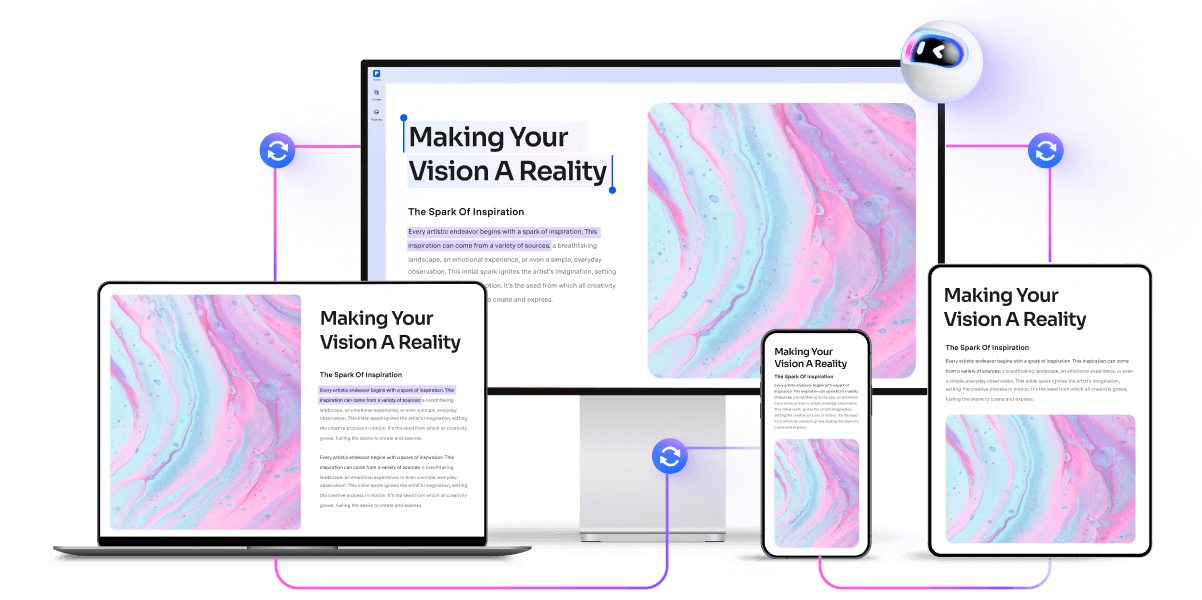
 Convert PDF to HTML Without Losing Formatting
Free Online PDF to HTML Converter With No Install Required
Instantly Convert PDF to HTML on Windows, Mac, and Mobile Devices
Convert PDF to HTML Without Losing Formatting
Free Online PDF to HTML Converter With No Install Required
Instantly Convert PDF to HTML on Windows, Mac, and Mobile Devices
 What is PDF and HTML file formats?
PDF (Portable Document Format) and HTML (HyperText Markup Language) are two widely used digital file formats.
PDF, developed by Adobe, is a fixed-layout format ideal for sharing and printing documents consistently across different platforms. It preserves fonts, images, and formatting, making it the standard for official reports, manuals, and forms.
HTML is the foundation of web pages, used to structure content on the internet. It supports responsive design, interactivity, and is readable by all modern web browsers.
Converting a PDF to HTML transforms static documents into interactive, accessible web pages—enhancing online visibility, enabling search engine indexing, and improving mobile-friendly user experiences.
 Free Download
Convert PDF to HTML Online vs. Offline
How to convert a PDF to HTML format online free?
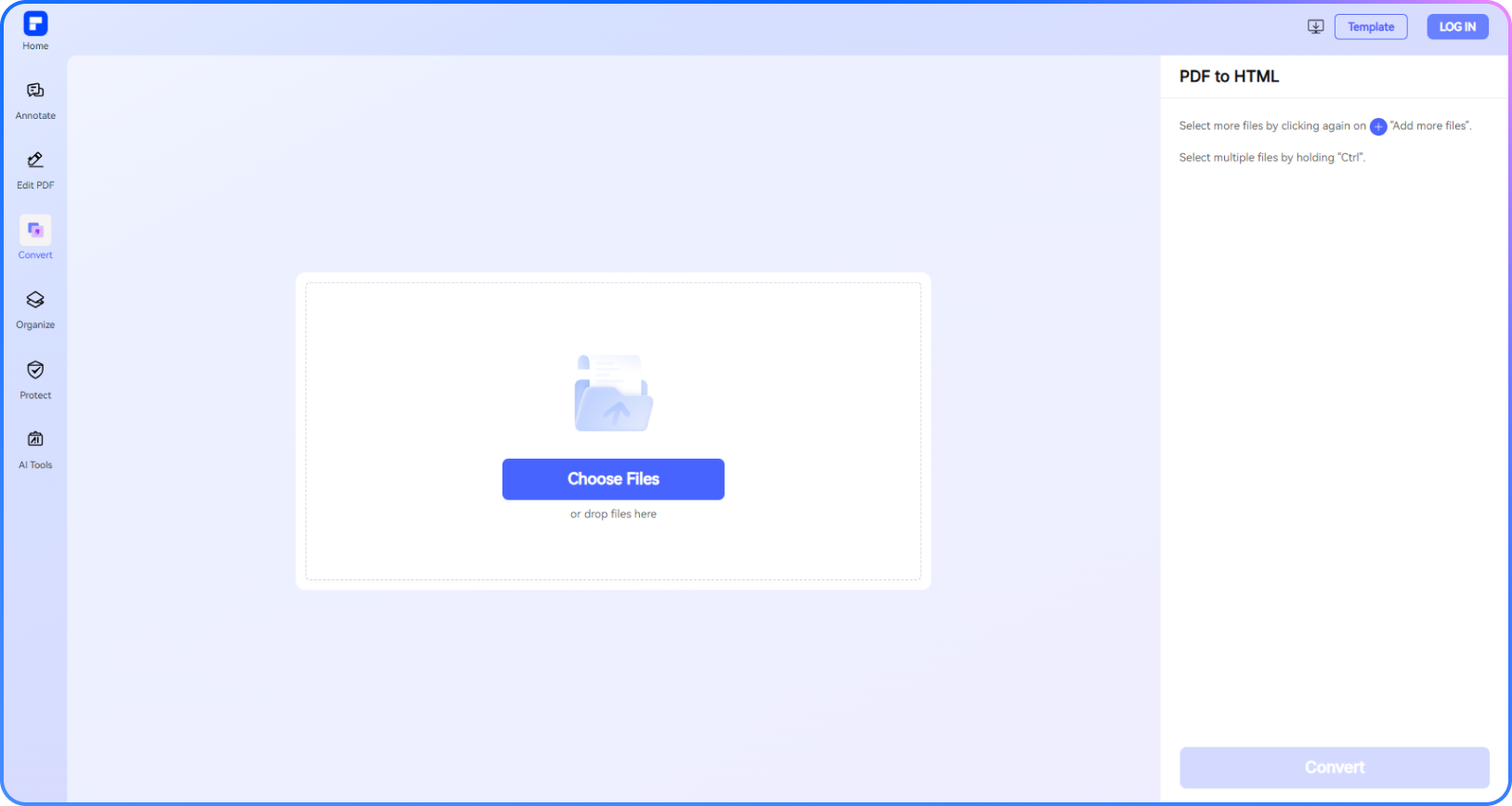

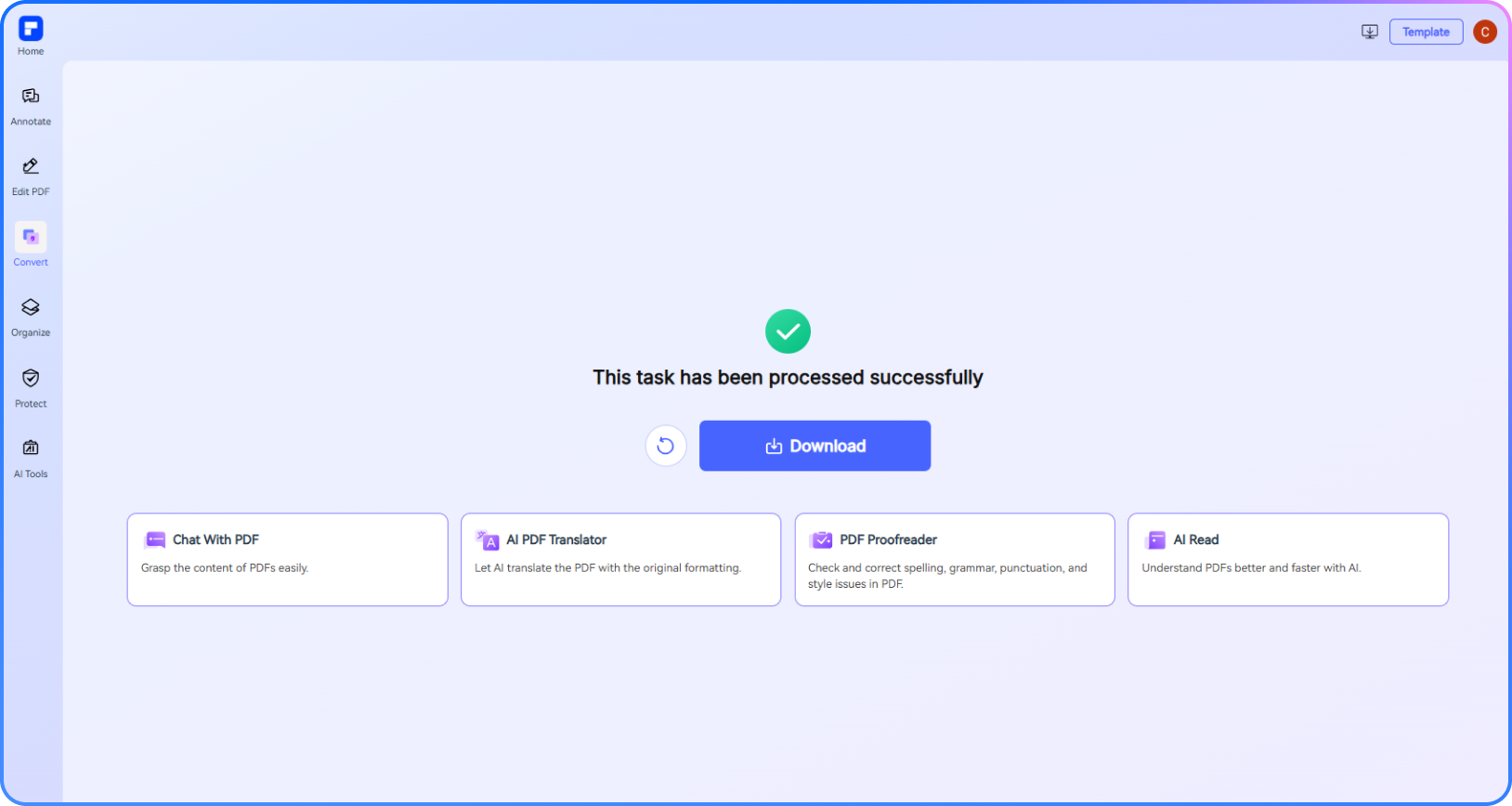
Experience differences with our free PDF file to HTML converter.
Best PDF to HTML Converter Online for Free
Convert PDF to HTML code at no cost. Get high-quality, readable HTML output from your PDFs in just a few clicks-no downloads or installations needed.
Quickly Convert PDF to HTML Without Losing Formatting
Generate clean HTML from any PDF in seconds, while preserving layout, tables, fonts, and images exactly as they appear in your original document.
Convert PDF Files to HTML From Any Device
Whether you’re using a Windows PC, Mac, tabler, or smartphone, convert your PDF files to HTML on the go using any browser.
OCR and Convert Scanned PDF to HTML Instantly
Working with scanned documents? Use built-in OCR to extract text and convert your PDF into structured, editable HTML in just a few clicks.
Batch Transform PDF Files to HTML in Seconds
Save time by converting multiple PDF files to HTML in one batch. Ideal for bulk conversions, web publishing, digital archives, and content migration.
Create, Edit, and Convert a PDF to Website HTML
Use AI to create and edit vivid PDFs, then convert them to website HTML optimized for SEO, design, and mobile. All in one workflow.
Free online PDF to HTML Conversion for wider use.
Secure, Compliant, and Professional PDF Software - Award - Winning.
PDFelement shines in G2 Winter 2026 as a Leader, Momentum Leader, and High Performer for Enterprise - adding to its 2024 G2 Best Software Award - Top 50 Office Products, ISO 27001 - Information Security Management certification, and PDF Association membership.




FAQs about converting PDF to HTML Online.
-
How to convert PDF files to HTML using JavaScript?
To convert PDF files to HTML using JavaScript, you have a few practical approaches depending on your environment (browser or Node.js) and whether you want a client-side or server-side solution.
1. Using pdf.js (Client-Side Viewer)
What it does: Renders the PDF visually in the browser using
< canvas >elements.Pros:
- Runs entirely in the browser—no server or uploads needed.
- Great for viewing PDFs inline in web apps.
- Open-source and customizable.
Cons:
- Does not produce real HTML—you get a visual rendering, not selectable HTML text or editable layout.
- No easy way to extract structured content (e.g., tables, forms).
2. Using pdf2htmlEX (Server-Side or Node.js)
What it does: Converts PDFs to actual HTML with text, images, and styles preserved.Pros:
- Outputs full, navigable HTML.
- Retains fonts, layout, and structure closely to the original.
- Supports command line or integration via Node.js.
Cons:
- Requires server-side setup (not browser-compatible).
- Not ideal for real-time, browser-only use cases.
3. Using Online Tools like PDFelement Online PDF to HTML Tool
What it does: Lets you upload a PDF and convert it to HTML directly in your browser.Pros:
- No installation required—works via browser.
- Simple drag-and-drop interface.
- Output HTML is downloadable and ready to use.
Cons:
- File size limits on the free version.
- Internet connection required.
- May not handle complex layouts as well as desktop tools.
-
How to convert a PDF to a web page?
To convert a PDF to a web page, you need to transform your PDF file into HTML format, which is the standard language for web pages. This process allows your document to be viewed directly in any web browser, making it more accessible and easier to integrate with other online content. The steps are straightforward and can be accomplished using various tools and platforms.
First, you can use an online PDF file to HTML converter, such as the PDFelement Convert PDF to HTML Online Tool. With this tool, you simply upload your PDF, select the option to convert it as an HTML web page, and then download the resulting HTML file. This method preserves the formatting of your original document and makes it easy to add the content to your website.
Alternatively, platforms like Xodo and PDF24 offer free, browser-based services where you can select your PDF, start the conversion process, and download the HTML file within seconds. These services work on any device and require no software installation, making them convenient for quick conversions.
For users who want to go a step further and generate a fully functional website from a PDF, services like Tiiny.host allow you to upload your PDF, assign a web link, and instantly publish it as a shareable website. This is particularly useful if you want to convert a PDF into a web link or need to present documents like brochures or reports as interactive web pages.
-
How to convert PDF into web link?
To convert a PDF into a web link, you need to upload the PDF to an online storage or hosting service and get a shareable URL. Here’s how you can do it:
1. Use PDF Hosting Platforms
Sites like PDFelement Online, DocDroid, SmallPDF let you upload and get a link to share or embed the PDF publicly or privately.
2. Use Cloud Storage Services
- Upload the PDF to your Google Drive.
- Right-click the file → click "Get link."
- Set access to "Anyone with the link".
- Copy the link — this is your web-accessible PDF URL.
3. Use a Website or File Manager (For Developers)
If you have access to a website or hosting server:
- Upload the PDF to your web server (e.g., /public/docs/yourfile.pdf).
- Use the direct URL, e.g.: https://yourdomain.com/docs/yourfile.pdf
-
How to convert PDF to HTML for email?
To convert a PDF to HTML for email, you need a tool that can accurately transform your PDF document into clean, email-compatible HTML code. This process is essential because most email clients do not support embedding PDFs directly, but they do support HTML content. The PDFelement Convert PDF to HTML Online Tool is a highly recommended solution for this task, as it allows you to convert PDFs into HTML code specifically tailored for email use.
With PDFelement, you simply upload your PDF and select the "Convert" button. After conversion, you can further customize the HTML code to match your email design preferences. Once you have the HTML file, copy the HTML code and paste it into your email client's HTML or source mode. This ensures your email displays the content as intended across various devices and platforms.
It's important to review and tidy up the generated HTML, removing unnecessary tags and inline styles to ensure compatibility and responsiveness in email clients. PDFelement also supports batch conversion and preserves hyperlinks, images, and formatting, making it suitable for creating visually appealing HTML emails from PDF documents.
Alternatively, you can use online converters like Xodo to convert your PDF to HTML, then insert the resulting HTML code into your email. Always send a test email first to verify the appearance in different email clients. This approach allows you to effectively convert a PDF file to HTML for email campaigns, ensuring your message is both accessible and visually engaging.
-
What is the best PDF to HTML converter online?
The best PDF to HTML converter online depends on your specific needs, such as preserving formatting, ease of use, security, and additional features.
For users who want a seamless and reliable online experience, the PDFelement Convert PDF to HTML Online Tool is highly recommended. It allows you to convert PDF documents to HTML while maintaining original formatting and layout, making it ideal for generating HTML from PDF for web pages, emails, or further editing.
-
Is it safe to use online PDF to HTML converters?
Using online PDF to HTML converters can be convenient, but there are important safety and privacy considerations to keep in mind. The main risks involve privacy, data security, and potential malware exposure. Some online converters may collect user data for advertising or even sell your information, especially if the service is not well-known or transparent about its privacy policy. Additionally, uploading sensitive or confidential documents to unknown platforms can expose your data to unauthorized access or misuse.
Security is another concern: while reputable converters like Adobe's online PDF tools emphasize data deletion and secure connections, less trustworthy sites may not use adequate encryption or may retain your files longer than necessary. Always check if the service uses SSL/TLS encryption to protect your files during transfer.
There is also a risk, albeit less common, that malicious actors could inject malware or malicious code into PDF or HTML files, especially if you download converted files from untrusted sources. This makes it essential to only use well-established, reputable PDF file to HTML converter tools, such as the PDFelement Convert PDF to HTML Online Tool, which are more likely to prioritize user security and privacy.
-
Can I convert multiple PDF files to HTML at once?
Yes, you can convert multiple PDF files to HTML at once, using either batch processing tools or online services that support multiple uploads. Here's how you can do it:
1. Use Desktop Software (Batch Mode)
- Open PDFelement. Click Tools > Batch PDFs > Convert.
- Add multiple PDF files.
- Select HTML as the output format.
- Click Apply to convert all PDFs at once.
2. Use Online Tools (Multi-upload)
Some platforms allow uploading and converting multiple PDFs at once, such as PDFelement Online Converter, PDFCandy.
- Visit the page of PDFlement Online Convert PDF to HTML.
- Upload all your PDFs.
- Click Convert and download each HTML file.
-
Are there any limitations to PDFelement's online PDF editor?
Yes, there are certain limitations for free users:
Daily Usage Limits:
· Most editing and conversion tools allow 1 free use per day (e.g., Edit PDF, Merge, Split, Compress, Convert, Protect).
AI PDF Tool Limits:
· Chat with PDF, AI Read, AI Proofreader:
①Limited to 10 uses
②Supports PDFs up to 100MB and 260 pages
AI Translator & AI Detector:
· Limited to 10 uses (every 10 pages = 1 use; under 10 pages still counts as 1 use)
· Max file size: 100MB (AI Translator), 10MB (AI Detector)
Note:
· To enjoy unlimited usage, you can upgrade to premium access.
Page/File Size Restrictions:
· PDF files must be under 100MB (except for AI Detector)
· Max file size for OCR: 50MB
· Max 260 pages for AI tools
Tips and tricks for convert PDF to HTML.
Rate PDFelement Online PDF tools:

4.8
(188,357 Votes)You have to upload and download at least 1 file to rate! We've already perfectly processed 307,292,373 files with a total size of 10,124 TB
Try more PDFelement online PDF tools.



Simplified by AI.
Fast, easy, and affordable PDF editor. Convert, edit, sign PDFs, and more.


