Unlock PDF Online for Free
Free online PDF unlocker to remove password, unlock editing, printing, and viewing instantly.
Decrypt PDFs securely and easily.
 Instantly Remove Owner Passwords From PDFs With Secure Decryption
Best PDF Password Remover Online for FREE
Unlock PDFs Online for Free on Windows, Mac, and Mobile in Seconds
Instantly Remove Owner Passwords From PDFs With Secure Decryption
Best PDF Password Remover Online for FREE
Unlock PDFs Online for Free on Windows, Mac, and Mobile in Seconds
 What is a locked PDF file?
A locked or password-protected PDF limits access to content—blocking opening, editing, copying, or printing. These files often use AES-128 or AES-256 encryption for security. While AES-256 offers strong protection, it can also restrict editing and content extraction. To unlock and edit PDF files, you’ll need a reliable PDF password remover or decryptor that converts password protected PDFs to normal PDFs.
 Free Download
Unlock PDF Online vs. Offline
How to unlock a PDF for free?
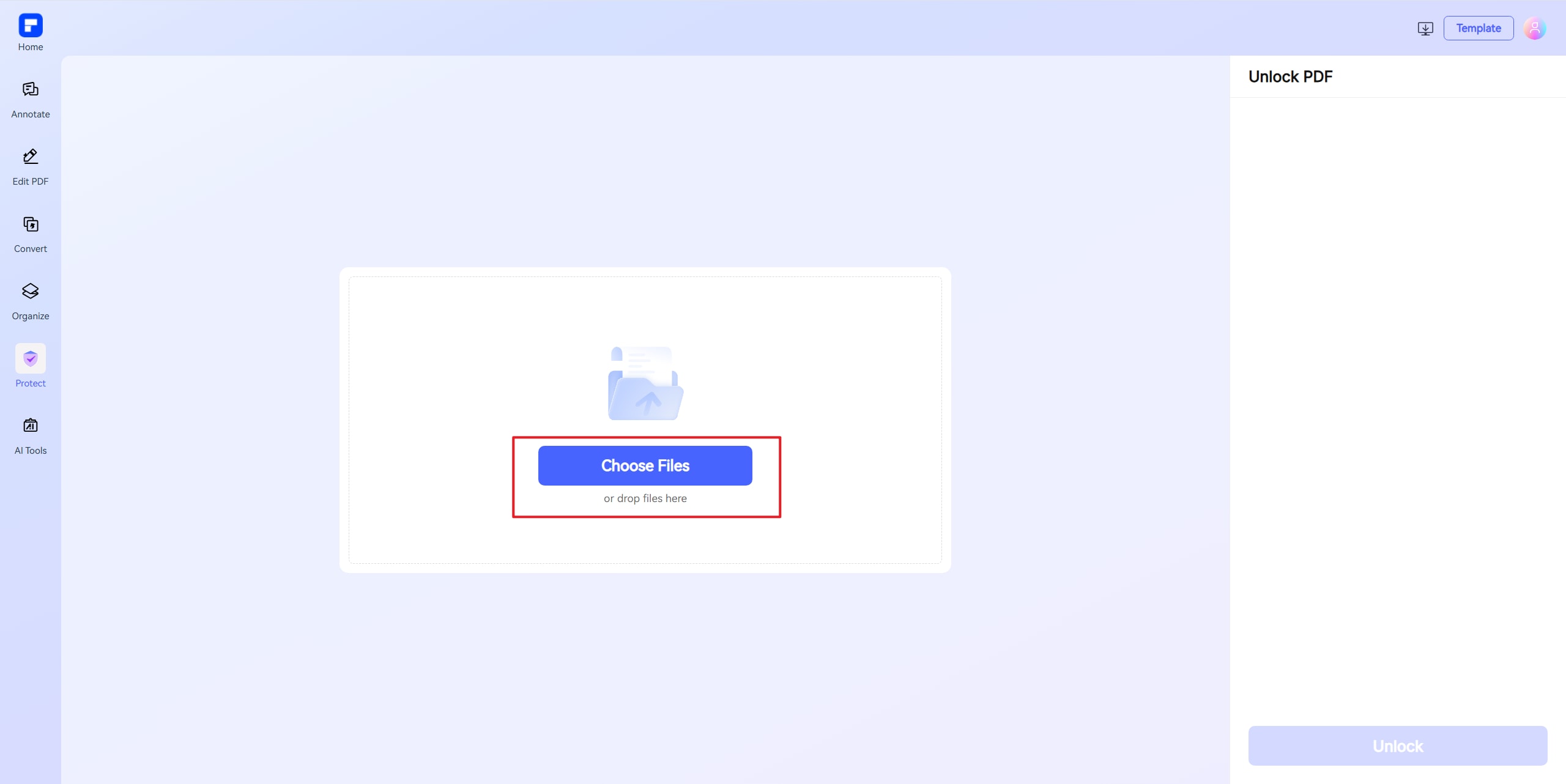


Discover the ease of PDF unlocking with PDFelement.
Unlock PDF Password Online
– 100% Free
Remove password protection from your PDF files completely free. Just sign up and start unlocking without restrictions.
Fast & Secure Online PDF Unlocker
Decrypt PDFs in seconds—remove viewing and editing restrictions with one click using PDFelement secure online tool.
Remove Password from PDF
on Any Device
Remove password from PDF on Mac, Windows, iPhone, or Android—no software download required.
Unlock and Edit Locked PDFs Seamlessly
Open locked PDFs, remove restrictions, and unlock editing, printing, and signing capabilities with our AI PDF editor.
Enhance PDF Security With Watermarks
Once unlocked, you can add watermarks for secure sharing and version tracking, perfect for sensitive documents.
Unlock PDF Without Losing Quality
Maintain original fonts, images, and layout- PDFelement PDF password remover ensures no quality loss during decryption.
Free online PDF unlocker for wider use.

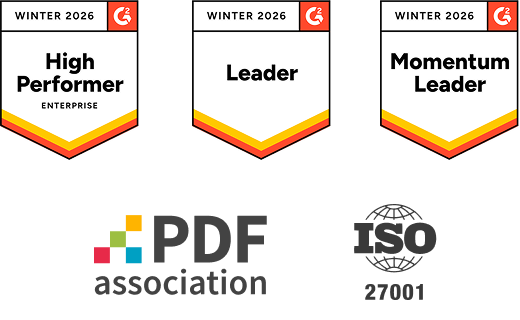
Secure, Compliant, and Professional PDF Software - Award - Winning.
PDFelement shines in G2 Winter 2026 as a Leader, Momentum Leader, and High Performer for Enterprise - adding to its 2024 G2 Best Software Award - Top 50 Office Products, ISO 27001 - Information Security Management certification, and PDF Association membership.





FAQs about unlocking PDF files for free.
-
Is there a strongly encrypted PDF password remover to unlock a PDF without password?
Unlocking a strongly encrypted PDF without the correct password is not possible with most online PDF unlocker tools or freeware. Encryption standards like AES-128 or AES-256 are designed to prevent unauthorized access, making decryption without a password virtually impossible.
Most online tools (e.g., PDFelement Password Remover, Smallpdf, PDF2Go) can remove both user and owner-level encryption, including modern standards like 128-bit or 256-bit AES, but you still need to provide the correct password to unlock and edit the document. There is no legitimate PDF password remover AI or software that can unlock a strongly encrypted PDF without the password due to the robust security algorithms in place.
-
How to remove PDF password on Mac?
To remove a PDF password on Mac, you have several effective options, with the built-in Preview app being one of the simplest methods. First, open your password-protected PDF using Preview. When prompted, enter the PDF’s password to unlock the file. Once the document is open, go to the "File" menu and select "Export" or "Export as PDF." In the export dialog, ensure the "Encrypt" or "Password Protect" option is unchecked, then save the file under a new name or overwrite the original. The saved PDF will no longer require a password to open, making it accessible for future use.
If you need to remove editing or printing restrictions (owner password), or if you want to batch process multiple files, specialized software like PDFelement for Mac or Cisdem PDF Password Remover can help. These tools allow you to import your locked PDFs, enter the password if required, and then use a "Remove Security" or similar feature to delete the password protection. For files with simple or known passwords, these apps make the process fast and user-friendly.
Online solutions such as PDFelement PDF Unlocker also enable Mac users to remove passwords by uploading the protected PDF and downloading the unlocked version. However, always be cautious with sensitive documents when using online PDF password remover websites.
-
How to unlock a PDF document for editing and printing?
To unlock a PDF document for editing and printing, you need to remove its password protection and any editing or printing restrictions. If you know the password, the process is straightforward using tools like Adobe Acrobat. Open the PDF in Acrobat, go to "Tools" > "Protect" > "Encrypt" > "Remove Security", and enter the password when prompted. Once the security is removed, you can freely edit and print the PDF.
If the PDF is protected with permissions (restricting editing or printing), you’ll need the owner password to unlock these features. In Adobe Acrobat, open the file, access the "File" menu, click "Properties," then the "Security" tab, and set the "Security Method" to "No Security" after entering the permissions password. Save the changes, and the PDF will be unlocked for editing and printing.
For those without Adobe Acrobat, online tools like PDFelement PDF Password Remover allow you to upload your PDF and remove restrictions, provided you have the right to the file. Simply upload the PDF, confirm your permission, and download the unlocked version, which can now be edited and printed.
If you don’t know the password, unlocking a PDF is not possible through legitimate means due to security protocols. However, if you are the rightful owner and have forgotten the password, you may need to recreate the PDF or use specialized software to remove restrictions if the password is known.
-
What is an AI PDF password remover?
An AI PDF password remover is a tool or software that uses artificial intelligence to help users unlock or remove passwords from PDF documents, making them accessible for viewing, editing, or printing. These tools are especially useful for situations where a PDF is protected by a password-either to restrict opening (user password) or to limit editing and printing (owner password)-and you need to regain access or modify the file.
There are now several AI-powered PDF password remover tools available. These tools use artificial intelligence to streamline and automate the process of unlocking password-protected PDF files, such as:
- Wondershare PDFelement: This desktop PDF editor includes an AI assistant (Lumi) that can guide you through the password removal process. You need to know and enter the password first; then, the AI helps you remove it from the document for future ease of access.
- TinyWow: An online AI tool that lets you upload your PDF, enter the password, and quickly download the unlocked file. It’s straightforward and files are deleted from the server after an hour for privacy.
- PDFgear: A free desktop solution with AI features, allowing you to remove passwords securely on your own device.
- LightPDF: A free, AI-powered online service that unlocks PDFs after you upload the file and enter the password. It works on all major operating systems and deletes files from its servers after processing.
- DocHub: Offers an AI-powered password remover feature, leveraging GPT technology to assist users in unlocking PDFs efficiently.
-
Can I convert a password-protected PDF to a normal PDF?
Yes, you can convert a password-protected PDF to a normal PDF by removing its password protection. This process is commonly referred to as "unlocking" the PDF. To do this, you typically need to know the password that was used to secure the document. Once you have the password, you can use various methods:
- Online tools: Websites like PDFelement Online, iLovePDF, Smallpdf, PDF2Go, and PDF Candy allow you to upload your password-protected PDF, enter the password, and then download an unsecured version of the file. This removes the password added to your PDF, effectively converting your password-protected PDF to a normal PDF that can be opened, edited, or printed without restrictions.
- Desktop software: Adobe Acrobat provides a straightforward way to remove password security. Open the PDF in Acrobat, go to "Tools" > "Protect" > "Encrypt" > "Remove Security," and follow the prompts to delete the password. After saving, your PDF will no longer require a password to open or modify.
- Specialized software: Tools like SysTools Secured PDF Unlocker can batch process multiple files and remove even strong encryptions, provided you have the correct password. This is useful for converting several protected PDFs to unsecured ones at once.
Once your PDF is unlocked and converted to a normal PDF, you can easily edit its content.
-
Can I sign a locked PDF?
You can sign a locked PDF, but the process depends on the type of security applied to the document. If the PDF is protected with an "open password" (required to view the file), you must first enter the password to access the document. Once opened, you can typically use PDF editors like Adobe Acrobat or Preview (on Mac) to add your signature.
If the PDF has a "permissions password" (restricting editing, printing, or signing), you may not be able to sign the document directly until those restrictions are removed. In this case, you can use a PDF password remover tool-such as PDFelement PDF Password Remover-to unlock the PDF for editing and signing. After unlocking, you can use any standard PDF editor or eSignature tool to apply your digital signature.
Some practical workarounds include opening the secured PDF in Google Chrome or Safari, entering the password, and using the "Print" > "Save as PDF" feature to create an unlocked version. This new file can then be signed using your preferred eSignature software.
Always ensure you have the right to unlock and sign the document. Once the PDF is unlocked and you’ve added your signature, you can further edit the file as needed.
-
Are there any limitations to PDFelement's online PDF editor?
Yes, there are certain limitations for free users:
Daily Usage Limits:
· Most editing and conversion tools allow 1 free use per day (e.g., Edit PDF, Merge, Split, Compress, Convert, Protect).
AI PDF Tool Limits:
· Chat with PDF, AI Read, AI Proofreader:
①Limited to 10 uses
②Supports PDFs up to 100MB and 260 pages
AI Translator & AI Detector:
· Limited to 10 uses (every 10 pages = 1 use; under 10 pages still counts as 1 use)
· Max file size: 100MB (AI Translator), 10MB (AI Detector)
Note:
· To enjoy unlimited usage, you can upgrade to premium access.
Page/File Size Restrictions:
· PDF files must be under 100MB (except for AI Detector)
· Max file size for OCR: 50MB
· Max 260 pages for AI tools
Tips and tricks for unlocking PDF.
Rate PDFelement Online PDF tools:

4.8
(188,357 Votes)You have to upload and download at least 1 file to rate! We've already perfectly processed 307,292,373 files with a total size of 10,124 TB
Try more PDFelement online PDF tools.



Simplified by AI.
Fast, easy, and affordable PDF editor. Convert, edit, sign PDFs, and more.


