Free Image Resizer Online
Want to resize an image for free? Try this free online picture resizer to
adjust JPG, PNG, GIF, or BMP files by percentage. Easily resize image dimensions without losing quality.
 Resize JPG, PNG, GIF, BMP, TIFF Images Without Quality Loss
Free Image Resizer With Secure
Resize JPG, PNG, GIF, BMP, TIFF Images Without Quality Loss
Free Image Resizer With Secure and Fast Processing
Bulk Resize Multiple Photos Online in One Go
 What does resizing image dimensions mean?
Resizing image dimensions means changing the width and height of a photo to fit specific needs, like websites, social media, or printing. You can use an online image resize tool or a free image resizer to adjust pixel size, scale by percentage, or resize photos for platforms like Instagram or WhatsApp. This helps reduce file size, meet layout requirements, or resize images without losing quality.
How to resize images online for free?
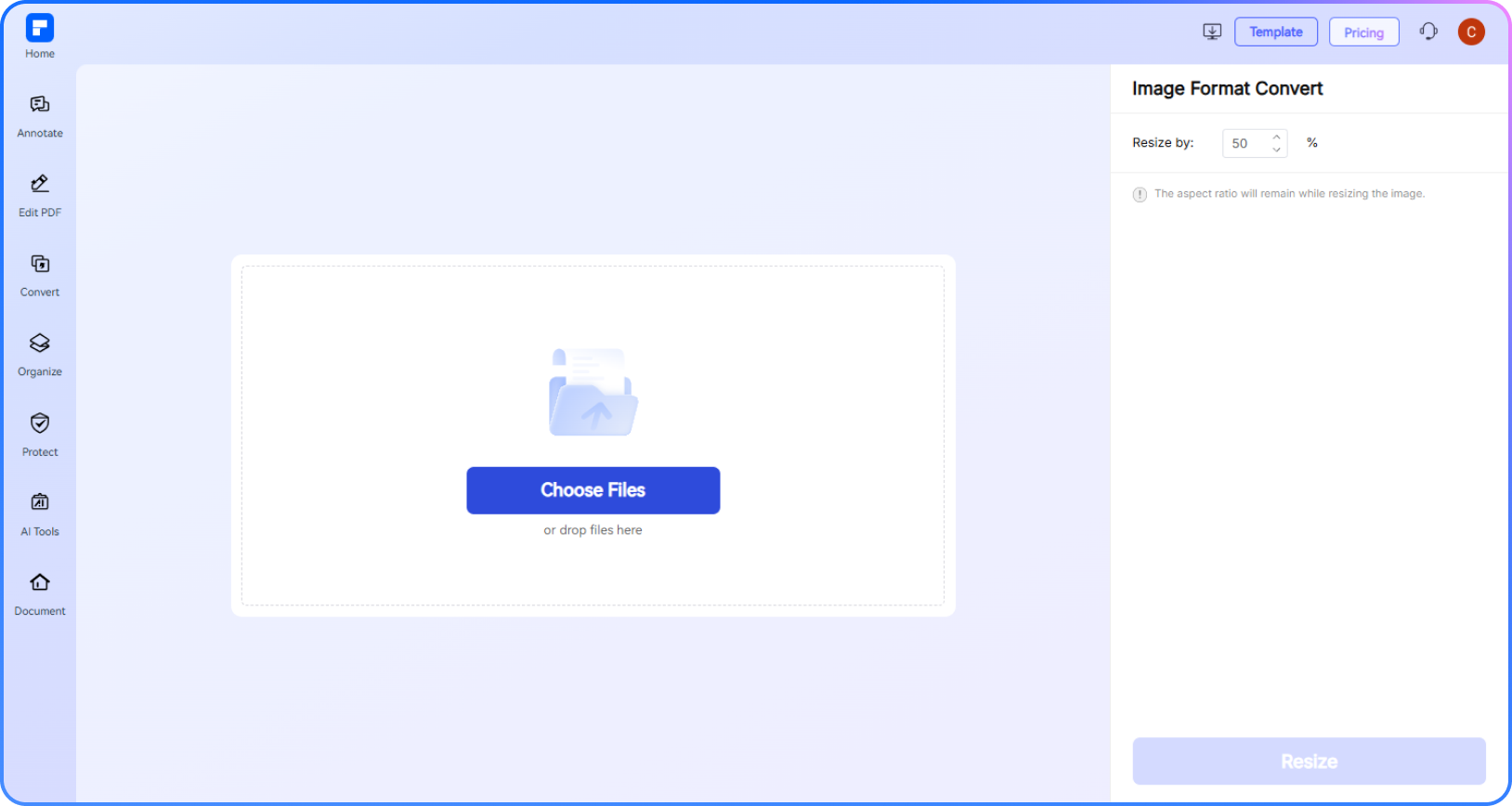
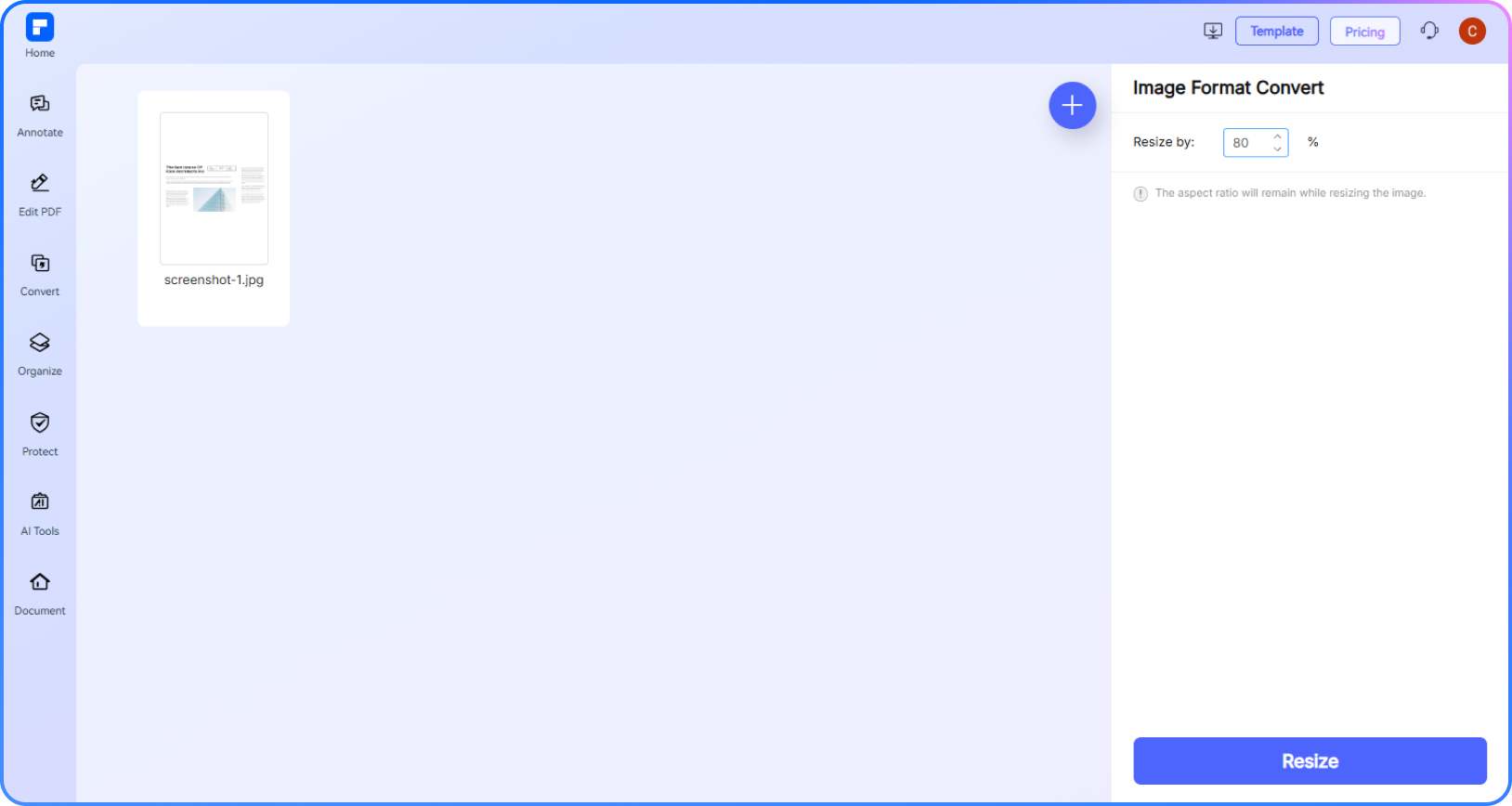
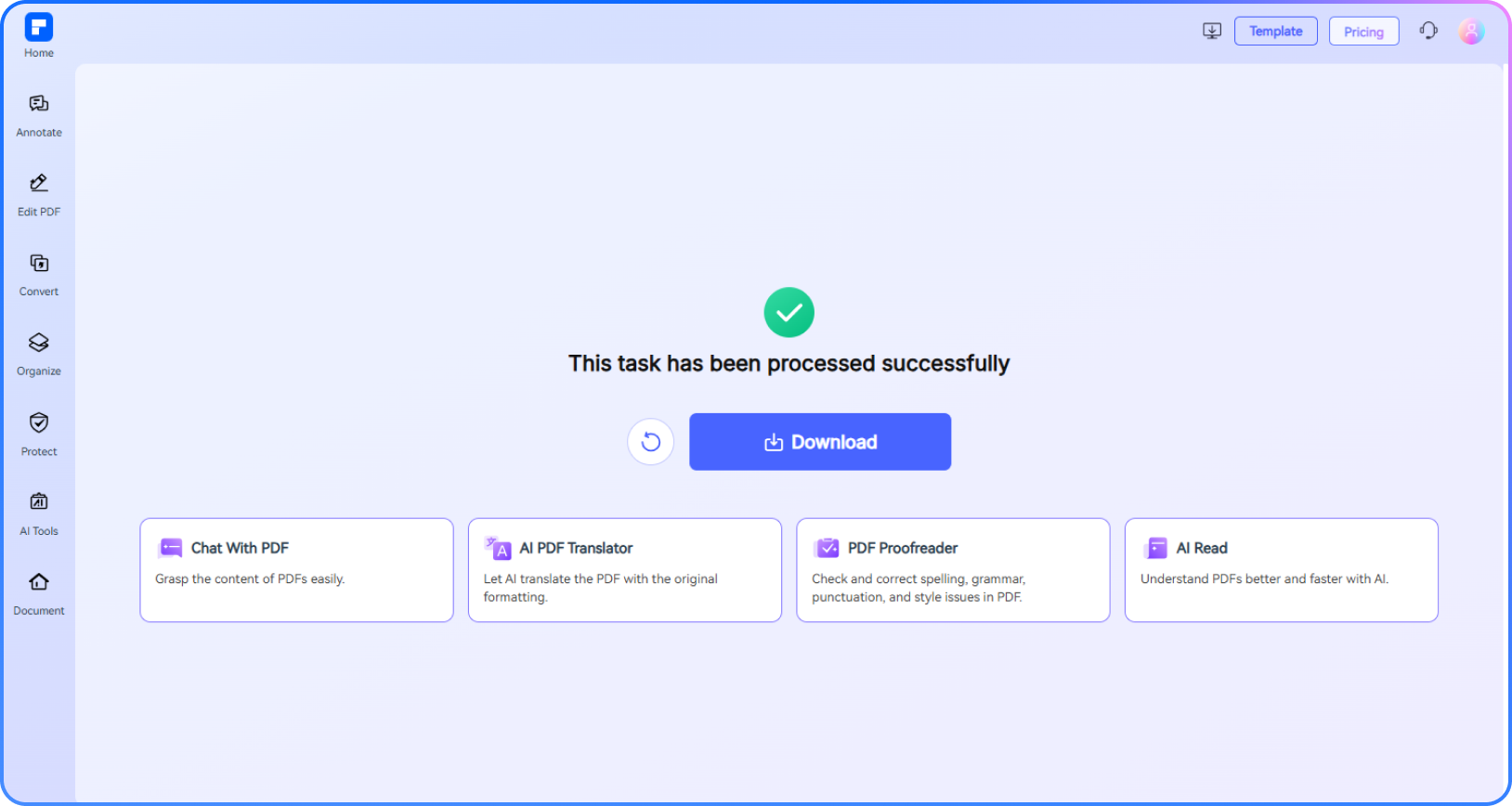
Experience the difference with our free image resizing online.
Resize Photos Online for Free in Seconds
Quickly resize images online with this free image resizer. Fast, simple, and perfect for JPG, PNG, GIF, and more.
Lossless Resizing for JPG, PNG, GIF & More
Reduce image size without losing quality. Supports all major formats, including JPG, PNG, GIF, BMP, TIFF, and others.
Bulk Image Resizer for Efficient Workflows
Save time with batch resizing. Upload and resize multiple images at once for consistent dimensions.
Resize Images for Instagram, Websites, and More
Easily resize image for Instagram without cropping, adjust YouTube banners, or resize photos for websites with percentage-based scaling.
Seamlessly Resize Pictures on Any Device
Access this online image resizer from any browser, whether you’re on Windows, Mac, Android, or iPhone.
Secure and Private Image Resizing
Your photos stay protected. Uploaded images are securely processed and deleted automatically—resize images without worrying about privacy.
Free Online Image Resizer for wider use.
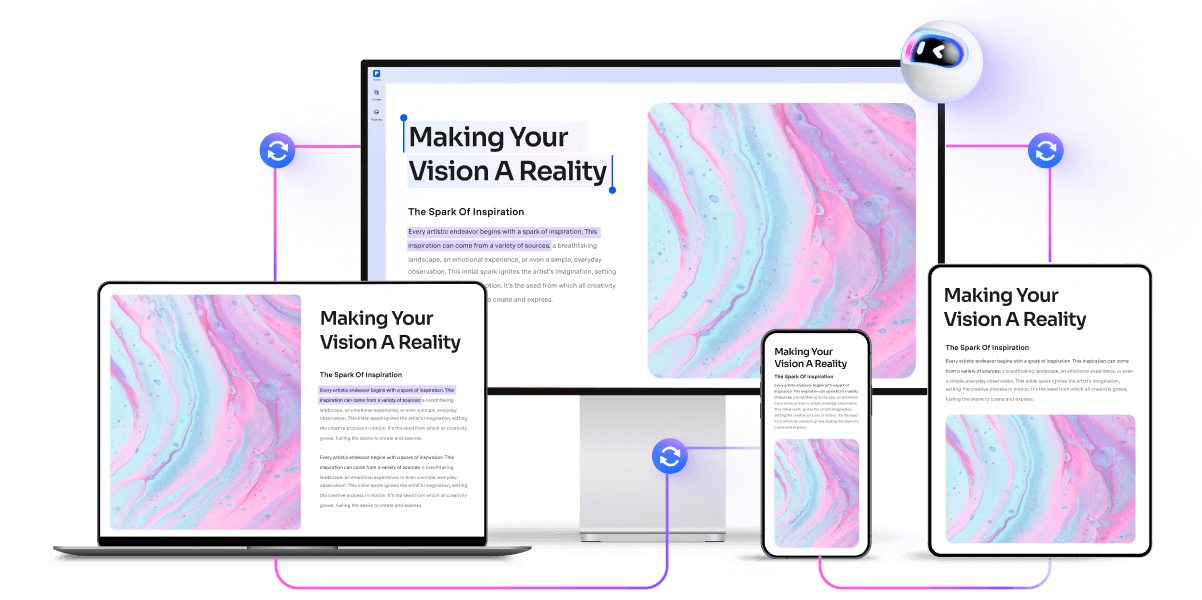
Secure, Compliant, and Professional PDF Software - Award - Winning.
PDFelement shines in G2 Winter 2026 as a Leader, Momentum Leader, and High Performer for Enterprise - adding to its 2024 G2 Best Software Award - Top 50 Office Products, ISO 27001 - Information Security Management certification, and PDF Association membership.




FAQs about free image resizing.
-
How to resize an image without losing quality?
Follow these easy steps to resize your image while keeping it sharp:
Step 1: Access a Reliable Tool
Go to the PDFelement Online Resize Image Tool. It’s free, easy to use, and works for JPG, PNG, GIF, and more.
Step 2: Upload Your Image
Click the upload button and select your photo—whether it's a JPG, PNG, GIF, or BMP file.
Step 3: Set the Desired Percentage
You can resize image dimensions by adjusting the percentage scale. Keeping the aspect ratio helps avoid distortion.
Step 4: Resize the Image
Click the Resize button. The tool will shrink or scale your image while preserving quality.
Step 5: Download Your Resized Image
Once done, the image will download to your device instantly. If not, click Resize to save it manually. It’s ready for websites, social media, email, or printing—without losing clarity.
Tip: Always reduce image size rather than enlarging to maintain quality, especially for online pic resize tasks or social platforms like Instagram or WhatsApp.
-
How to resize multiple images at once?
If you need to resize multiple images quickly, a bulk image resizer is the easiest way to save time and maintain consistent dimensions. Here’s how to do it:
Step 1: Open a Bulk Image Resizer
Visit the PDFelement Online Resize Image Tool. It supports bulk image resizer functions for JPG, PNG, GIF, and more.
Step 2: Upload Multiple Images
Click the upload button and select several photos at once—ideal for resizing image dimensions for websites, social media, or email.
Step 3: Set Your Preferred Percentage
Enter the percentage to resize all selected images at once. Keeping the aspect ratio ensures quality is preserved.
Step 4: Apply Bulk Resizing
Click Resize, and the tool will process all your images simultaneously—no need to resize each photo manually.
Step 5: Download Your Resized Images
Download all resized photos together, ready for use on Instagram, websites, YouTube banners, or WhatsApp DP.
Tip: This free online picture resizer helps resize image files without losing quality, even when working with multiple images at once.
-
Can I resize GIFs or animated images online?
Yes, you can resize GIFs or animated images online easily. Many online tools, including the PDFelement Online Resize Image Tool, support resizing GIF files while preserving animation and quality.
To resize a GIF online:
- Upload your GIF to PDFelement free image resizer that supports animated formats.
- Choose your preferred percentage scale.
- Click Resize to reduce the GIF file size without losing animation smoothness or image clarity.
- Download the resized GIF instantly.
This GIF resizer feature helps you resize images for websites, social media, or messaging apps without losing frames or quality.
-
How do I resize an image on iPhone?
Resizing images directly on your iPhone is easy using built-in features or free online tools:
Method 1: Using the Photos App (Crop & Resize)
- Open the Photos app and select the image.
- Tap Edit, then the Crop icon.
- Adjust the crop box to resize image dimensions manually (though this mainly crops, not scales).
- Save the edited photo.
Method 2: Use a Free Photo Resizer Tool
For precise resizing without losing quality, use a free app or online tool:
- Visit the PDFelement Online Resize Image Tool via Safari or any browser.
- Upload your image and set the resize percentage.
- Download the resized image instantly.
This online pic resize tool makes resizing photos on iPhone simple, fast, and preserves quality—perfect for social media, email, or documents.
-
How to resize an image for Instagram without cropping?
Instagram often crops images to fit its square or story formats, but you can resize photos without losing any part of the image by following these steps:
Step 1: Use an Online Image Resize Tool
Access a free online pic resize tool like the PDFelement Online Resize Image Tool.
Step 2: Upload Your Photo
Upload your image (JPG, PNG, GIF, and more) to the tool.
Step 3: Resize by Adjusting Dimensions or Percentage
Set the scale by percentage to fit Instagram’s preferred sizes without cropping.
Step 4: Download and Upload to Instagram
Save the resized image and upload it to Instagram with the full content intact—no cropping needed.
-
Is there a free image resizer that can change DPI?
Yes! There are several free tools available to resize images and adjust their DPI (dots per inch). Here are some great options:
- PDFelement Online Resize Tool (Free & Powerful) – Lets you resize images by percentage (useful for quick scaling).
- Photopea – A free online editor like Photoshop that lets you change DPI.
- Pixlr – Another online editor where you can adjust image resolution.
-
How to Use PDFelement Online for Resizing
- Go to PDFelement Resize Image Tool.
- Upload your image.
- Adjust the resize percentage (e.g., 50% smaller).
- Download the resized image.
Note: While PDFelement Online is great for quick scaling, it doesn’t explicitly let you set DPI directly. For precise DPI control, you can choose other options.
-
How to resize an image for a signature?
To resize an image for a signature—like for email, documents, or digital forms—follow these steps:
1. Choose a Free Online Picture Resizer
Use a tool like the PDFelement Online Resize Image Tool to resize your signature image easily without losing quality.
2. Upload Your Signature Image
Upload your signature file (usually PNG or JPG format).
3. Set the Dimensions
Resize the image to typical signature sizes—usually small, for example, around 300x100 pixels or as needed to fit your document or email signature block.
4. Maintain Aspect Ratio
This tool will help you maintain the aspect ratio to prevent distortion of your signature.
5. Download the Resized Signature Image
Download the resized signature image ready for use in PDFs, emails, or online forms.
Tips and tricks for free Image Resizer.
Rate PDFelement Online PDF tools:

4.8
(188,357 Votes)You have to upload and download at least 1 file to rate! We've already perfectly processed 307,292,373 files with a total size of 10,124 TB
Try more PDFelement online PDF tools.



Simplified by AI.
Fast, easy, and affordable PDF editor. Convert, edit, sign PDFs, and more.
 Free Download


